Settings and connectors
Manage your profile, display preferences, knowledge and calendar connectors, and MCP servers.
The Settings page gathers everything that is not part of designing an agent or a flow: your personal account, integrations with your business tools, and the servers that expose tools to your agents. This page covers the Profile, Connectors, MCP servers and Notifications tabs. The other tabs have their own documentation page.
Open the settings
- In the side menu, click Settings.
- Pick a tab in the left column.
The open tab is part of the page address (for example /settings#connectors). You can bookmark a tab or send the link to a colleague so they land in the right place.
| Tab | What you do there | Documentation |
|---|---|---|
| Profile | Identity, language, time zone, password, theme | This page |
| Webhooks | Receive the transcript of each session on your server | Webhooks |
| Connectors | Import an external knowledge base, connect Google Calendar | This page |
| Notifications | Alert channels for human approvals | This page |
| Tools | Tools your agents can call | Tools |
| MCP servers | Connect Model Context Protocol servers | This page |
| Skills | Reusable agent skills | Skills |
| Telephony & Trunk | SIP trunks and inbound numbers | Telephony |
Profile
The Profile tab opens by default. It contains four cards.
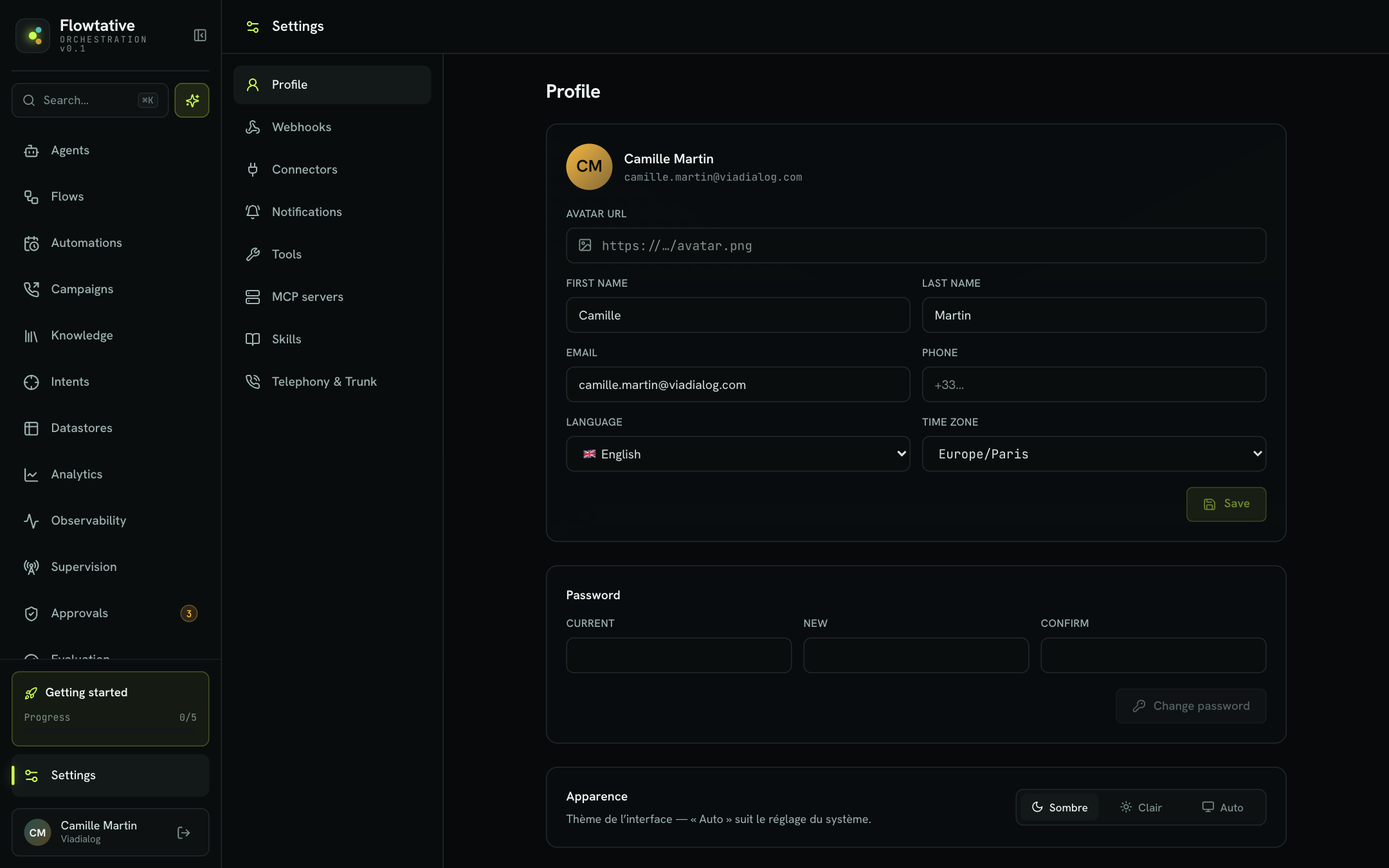
Personal information
| Field | Description | Default value |
|---|---|---|
| Avatar URL | Address of a public image (https://…/avatar.png) used as your profile picture. The cross button next to your name removes the avatar. | Empty (initials) |
| First name | Your first name. | Account value |
| Last name | Your last name. | Account value |
| Contact address of the account. | Account value | |
| Phone | Contact number, preferably in international format (+33…). | Empty |
| Language | Interface language. The change applies immediately, even before you save. 10 languages are available: Français, English, Español, Deutsch, Italiano, Português, Nederlands, Polski, العربية and Русский. | Français |
| Time zone | Your time zone. | Europe/Paris |
Your account's sign-in identifier appears in small type next to your name. The Save button stays greyed out until you change something. Once the save completes, it shows Saved for a moment.
Password
- Enter your Current password.
- Enter the New password, then repeat it in Confirm.
- Click Change password.
The button shows Changed once the change is applied. Two checks run before sending:
- "The password must be at least 6 characters long."
- "The passwords do not match." if the two entries differ.
Appearance
Choose the interface theme: Dark, Light or Auto. Auto follows the light or dark setting of your operating system.
Getting started
The Restart the journey button reopens the guided journey (agent, knowledge, number, test, team). Use it to review the steps or to walk a new colleague through the product.
Connectors
The Connectors tab links Flowtative to your business tools. The top of the tab offers connection cards for your external article bases and for Google Calendar.
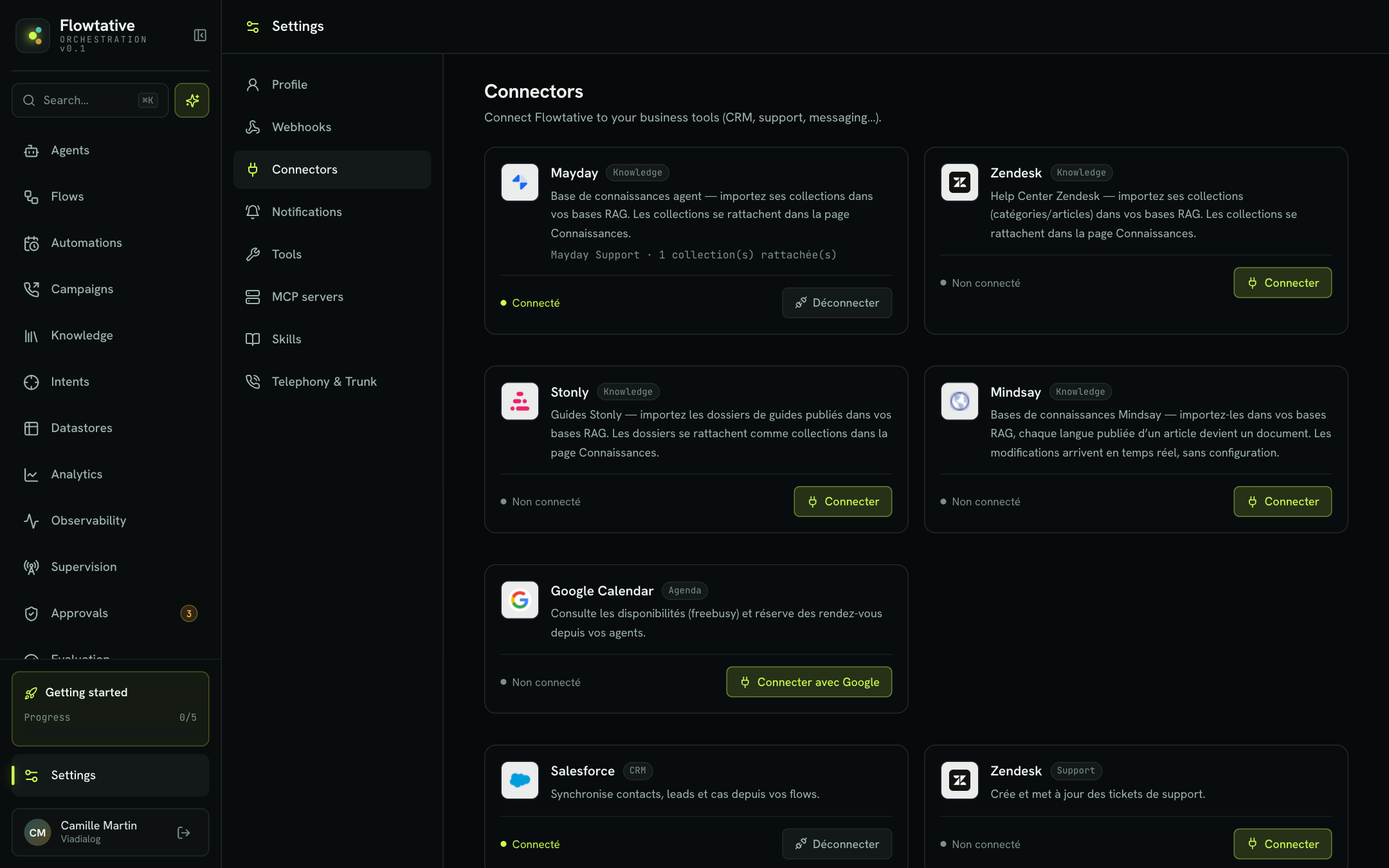
External knowledge bases
Four article sources can feed your knowledge bases: Mayday, Zendesk (Help Center), Stonly and Mindsay. You connect them here. You then choose the collections to import from the Knowledge page.
Important
A connection is always linked to an existing knowledge base. If you have none, the Base to link list shows "No base — create one" and the connection is refused with the message "Create a knowledge base to link first.".
To connect a source:
- On the source card, click Connect.
- Fill in the Integration name (prefilled with the source name).
- Choose the Base to link.
- Enter the requested credentials (see the table below).
- Click Connect Mayday (or Connect Zendesk, Connect Stonly, Connect Mindsay).
| Source | Identifier | Secret | What is imported |
|---|---|---|---|
| Mayday | Client ID | Client Secret | The collections of your Mayday base |
| Zendesk | Email (agent account, e.g. agent@exemple.com) | API token | Help Center categories and articles |
| Stonly | Root folder ID (e.g. 428713) | API key | Published guide folders, linked as collections |
| Mindsay | None: the workspace is recognized from the key | API key (starts with msk_) | Mindsay bases. Each published language of an article becomes a document. |
All fields are required. If one is missing, the message "Name, Client ID and Client Secret are required." (adapted to the source's labels) appears.
Once connected, the card shows Connected, the integration name and the number of linked collections. To remove the source, click Disconnect and confirm "Disconnect and remove all collections?". The imported collections are removed from your bases.
Real-time updates (Mindsay)
Mindsay is the only source whose changes arrive continuously. The card shows one of these states:
| State shown | Meaning |
|---|---|
| Real time | Every change to a published article arrives within seconds. |
| Activating… | The subscription to Mindsay changes is in progress. |
| Syncs only | Real time is unavailable or was refused by Mindsay. Changes arrive at the next synchronization. |
Tip
If you see "A Mindsay key starts with msk_ — check your copy-paste." under the field, the pasted key is probably incomplete or comes from another service.
Google Calendar
The Google Calendar connector lets your agents check availability and book appointments, for example to offer a customer a callback slot.
- On the Google Calendar card, click Connect with Google.
- A new Google tab opens: pick the account and accept the permissions.
- Come back to Flowtative and click Check authorization.
The card switches to Connected and lists each linked account (label and email address). The button becomes Add an account so you can link another calendar, for example a second site's. To remove an account, click the cross to the right of its address.
Note
If your browser blocks the new tab, allow pop-ups for Flowtative and click Connect with Google again.
MCP servers
An MCP (Model Context Protocol) server exposes a catalog of ready-made tools: look up a customer in your CRM, create a ticket, check an invoice… The MCP servers tab lets you declare these servers and turn their tools into Flowtative tools your agents can use.
Add a server
- Click Add an MCP server.
- Under Official servers — customer relations · click to prefill, click a vendor to prefill the name and URL: Salesforce, HubSpot, Intercom, Stripe, PayPal, Square, Atlassian, Zapier or Notion. The More button opens a wider catalog you can filter by category (Linear, Asana, Google Calendar…).
- Complete or adjust the fields.
- Click Add.
| Field | Description | Default value |
|---|---|---|
| Name | Display name of the server (e.g. Salesforce prod). Required. | Empty |
| Authentication type | How to connect to the server (see below). | OAuth · refresh token |
| Server URL · Streamable HTTP | Server address, starting with http:// or https://. Some prefilled URLs contain a part to replace, for example YOUR_ORG_ID for Salesforce. | Empty |
Depending on the Authentication type, extra fields appear:
| Authentication type | Required fields | Optional fields |
|---|---|---|
| OAuth · refresh token | Token host, Client ID, Refresh token | Client secret |
| OAuth · client credentials | Token host, Client ID, Client secret | — |
| API key (header) | API key | Header (default Authorization), Prefix (default Bearer ) |
| Forward user JWT | None: the signed-in user's session is passed to the server | — |
The Add button stays greyed out while a required field is empty or the URL is invalid. When you edit an existing server, saved secrets come back masked (****…). Leave them as they are to keep them.
Manage a server
Each server appears as a card with its authentication type and status:
| Status | Meaning |
|---|---|
| Not tested | The connection has not been checked yet. |
| Authenticated | The server accepted the credentials. |
| Auth failed | The server refused the credentials. The reason appears under the card. |
Available actions:
- Test connection (plug icon): shows "Connection OK" or the error message returned.
- Edit (pencil): reopens the form.
- The switch enables or disables the server.
- Delete (trash can, visible on hover): removes the server immediately, without confirmation.
Beyond a few servers, a search bar filters by name, URL or authentication type.
Turn an MCP tool into a Flowtative tool
- On the server card, click Tool catalog.
- The panel lists the tools exposed by the server. Search by name or description if needed.
- Click Materialize… next to the tool you want.
- Check the identifier, description and parameters in the prefilled form, then save.
Each tool carries a tag:
- passthrough: parameters are taken as the server describes them.
- templated: each property becomes a required text parameter, which you can adjust before saving.
A tool already added shows Added. Materialized tools appear in Settings > Tools (MCP type) and become selectable by your agents. The server card shows how many tools have been materialized.
The Resync button compares your tools with the server's current catalog and summarizes the result: tools restored, updated, missing or degraded, or "No change".
Warning
If a tool has disappeared from the server, it will fail at execution. Detach it from your agents or delete it from the Tools tab.
Notifications
The Notifications tab relates to human approvals: it defines how validators are alerted when a flow is waiting for a decision.
- In-app is always on: a badge appears in the menu and the request joins the queue of the Approvals console. The Browser notifications option adds a system alert, even when Flowtative is in the background. Your browser then asks for permission to show notifications.
On the In-app card, the Send a test button checks the channel. If browser notifications are on and allowed, a test alert appears on your computer.
Best practices
- Give each integration a name that states the environment and use (
Zendesk Support,Salesforce prod). You will find it faster in tool lists. - For an MCP server, click Test connection right after adding it. A credentials error is easier to fix before you have linked tools to your agents.
- After a vendor-side update (a new CRM version, for example), run Resync to spot changed or missing tools.
Learn more
Webhooks
Receive the full transcript of each session on your server, signed to prove where it comes from.
Tools
Create tools, test them, use them in a flow and link them to an agent.
Knowledge bases
Create a knowledge base, feed it with your documents, FAQs, websites and support tools, then check what your agents will find in it.
FAQ and troubleshooting
Find answers to common questions and fixes for the error messages Flowtative can display.