Telephony
Connect your numbers to your voice agents and declare the SIP trunks of your phone system.
The Telephony & Trunk tab of the settings links your voice agents to the phone network. It has two parts:
- Inbound numbers: each number is connected to an AI agent, and the inbound call goes straight to the agent.
- SIP trunks: you declare your company's phone system (PBX) and the numbers routed to it.
To get there, open Settings and then the Telephony & Trunk tab (/settings#telephony).
Before you start
- Create and save the voice agent that should answer. See Create and configure an agent.
- For a SIP trunk, have your PBX's public IP address, port and transport at hand. Your telecom team or integrator knows them.
Inbound numbers
An inbound number is a link between a phone number and an agent. When a customer dials the number, the agent picks up.
Connect a number to an agent
- In the Inbound numbers part, click Connect a number.
- In the 1 · Number slot, type a few digits to filter the available numbers (e.g.
0033186or8676). The search finds numbers that start with these digits and numbers that contain them. - Click the number you want.
- In the 2 · AI agent slot, click Choose an agent… and search for the agent by name.
- The line between the two slots lights up: click Connect.
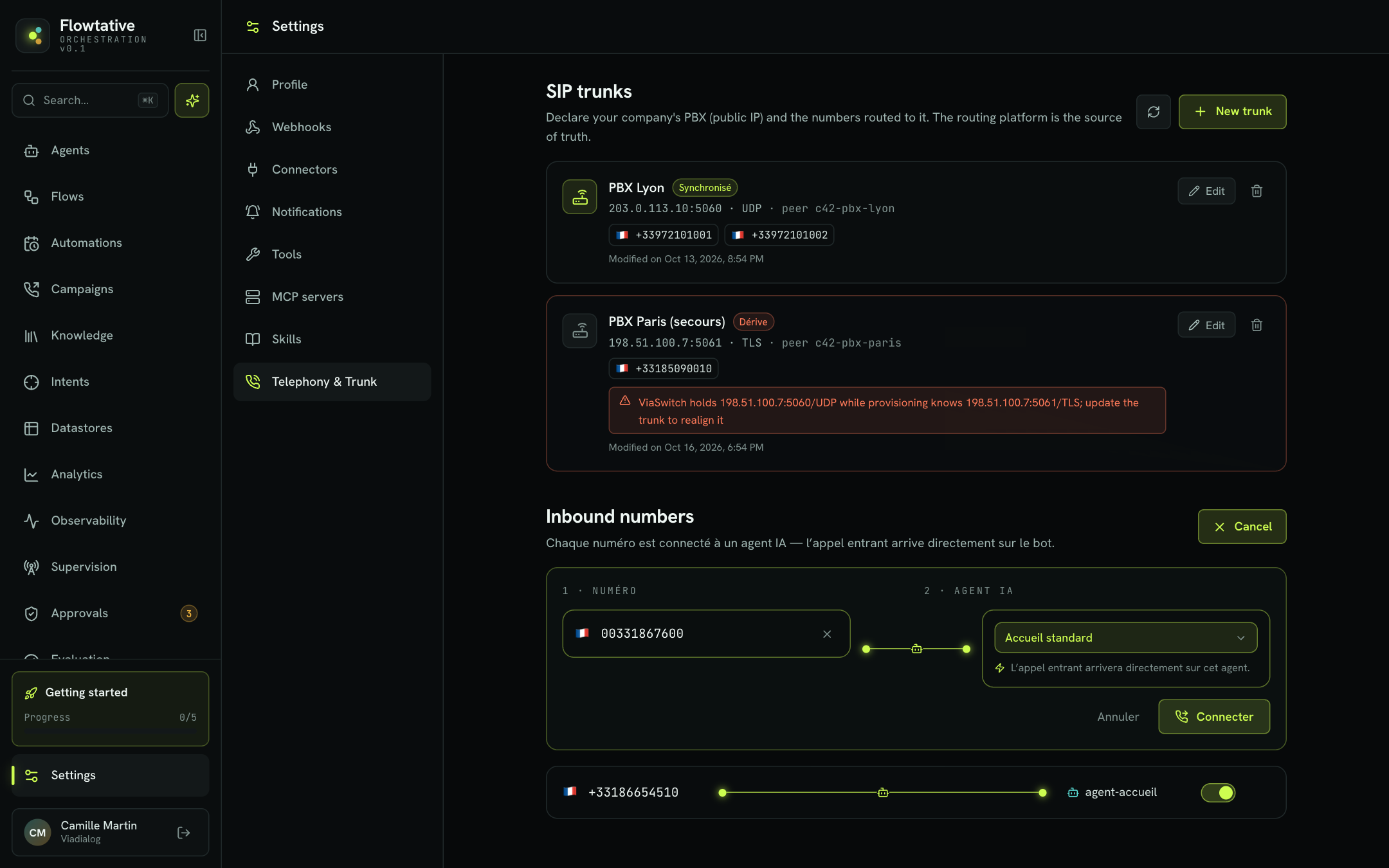
The number appears at the top of the list, linked to its agent. If no number matches your search, the panel shows "No number available.".
Manage connected numbers
Each line shows the number (with its country flag), a connection line and the agent that answers. The line is lit when the link is active and an agent is set.
| Action | How | Effect |
|---|---|---|
| Change agent | Click the agent name, then choose another one | The next calls go to the new agent. |
| Disable / Enable | Line switch | A disabled line appears dimmed. |
| Delete | Trash can (on hover), then Confirm | Removes the link between the number and the agent. |
Tip
To test a new version of an agent without touching the production number, duplicate the agent, connect the copy to a test number, then switch the production number with Change agent once the copy is validated.
SIP trunks
A SIP trunk links the platform to your own phone system. It is used when your numbers are hosted on your PBX: the platform receives inbound calls from its public IP and sends outbound calls to it.
Note
The routing platform is the source of truth. Each trunk shows its synchronization status with it, and this status determines the available actions.
Declare a trunk
- In the SIP trunks part, click New trunk.
- Fill in the fields below.
- Add the numbers to route: click Add a number…, search for one of your company's numbers, then select it. Repeat for each number.
- Click Create trunk.
| Field | Description | Default value |
|---|---|---|
| Label | Trunk name (e.g. Lyon PBX). Required, 256 characters at most. | Empty |
| Transport | SIP transport protocol: UDP, TCP or TLS. | UDP |
| PBX IP | Public IPv4 of the phone system: source of inbound calls, target of outbound calls. Private, local or reserved addresses are refused. | Empty |
| Port | SIP port of the PBX, between 1 and 65535. | 5060 |
| Routed numbers | Your company's numbers (DIDs) routed to this trunk, up to 500. | None |
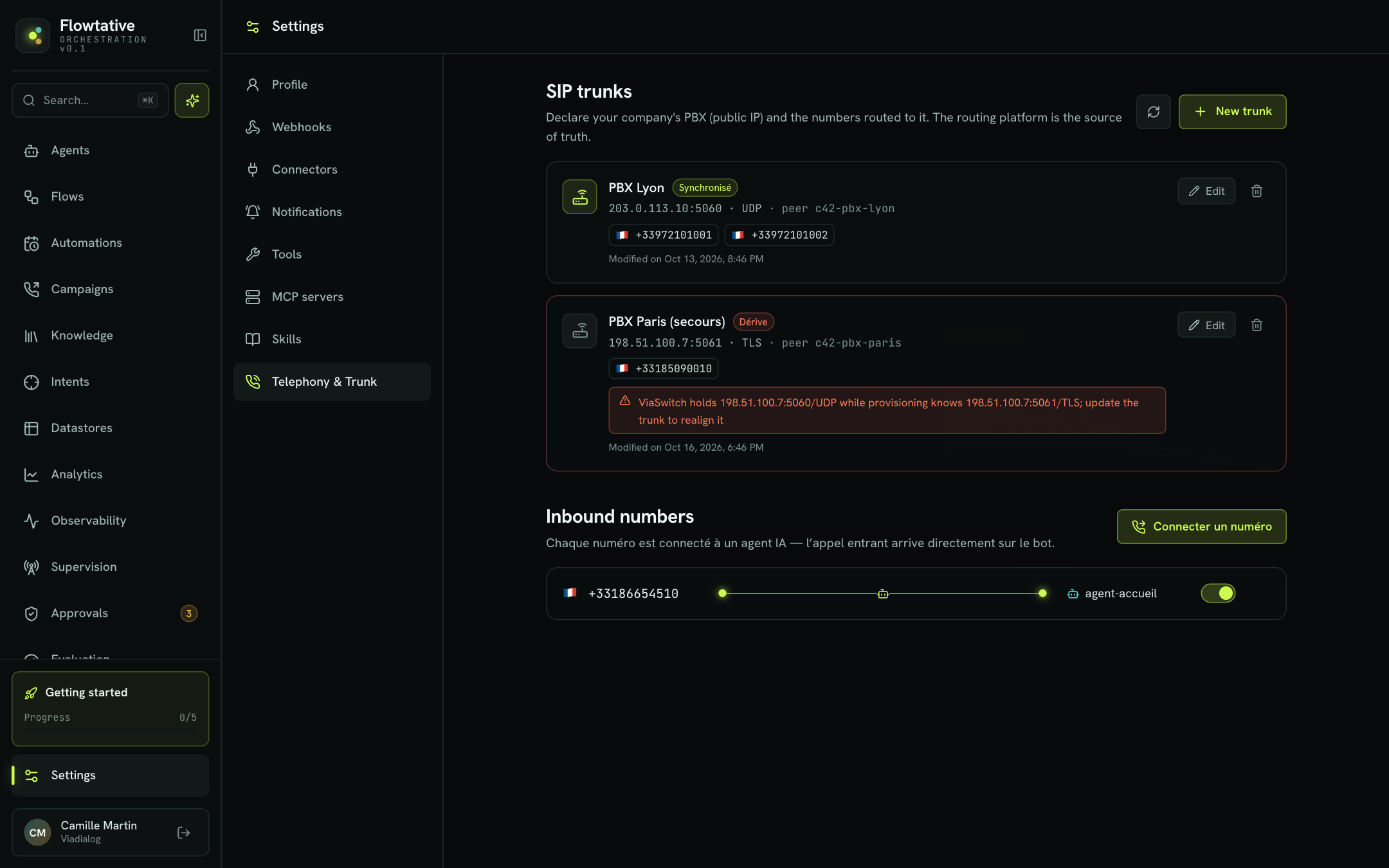
Once created, the trunk shows its address (IP:port · transport), its numbers (the first six, then a counter), the last modification date and, where applicable, its peer name. Give this name to your telecom operations team if they need it for diagnostics.
Synchronization statuses
| Status | Meaning | Available actions |
|---|---|---|
| Synchronized | The routing platform holds the configuration shown. | Edit, delete |
| Drift | The routing platform differs from the known configuration. Details appear in a box. | Edit (realigns the platform), delete |
| Missing from the platform | The trunk no longer exists on the routing platform. | Delete only |
| Creating… | Creation in progress. | None. If the status lasts more than 15 minutes, deletion becomes possible again. |
| Updating… | Update in progress. | None |
| Deleting… | Deletion in progress. | None. If the status lasts more than 15 minutes, you can delete again. |
| Not verified | The routing platform cannot be reached. Values are read-only. | None. Try again later with Refresh. |
Hover over a greyed-out button to see why the action is unavailable.
Edit or delete a trunk
- Edit: the form opens with the current values read from the routing platform. Fix the fields, then click Save.
- Delete: click the trash can, then confirm "Delete this trunk?".
Warning
When editing, the Routed numbers list fully replaces the previous one. A number you remove from the list is no longer routed to this trunk.
Common error messages
Field-related errors appear under the field. Others appear in a banner above the form.
| Message | Cause | What to do |
|---|---|---|
| "Public IPv4 expected (e.g. 203.0.113.10)." | The address is private (10.x, 192.168.x…), local or malformed. | Enter the PBX's public IP, as seen from the Internet. |
| "This IP is already declared on another trunk." | Another trunk already uses this IP. | Edit the existing trunk rather than creating a second one. |
| "A number is already routed to another trunk." | An added number is already routed elsewhere. | Remove it from the other trunk first, or remove it from this one. |
| "Missing permission, or number not belonging to your company." | Your account lacks the required permission, or a number is not part of your fleet. | Check your role with an administrator, or remove the number. |
| "The trunk was modified in the meantime: reload, then resend the change." | Someone else changed the trunk while you were editing. | Click Refresh, then redo the change. |
| "The configuration was changed on the routing platform: resynchronize, then resend the change." | The trunk was changed outside Flowtative. | Click Refresh and check the trunk status before editing. |
| "Routing platform unavailable: try again later." | Temporary unavailability. | Try again in a few minutes. |
| "The routing platform refuses access: retrying is pointless, contact support." | Configuration issue on your workspace. | Contact ViaDialog support. |
| "Session expired — sign in again." | Your session has expired. | Sign in again. |
Best practices
- Name your trunks by site and role (
Lyon PBX,Paris PBX (backup)): the list stays readable when you have several. - After any work on your PBX, click Refresh and check that each trunk is Synchronized. A Drift status is fixed by opening the trunk and saving it.
- Before putting a number into production, call it yourself from a phone: the tester validates the agent, not the call routing.
Learn more
Create and configure an agent
Create an agent from scratch or from a template, then set its model, prompt, capabilities, knowledge, flow and webhooks.
Test an agent
Talk to an agent in writing or by voice, inject test variables and turn on the diagnostic log before going live.
Outbound call campaigns
Understand how an AI agent calls a contact base, with retries, within a legal calling window, and writes the outcome back to each record.
FAQ and troubleshooting
Find answers to common questions and fixes for the error messages Flowtative can display.