Test an agent
Talk to an agent in writing or by voice, inject test variables and turn on the diagnostic log before going live.
The Test the agent panel lets you talk to your agent exactly as your customers will, in chat or in a voice call, without leaving Flowtative. Answers come from the real engine, with the agent's saved configuration.
Before you start
- Save the agent. The tester uses the saved configuration: an unsaved change is not taken into account. Voice testing requires an agent that has already been saved.
- For voice testing, allow microphone access in your browser.
Open the tester
Two paths lead to the tester:
- From the Agents list: hover over the agent's card and click Test.
- From the agent editor: click Test in the header.
The panel opens on the right of the screen. Click outside the panel or on the cross to close it.
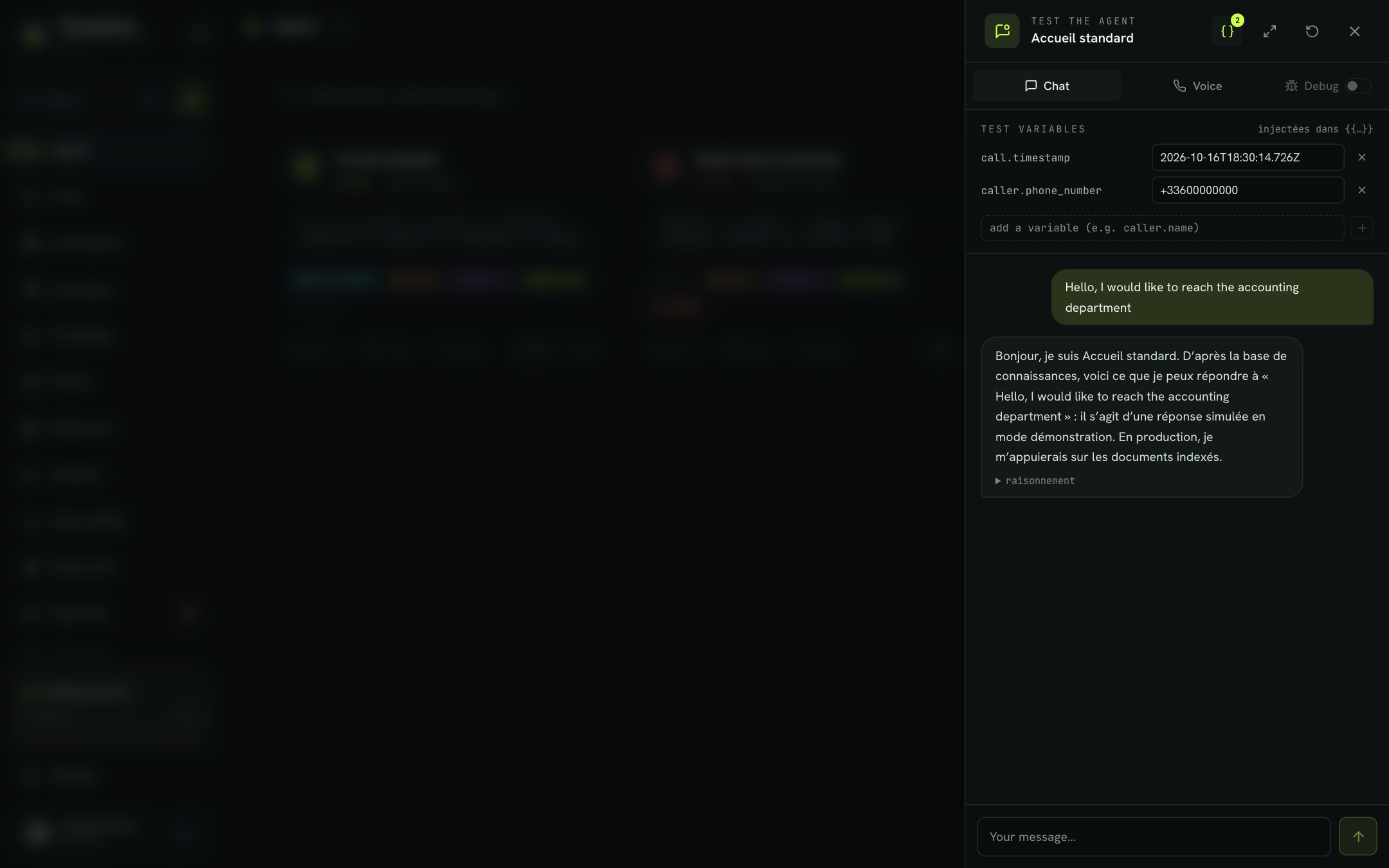
Header controls
| Control | Role |
|---|---|
| Curly-brace icon (Test variables) | Opens the variables panel. A badge shows the number of variables defined. |
| Expand the panel / Back to default width | Switches the panel to full width. You can also drag its left edge; the width is remembered. |
| Reset | Clears the current conversation and starts a new one. |
| Cross | Closes the panel. |
Below the header, the Chat and Voice tabs choose the test mode, and the Debug switch turns on the diagnostic log.
Test in chat
- Stay on the Chat tab.
- Type a message in Your message…, then press
Enteror click the arrow. - The agent's answer appears as it is written.
- If the agent reasoned in several steps, expand reasoning below its answer to see the details.
- To start over, click Reset.
Note
If your flow contains a human approval, the tester shows Waiting for supervisor approval… and blocks input. As soon as a supervisor has decided in Approvals, the conversation resumes on its own with the agent's announcement. See Human approvals.
Full conversation
When the conversation exceeds the agent's budget (with strict memory in particular), the message is not sent: the tester shows the error, the context usage in tokens (for example 8,200 / 8,192 tokens) and a New conversation button. Your message is put back in the input field. To go further, adjust the agent's Conversation window or Memory mode, see Create and configure an agent.
Test by voice
- Click the Voice tab.
- Click Start the call. The button shows Connecting….
- Speak into your microphone. The call status appears above the button.
- The transcript of your words and of the agent's answers appears in the panel.
- Click the red button to hang up. After the call, Call back starts a new call.
| Status shown | Meaning |
|---|---|
| Connecting… | The call is being set up. |
| Listening | The agent is waiting for you to speak. |
| You're speaking… | Your speech is being transcribed. |
| The agent is thinking… | The model is preparing its answer. |
| The agent is speaking… | The answer is being read with the synthetic voice. |
| Call ended | The call has been hung up. |
| Error | The connection failed; the error message appears in the panel. |
Tip
Test the situations that cause trouble on the phone: interrupting the agent while it speaks, reading out a contract number with pauses, speaking in a noisy environment. Then adjust the turn-taking.
Going back to the Chat tab during a call hangs up the call.
Use test variables
Test variables replace the {{variables}} of the prompt and the flow, as a real call would. They let you simulate a specific customer, for example.
- Click the curly-brace icon (Test variables).
- The panel lists the variables detected automatically in the prompt, as well as
caller.phone_numberandcall.timestamp, pre-filled with sample values (test number, today's date, "Testeur" for a name…). - Edit a value directly in its field.
- To add a variable, type its key in add a variable (e.g. caller.name) then click +.
- To remove one, click its cross.
Variables are remembered per agent in your browser: you find them again the next time you open the tester. To learn where values come from on a real call and how to plan for a missing value, see Variables and dynamic data.
Example: to test an order tracking agent, add caller.name = Claire Martin and order_number = CMD-48213, then ask "Where is my order?".
Variables in a voice call
In Voice mode, variables are sent to the call when it starts. Two rules apply:
- The key must be an identifier (letters, digits,
_), optionally dotted (caller.phone_number), with no conflict with another key. A non-compliant key is flagged with a triangle and is not sent. - All variables together must not exceed 16 KB; beyond that, the call does not start.
Debug mode
The Debug switch adds a flow diagnostic log to the conversation transcript: variables, nodes visited, writes. It helps you understand why a flow takes an unexpected branch.
- It is pre-enabled if Debug mode is on in the agent's capabilities.
- It is set before the first message (or before starting the call): once the conversation is under way, it is locked. Click Reset to change it.
Then read the log in Transcripts.
Best practices
- Prepare a list of scenarios: the nominal request, an off-topic question, an unhappy customer, a transfer request. Replay it after every prompt change.
- Test in chat first, then by voice. Chat validates the logic; voice validates pronunciation, pace and interruptions.
- Check edge cases with variables: unknown customer, hidden number, different language.
Learn more
Troubleshooting by symptom
from what you observe to the likely cause.
Configure a callbot's voice
Set the transcription, voice synthesis, pronunciation, turn-taking and end of call of a voice agent.
Write an agent's prompt
a method to improve the prompt scenario by scenario.
Transcripts
Find, read, replay and export your AI agents' conversations, on voice and chat alike.