Tools
Create tools, test them, use them in a flow and link them to an agent.
A tool is an action the AI can trigger during a conversation: query your CRM, check an order status, search a knowledge base, create a ticket. You describe the tool once; it can then be used by all your agents and in all your flows.
Where to manage tools
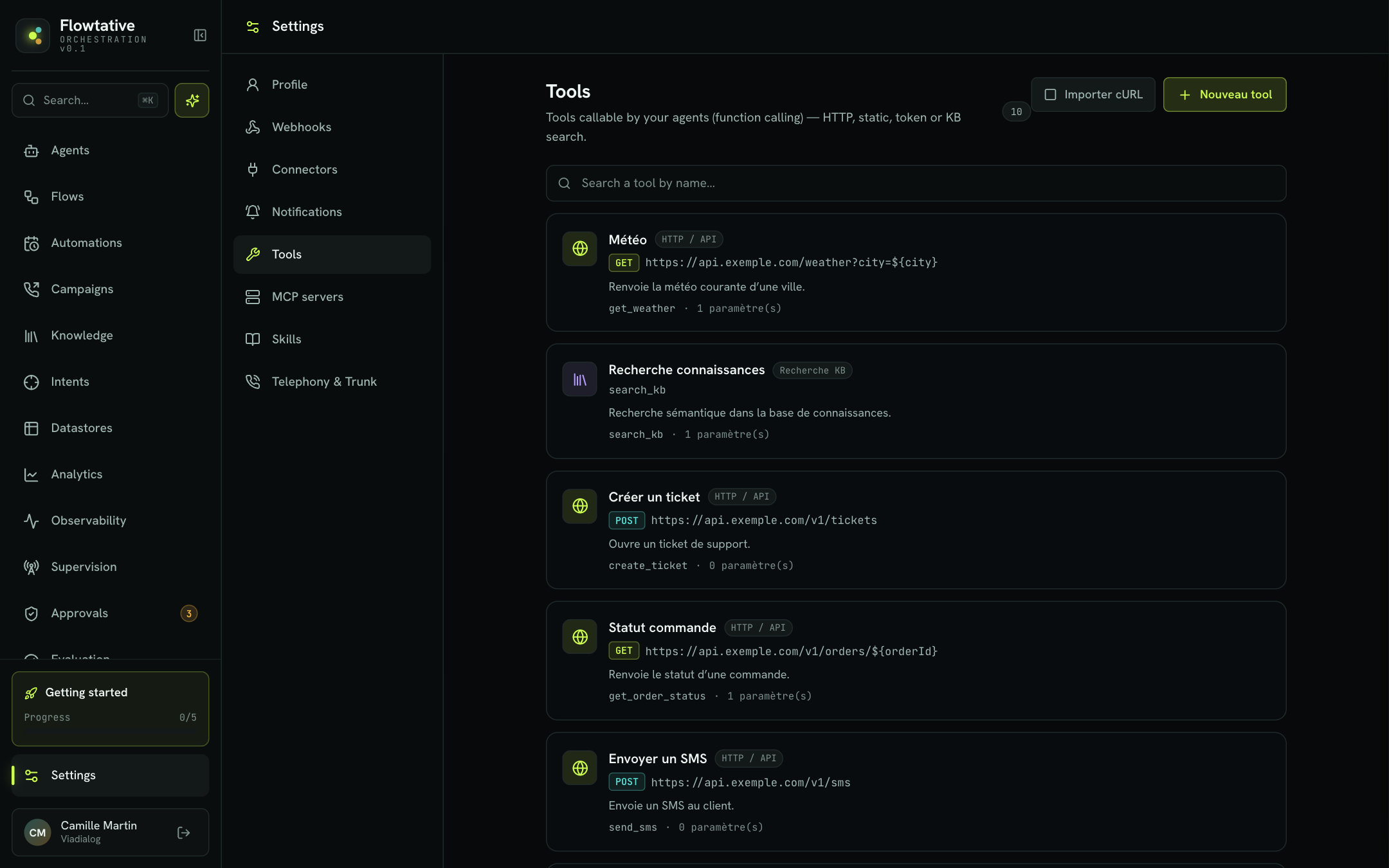
Tools are managed in Settings > Tools: "Tools callable by your agents (function calling) — HTTP, static, token or KB search."
For each tool, the list shows its type, identifier, description, number of parameters and, for an HTTP tool, the method and URL. Search a tool by name… filters the list, shown 8 per page.
Tool types
| Type | Use |
|---|---|
| HTTP / API | Calls an API: method, URL, headers and body. This is the most common type. |
| Static | Tool without an HTTP request: only the function exposed to the AI is configured. |
| KB search | Searches one of your knowledge bases. |
| MCP | Tool coming from a connected MCP server. Its type cannot be changed. |
| Token | Type shown for existing tools; it is not offered at creation. |
Create a tool
- Open Settings > Tools.
- Click New tool.
- Fill in the Name and choose the Type.
- Complete the type-specific configuration (see below).
- In Function (exposed to the LLM), check the identifier, write the Description and declare the Parameters.
- Click Save.
Common fields
| Field | Description | Default value |
|---|---|---|
| Name | The displayed tool name, for example "Order status". Mandatory. | Empty |
| Type | HTTP / API, Static or KB search. | HTTP / API |
| Identifier | The unique technical name called by the AI and by flows. Generated from the name (letters, digits and _), editable. | Derived from the name |
| Description | What the tool does. The AI uses it to decide when to call it. | Empty |
| Parameters | The information the AI must provide. For each: name, type (STRING, NUMBER, INTEGER, BOOLEAN, ARRAY, OBJECT, ENUM), REQ button to make it mandatory, and a description that helps the AI fill it in. | None |
Important
The identifier is the reference used by flows. Once the tool is used in a flow, do not change it anymore: the blocks and functions that refer to it would no longer find it. Respect the case.
HTTP / API tool
| Field | Description | Default value |
|---|---|---|
| Method | GET, POST, PUT, PATCH, DELETE, HEAD or OPTIONS. | GET |
| URL | The called address. Mandatory. Parameters are inserted as ${name}, for example https://api.exemple.com/orders/${number}. | Empty |
| Headers | The HTTP headers, as key / value pairs (Add). | None |
| Body | The request body, with ${name} placeholders. Hidden for GET and HEAD. | Empty |
KB search tool
| Field | Description | Default value |
|---|---|---|
| Knowledge base | The searched base. Mandatory. | None |
| Max results | The maximum number of passages returned. | 5 |
| Min score | The minimum relevance score, between 0 and 1. | 0.3 |
| Search type | Vector, BM25, Normalized BM25, Hybrid or Custom hybrid. | Vector |
| Result format | Text only, Text + source or Full. | Text only |
Tip
For an agent linked to a knowledge base, the search tool can be created and linked automatically. See Connect a base to an agent.
MCP tool
MCP tools come from an MCP server connected in Settings. The drawer shows the Server and the Server-side name, and offers two Execution mode options:
| Mode | How it works |
|---|---|
| Passthrough | Parameters are derived automatically by the MCP server; the AI's arguments are passed to it as is. Requires a compatible tool on the server side. |
| Templated | An Arguments template — JSON builds the arguments. Placeholders ${x} (required) and ?{x} (optional); each placeholder must be declared as a parameter. |
A tool that has disappeared from the server carries the missing badge.
Import from a cURL command
Already have a working cURL command? Start from it:
- Click Import cURL.
- Paste the command in Import from a cURL command.
- Click Generate the tool.
- The creation drawer opens, prefilled: complete the description and parameters, then Save.
Test a tool
- Hover over the tool in the list and click Test (play icon).
- Fill in the Arguments. Mandatory fields are marked with an asterisk.
- Click Run.
- The result shows Success or Failure, and the response received. Copy copies it to the clipboard.
Always test a tool before using it in a flow: it is the fastest way to check the URL, the headers and the response format.
Duplicate, edit, delete
When hovering over a tool:
- Duplicate opens the drawer with a copy: the name is followed by "(copy)" and the identifier by
_copie. Adjust them before saving; - Edit (or a click on the card) opens the edit drawer;
- Delete removes the tool.
Warning
Deletion is immediate, with no confirmation prompt. Check beforehand that no flow or agent uses the tool.
Use a tool in a flow
A flow can call a tool in three ways.
| Method | When the tool runs | If the tool cannot be found |
|---|---|---|
| Function of a Trigger or LLM agent block, named after the tool identifier | When the AI decides to call it | The function only acts as a transition, without running a tool |
| MCP tool block | As soon as the block is entered, without the AI | The flow fails on load |
| SMS, Email, Datastore blocks | As soon as the block is entered, without the AI | The flow fails on load |
Through a function
- In an LLM agent block, click + Function.
- In the name field, pick the tool identifier from the suggestions.
- Write the When to call it? description.
- If needed, open the detail to store the tool's return in a state write, for example
set parameters.status ← result.status. - Choose the Output: stay on the block, or move to the next step.
Through an MCP tool block
Drop an MCP tool block, click Choose a tool…, then Generate args. Link its Result output to the next block. See MCP tool.
Tools of the SMS, Email and Datastore blocks
Each of these blocks uses a dedicated tool. The configuration panel warns you if the required tool does not exist in your workspace. For a Datastore block, the Create the tool now button creates it in one click.
Link tools to an agent
For an agent to be able to call a tool:
- Open the agent and its Capabilities section.
- Turn on Tool calls.
- Under Linked tools, click Link a tool or a capability.
- Search for the tool and select it.
- Save the agent.
Each linked tool shows a status: Linked (found), Built-in (native capability), To create (no tool with this identifier, Create the tool button), Error (could not be loaded, Retry button; the tool may exist, do not recreate it).
Flow tools added automatically
When you link a flow to an agent (Linked flow section), Flowtative detects the tools this flow calls and attaches them to the agent:
- a banner says "A tool used by the linked flow has been attached" (or the number of tools), with their identifiers;
- Tool calls is turned on;
- save the agent to apply the attachment.
If the flow calls a tool that cannot be found, a second banner reports it: the tool is not attached and the flow will fail at that block as long as it does not exist. Create the tool, or fix the block in the flow.
Note
Detaching the flow does not remove the attached tools: they remain adjustable by hand in Linked tools.
Best practices
- Describe the tool from the AI's point of view: "Returns the status and delivery date of an order from its number" rather than "Orders API".
- Describe each parameter, with a format example ("8-digit number, e.g. 12345678").
- One tool, one action. Prefer two simple tools to one all-purpose tool.
- Do not change the identifier of a tool already used in a flow.
Learn more
Block reference
The role, fields and a usage example for each block type of the flow editor.
Create an agent
Create an agent from scratch or from a template, then set its model, prompt, capabilities, knowledge, flow and webhooks.
Save and publish
Save a flow, manage its versions, link it to an agent, make it autonomous and export it.
Connect a base to an agent
Give an agent access to a knowledge base, in chat and on voice calls, through the search tool added automatically.