Create a campaign
Launch an outbound call campaign in three steps with the creation wizard, from picking the agent to the test call.
The creation wizard guides you through three steps: Who calls, Who is called and When. At each step, the left pane holds your choices and the right pane shows their effect: a preview of the opening line, the verified audience, then an estimate of how the campaign will unfold.
Before you begin
Prepare three things:
- A tested agent whose prompt uses record columns, for example: "Bonjour ${contact.prenom}, je vous appelle pour confirmer votre rendez-vous du {{rdv_date}} à {{rdv_heure}}." See Create an agent.
- A contact base: a Datastore of the Contact base type, imported from a CSV, with at least one phone-type column. See Datastores.
- A number available on your account, to show to contacts (not a 06/07 mobile).
Open the wizard
- In the menu, click Campaigns (shortcut
GthenC). - Click New campaign at the top right.
The wizard opens in a side panel. The step trail at the top shows your progress; you can go back to a previous step at any time, and only move forward once the current step is complete.
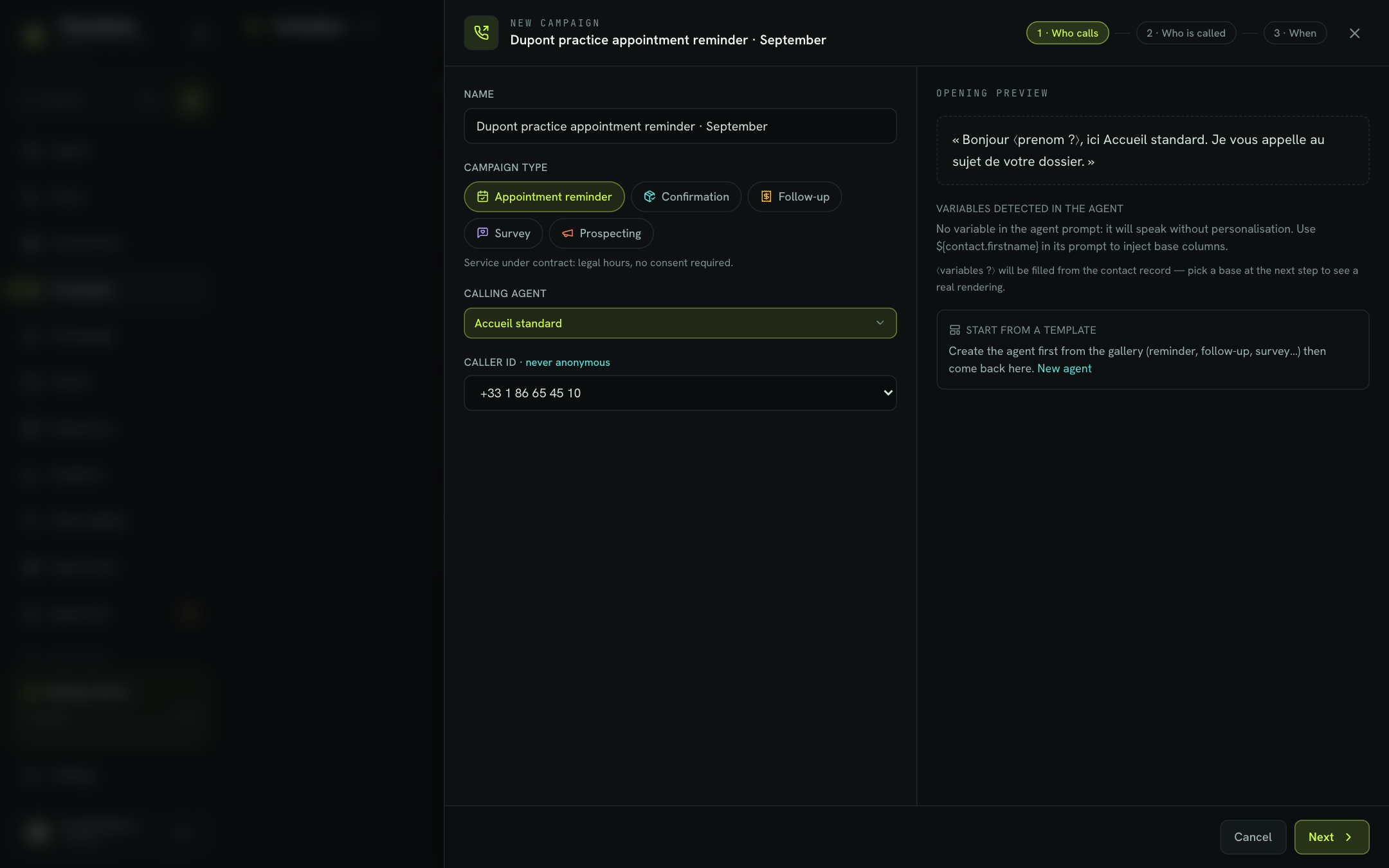
Who calls
| Field | Description | Default |
|---|---|---|
| Name | Campaign name, shown in the list. Example: "Appointment reminders · September". | Empty (required) |
| Campaign type | Appointment reminder, Confirmation, Follow-up, Survey or Prospecting. A reminder of the legal framework appears below. | Appointment reminder |
| Calling agent | The AI agent that places the calls. Search by name. | None (required) |
| Caller ID · never anonymous | The number shown to the contact, picked from the numbers on your account. Only numbers valid in international format are listed. | None (required) |
The number is checked as soon as you pick it. A message stops you if the number is a mobile ("A mobile number (06/07) cannot be shown on an outbound call.") or if, for prospecting, it does not carry a dedicated ARCEP prefix.
The right pane shows the Opening preview: the first sentence of the agent's prompt that starts with "Bonjour", with variables filled in from the first valid record of your base. Until a base is picked, variables stay displayed as ⟨prenom ?⟩. Below the preview, Variables detected in the agent lists the columns the agent expects.
Tip
If the preview says "No variable in the agent prompt", the agent will speak without personalisation. Add ${contact.prenom} (or any other column) to its prompt to inject record data. See Data from a contact base.
Click Next.
Who is called
| Field | Description | Default |
|---|---|---|
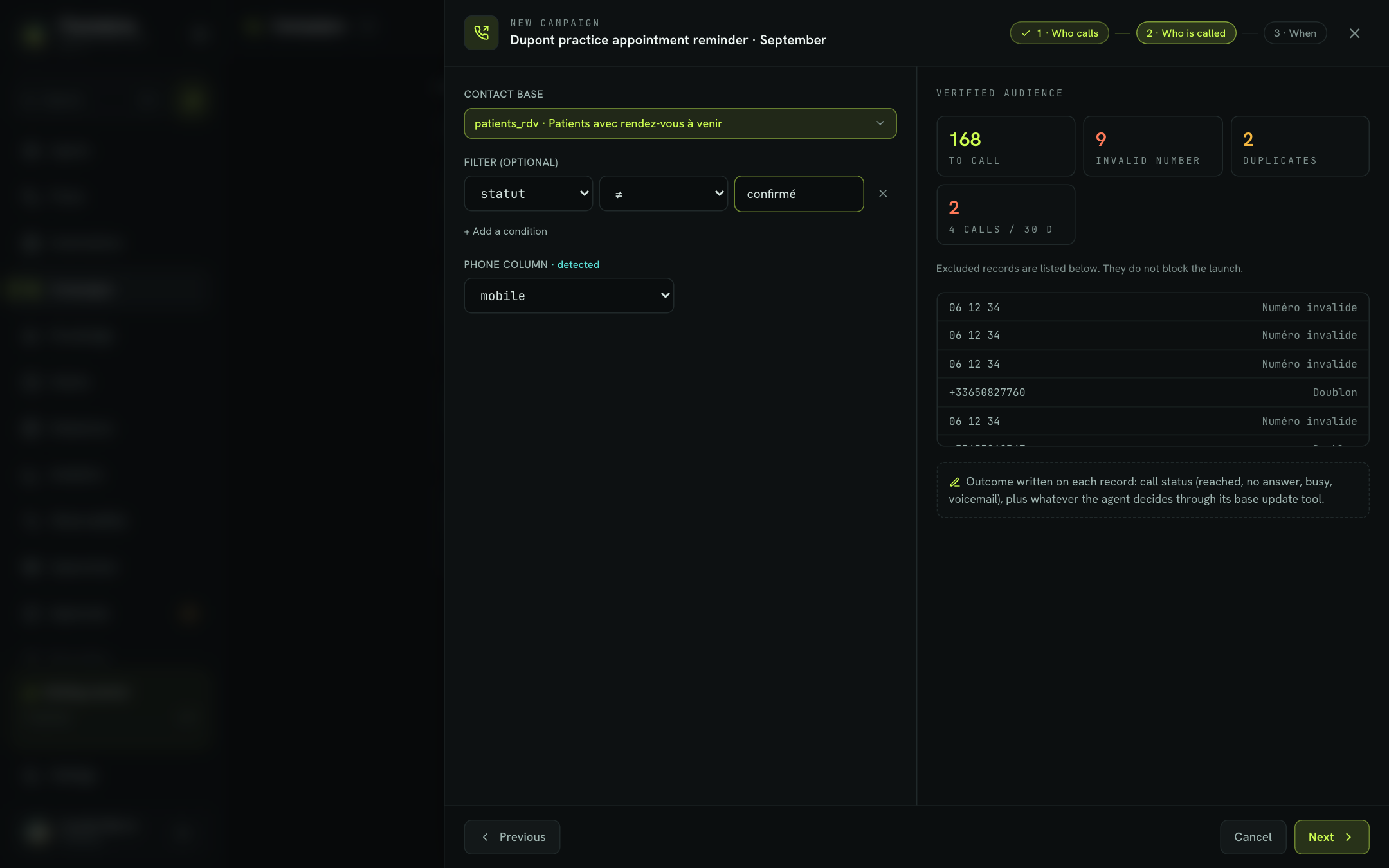
| Contact base | The Datastore of the Contact base type to call. | None (required) |
| Filter (optional) | One or more conditions to keep only part of the base. Each condition combines a column, an operator (=, ≠, >, ≥, <, ≤, contains, starts with, ends with) and a value. All conditions must be true. | No filter |
| Phone column · detected | The column holding the number to call, detected among phone-type columns. | First phone column |
| Consent column | Prospecting only. The column that proves the contact's agreement. Records without a positive value are excluded. | Column whose name suggests consent (consentement, optin…), otherwise none |
Click Add a condition to create a filter. A condition without a value is ignored.
Example. To call only patients who have not confirmed yet, filter on statut ≠ confirmé.
Read the verified audience
Each time the base or filter changes, the right pane recalculates the Verified audience:
| Counter | Meaning |
|---|---|
| to call | Records kept: they will be called. |
| invalid number | The number is missing or malformed. |
| duplicates | The same number appears on an earlier record: only the first one is called. |
| 4 calls / 30 d | The number has already been called 4 times over 30 days. |
| no consent | Prospecting only: no positive value in the consent column. |
Excluded records are listed below the counters with their reason. They do not block the launch. On large bases, the analysis covers the first 500 records, and the wizard says so.
Note
The outcome is written on each record: call status (reached, no answer, busy, voicemail), plus whatever the agent decides through its base update tool.
The Next button is only enabled if at least one record is to call and, for prospecting, if a consent column is selected.
When
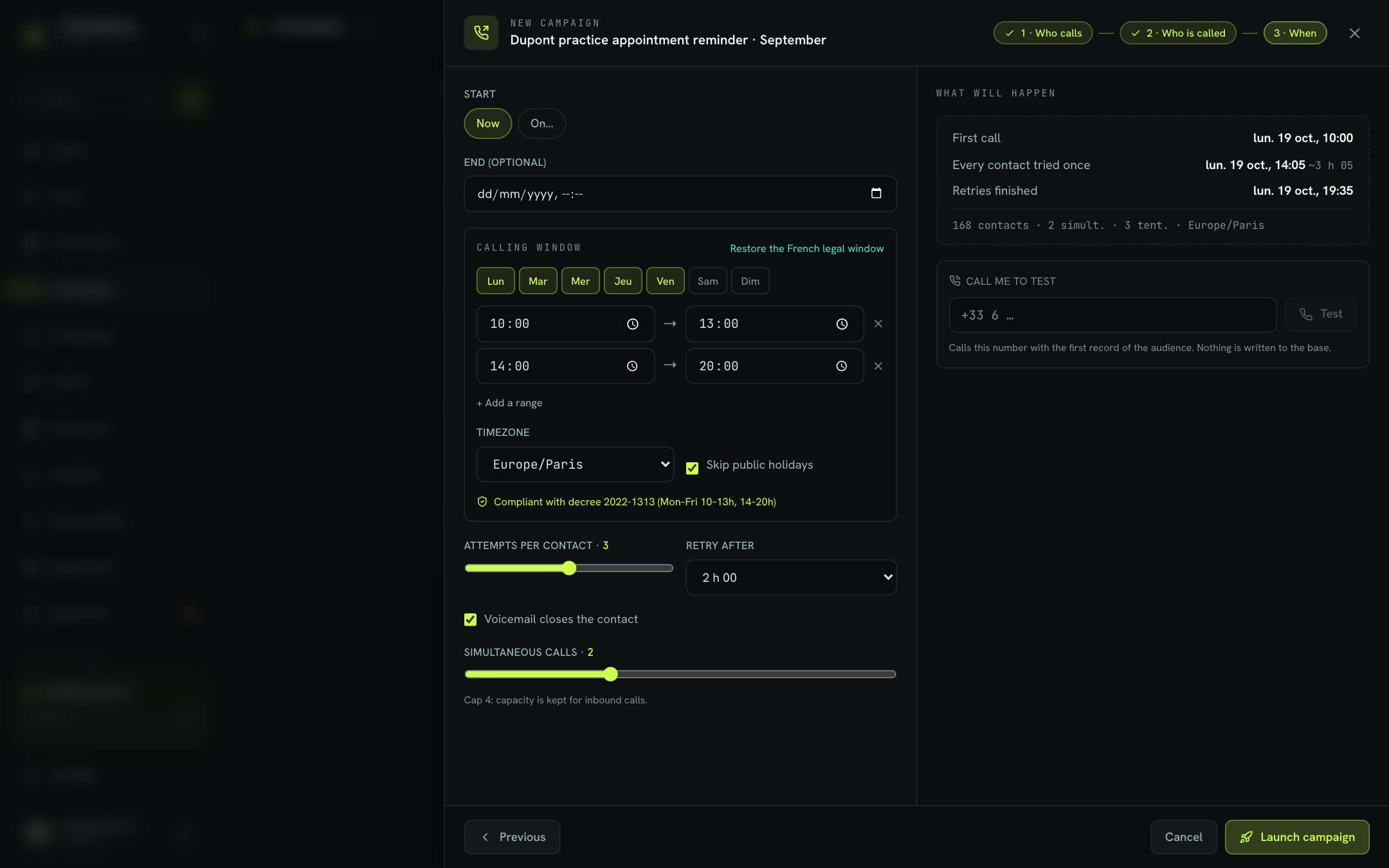
| Field | Description | Default |
|---|---|---|
| Start | Now, or On… followed by a date and time. | Now |
| End (optional) | Date and time after which the campaign stops calling. | None |
| Calling window | Allowed days (Mon to Sun) and time ranges. Add a range creates an extra range. | Mon–Fri, 10:00–13:00 and 14:00–20:00 |
| Timezone | Time zone of the window. | Europe/Paris |
| Skip public holidays | No calls on French public holidays. | Checked |
| Attempts per contact | Maximum number of calls per contact, from 1 to 5. | 3 |
| Retry after | Delay before a new attempt: 30 min, 1 h 00, 2 h 00, 4 h 00 or 24 h 00. | 2 h 00 |
| Voicemail closes the contact | Checked: voicemail ends the contact. Unchecked: it triggers a retry. | Checked |
| Simultaneous calls | Number of calls handled in parallel, from 1 to 4. | 2 |
The Restore the French legal window link resets the default window in one click. Below the window, an indicator tells you whether it is still within legal hours.
Warning
The legal cap is 4 attempts per number over 30 days. Above 4 attempts per contact, you risk exceeding that cap.
What will happen
The right pane estimates how the campaign will unfold, based on the audience, the window and simultaneous calls:
- First call: the first callable moment after the start;
- Every contact tried once: the estimated end of the first pass, with its duration;
- Retries finished: the estimated end, retries included (if more than one attempt).
This is an estimate, based on an average call duration. If the window contains no callable moment within 21 days, the wizard shows "No callable slot within 21 days: add a day or a range." and launching is blocked.
Place a test call
Before launching, have the agent call you:
- In Call me to test, check the suggested number (the one from your profile, if set) or type your own.
- Click Test.
- Wait for the "Test call started." message and pick up.
The test call is a single call, with no retry, and nothing is written to the base. If the call is refused, the error message appears below the field.
Launch the campaign
- Click Launch campaign.
- Flowtative creates the campaign, applies its retry rules and caller ID, then starts it.
- You land on the campaign page: it is Running, or Scheduled if you picked a later start.
No call starts until everything is in place. If a step fails, the campaign is created Paused and a message says what remains to be done, for example picking the caller ID from its page.
Important
After launch, the agent, base, filter, window and retry rules are locked. Only the name, caller ID, simultaneous calls, attempts and end date can still be changed through Settings. To change the rest, duplicate the campaign.
Duplicate an existing campaign
Duplicate (in the list or on a campaign page) reopens the wizard prefilled with all the settings of the original campaign. The name gets the suffix "(copie)", and the start and end dates are cleared. This is how you restart a closed campaign or change its window.
Learn more
Outbound call campaigns
Understand how an AI agent calls a contact base, with retries, within a legal calling window, and writes the outcome back to each record.
Track and manage a campaign
Track a campaign's progress, view each contact's details, reset a contact, change settings, close or delete.
Datastores
Create structured data tables, define their fields, import your CSV files and make them available to your agents and flows.
Test an agent
Talk to an agent in writing or by voice, inject test variables and turn on the diagnostic log before going live.