Transcripts
Find, read, replay and export your AI agents' conversations, on voice and chat alike.
The Transcripts page keeps the history of your agents' conversations: the text of every exchange, tool calls, the audio recording of calls and, for flows, the diagnostic log. Open it to handle a customer complaint, check what an agent actually said or understand why a call was handed off.
Open it from the sidebar, Transcripts entry.
Before you start
Two agent options, in the Capabilities section of its configuration, determine what you will find here (see Create an agent):
| Option | Effect on transcripts |
|---|---|
| Call recording | Records call audio on two tracks (caller and bot). Voice agents only; also requires enabling on the platform side. Set its Retention (days) if needed. |
| Debug mode | Adds the flow's diagnostic log to the transcript: variables, node entries, variable writes. This log contains the conversation's variables, and therefore potentially personal data. |
Find a conversation
The left column lists sessions, newest first, 12 per page. Its header shows Sessions · N, the number of sessions matching the filters.
| Filter | Location | Description | Default |
|---|---|---|---|
| Agent | Page header | Restricts the list to one agent. | All agents |
| Session window | Column header | Last 30 days or 1000 most recent (the 1,000 most recent sessions, whatever their date). | Last 30 days |
| Search | Below the column header | Searches the session id, the bot name and the conversation text, case and accent insensitive. | Empty |
| Channel | Below the search | All, Voice or Chat. | All |
Your filters and the current page are kept when you open a conversation and go back to the list, or when you reload the page. The Reset button in the header appears as soon as a filter is active and restores the defaults.
Each row in the list shows a channel icon (phone or bubble), the full session number, the duration, the first line, the agent name and the date.
Tip
Use the ↑ and ↓ arrow keys to move from one conversation to the next without leaving the list.
Note
With the Last 30 days window, at most 5,000 sessions are loaded. If you reach this limit, filter by agent or channel to go further back.
Each conversation has its own address: you can copy the browser URL to share it with a colleague.
Read a conversation
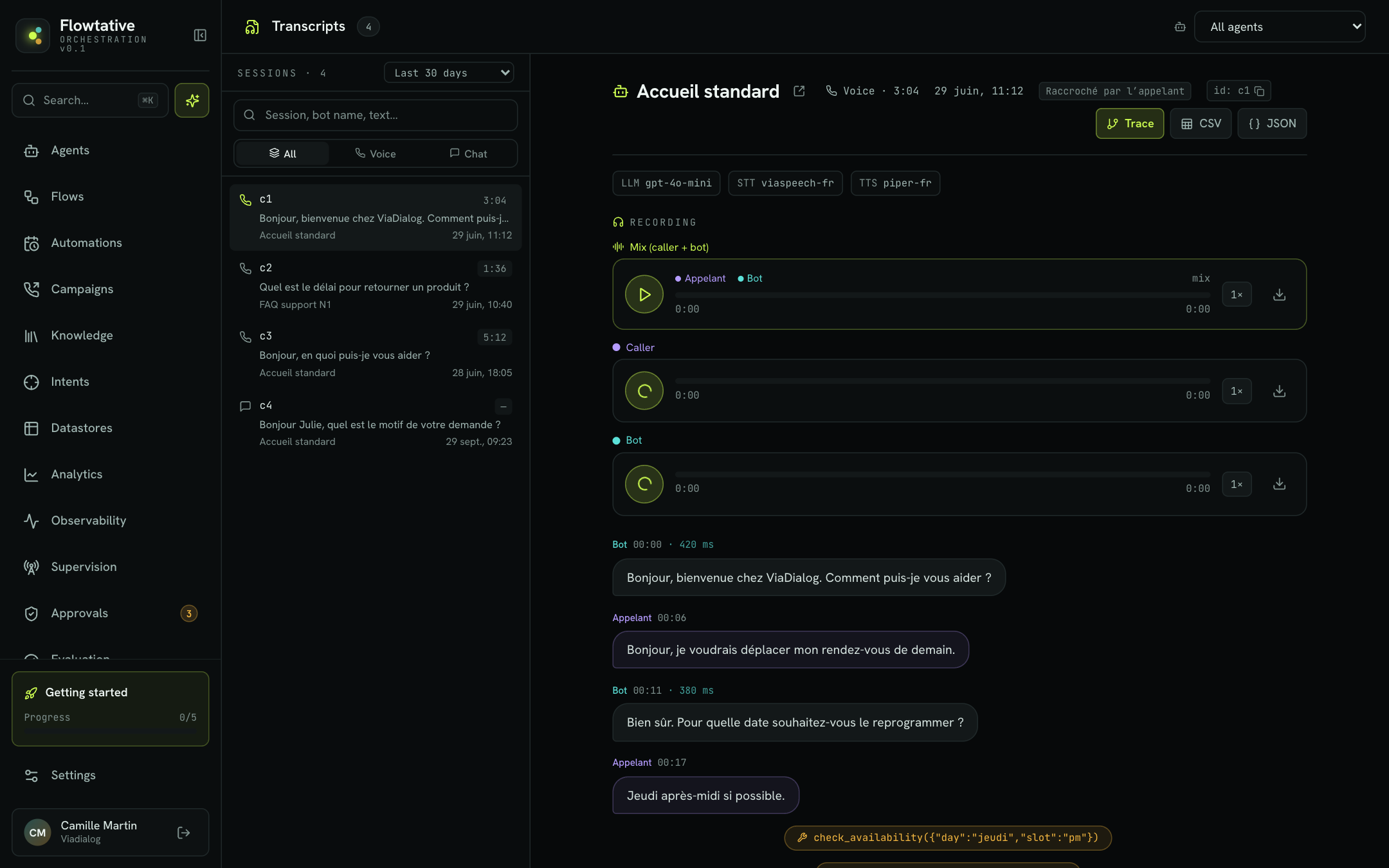
Header
| Element | Description |
|---|---|
| Agent name | Followed by a button that opens the agent's configuration. |
| Channel and duration | Voice or Chat, and the conversation duration. |
| Date | Conversation date and time. |
| End reason | For example Hung up by caller, Completed, Transferred, Error or Inactivity. |
id: | Session identifier; click to copy it. Useful when talking to support. |
| Trace | Opens the technical breakdown of the exchange (see Observability). |
| CSV | Exports the lines as CSV (columns time, speaker, text, response delay in milliseconds). |
| JSON | Exports the full conversation as JSON. |
Below the header, tags show the building blocks used: LLM (language model), STT (speech-to-text) and TTS (text-to-speech).
Depending on the conversation, two boxes may follow:
- Summary: a synthesis of the conversation;
- Start variables: the variables passed when the conversation opened (for example the customer's first name and number), in debug mode.
Lines
| Element | Description |
|---|---|
| Bot | The agent's answer. The delay before the answer is shown in milliseconds next to the time. |
| Caller | What the customer said or wrote. |
| Advisor | A line from a human advisor, aligned right. |
| Keypad input | Keys pressed by the caller on their phone keypad, shown one by one. |
| Tool chip | A tool call (wrench) or the returned result (arrow). |
Hover over a line to reveal the copy button.
Replay a call
When the recording is available, the Recording section offers three players:
| Player | Content |
|---|---|
| Mix (caller + bot) | Both voices together, as the call happened. |
| Caller | The customer's voice only. |
| Bot | The agent's voice only. |
Each player lets you seek through the recording, change the playback speed (1×, 1.5×, 2×) and download the audio as WAV.
The bot's voice is realigned to the actual call duration before playback; a message about aligning the bot's voice to the call duration appears during this step. If it fails, the bot track plays without the silences between its turns.
Line-by-line listening
When the conversation allows it, each line offers two buttons next to the speaker's name:
- Listen to this passage plays the line in the mix; the bubble being heard is highlighted;
- Download this passage saves the line as WAV, extracted from the track of the person speaking (without the other party).
Example: for a complaint like "the agent gave me the wrong time", find the session by the customer's number, listen to the relevant line and download it to attach it to the case.
If no recording exists, the page states that no recording is available for this conversation.
Flow diagnostic log
For conversations opened in debug mode, the thread inserts the flow's internal steps between the lines, in chronological order.
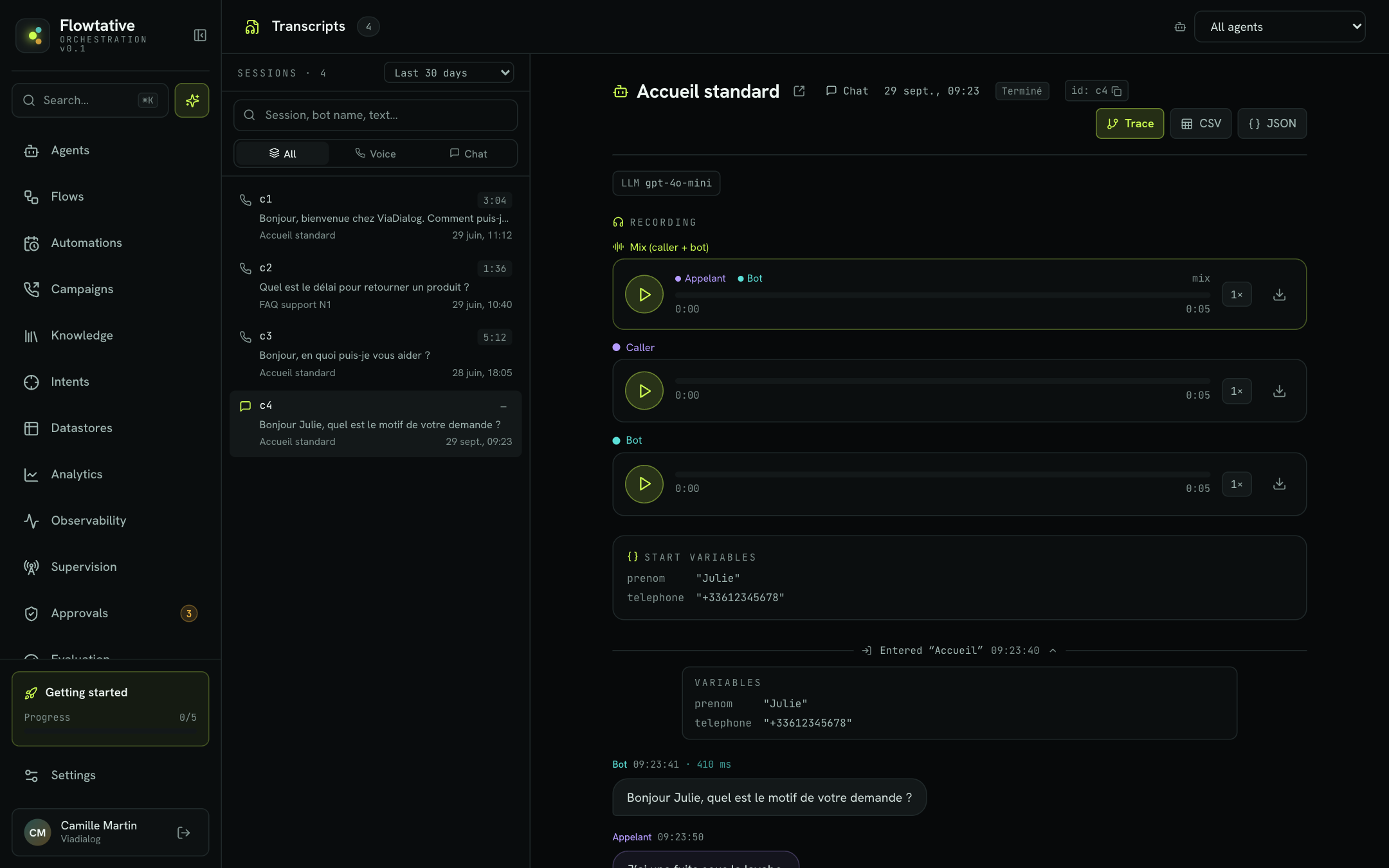
| Line | Description |
|---|---|
| Entered "Node" | The flow entered this node. Click the line to show the Variables known at that moment. |
| Variable write | A tool changed a variable: the line shows the tool name, the variable and its new value, or the deleted label. |
| Warning (orange) | An anomaly detected during the conversation, for example a variable used in a prompt but missing when entering the node. |
Warnings appear as soon as the agent's audit log is on; node entries and variable writes, in debug mode.
Important
The diagnostic log and exports contain the data exchanged during the conversation, including any personal data. Share them with the same care as a customer file.