Human approvals
Handle the approval requests a flow submits to a human before going on, from the Approvals console.
Some decisions should not be taken by an agent alone: a refund, a commercial gesture, a cancellation. A flow's Human validation block then puts the conversation on hold and submits the decision to a supervisor. The Approvals console gathers these requests: you read the context, fill in the decision form and the flow resumes with your answer.
How an approval works
- In a flow, the agent reaches a Human validation block.
- The conversation goes on hold and a request appears in the Approvals console. The menu shows the number of pending requests.
- Validators are alerted in Flowtative (see the "Get alerted" section below).
- A supervisor opens the request, reads it and sends a decision.
- The flow resumes through the Decision received output, with the values entered. Without a decision within the set delay, it takes the Timeout output.
The content of the request (title, guideline, context, form fields, delay) is defined in the block. See Block reference.
Example. A customer calls after-sales about a faulty headset. The agent finds the 49 € order and passes it on. The supervisor sees the guideline "Check that the order is eligible (less than 30 days) before approving", the purchase date and the amount, picks APPROUVER and sends. The agent tells the customer the refund is approved.
The request queue
- In the menu, click Approvals.
- Pick the Pending tab (default) or Processed.
The header shows "N pending". The queue refreshes every 10 seconds; the Retry button reloads it immediately.
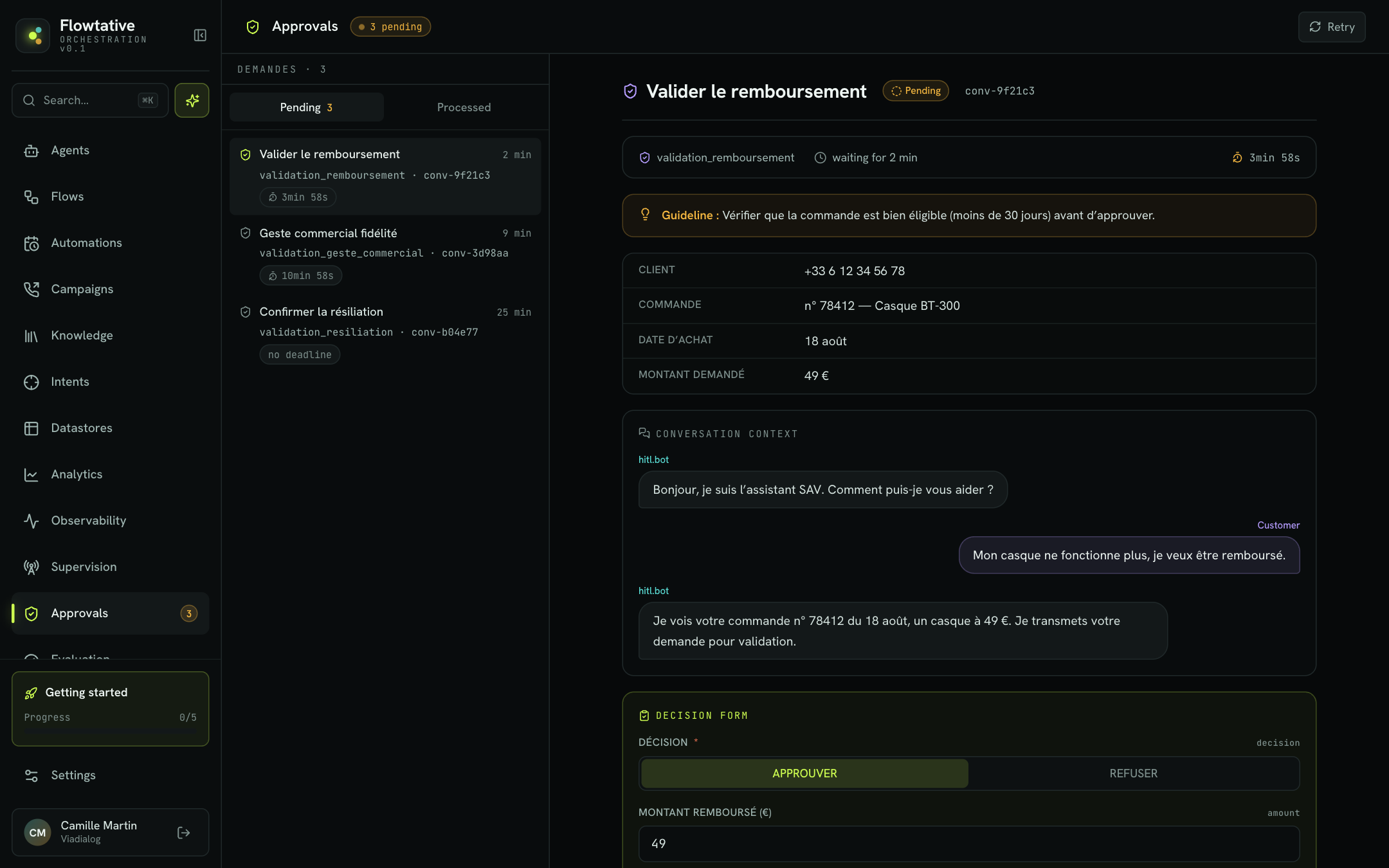
Each pending request shows:
| Element | Content |
|---|---|
| Title | The title set in the block, for example "Valider le remboursement". |
| Age | Time elapsed since the request was put on hold. |
| Origin | The block ID and the conversation ID. |
| Deadline | A countdown, no deadline if the block has no delay, or Expired. The countdown turns to a warning in the last minute. |
Handle a request
Click a request to open it. The details consist of:
- the header: title, Pending status, conversation ID;
- the origin: source block, "waiting for …", time left;
- the Guideline: what the flow expects from the validator;
- the context: the information prepared by the flow (customer, order, amount…). Lists show as tags, objects as rows; an icon lets you copy the raw value;
- Conversation context: the exchange between the customer and the agent so far, technical steps included;
- Decision form: the fields to fill in.
Fill in the decision form
Fields are prefilled with the values suggested by the flow. An asterisk marks a required field.
| Field type | Input |
|---|---|
| Choice among 2 or 3 values | Side-by-side buttons, for example APPROUVER / REFUSER. |
| Choice among more than 3 values | Drop-down list. |
| Yes / No | Toggle. |
| Number or integer | Numeric field, with min and max bounds shown. |
| Text | Single-line field, or multi-line area for long text. |
If the block declares no field, the request shows "No fields — this validation is a plain approval."
Click Send decision.
After sending
The Decision sent banner tells you what happens next:
- The bot replied to the customer, with the message spoken or written by the agent;
- The conversation has ended, The conversation continues, or New validation pending if the flow asks for another approval.
Click Back to queue to move to the next request.
Possible errors
| Message | Cause | What to do |
|---|---|---|
| "The form was refused — fix and resend:" | A value breaks the field's rules (required, bound, length). | Fix the listed fields and resend. The request stays pending. |
| Already handled | Another supervisor decided before you, or the delay expired. | The queue reloads automatically; move to the next request. |
| "Could not load the form — the validation may have been handled. Refresh the queue." | The request is no longer available. | Click Retry. |
Processed requests
The Processed tab lists approvals that were decided or expired. For a decided request, the details show Decided by followed by the validator's name, the age and the values sent. For an expired request: "Validation deadline passed — the flow took the Timeout branch."
Note
On some environments, the processed-approvals history is not available yet; the tab says so.
Get alerted
Alerts are set in Settings > Notifications (see Settings and connectors):
| Channel | How it works |
|---|---|
| In-app | Badge in the menu and queue in the Approvals console. Always on. |
| Browser notifications | System alert, even when Flowtative is in the background. Your browser asks for permission the first time. |
Best practices
- Write an actionable Guideline: the decision criterion, not just the topic.
- Show in the context everything needed to decide, so no one has to open another tool.
- Set a delay suited to the channel: a few minutes for a customer on the line, longer for an automation with no one on the other end. Plan in the flow what the agent says on the Timeout output.
- Prefill the most frequent decision to save time, while keeping the field editable.
Learn more
Block reference
The role, fields and a usage example for each block type of the flow editor.
Automations
Run an agent without inbound interaction, on a schedule or when an external system asks, and track its run history.
Supervision
Follow your AI agents' ongoing calls and conversations in real time, line by line.
Transfer to an advisor
approval timeout and other ways to bring in a human.