Collect information
Have the AI collect information during the conversation, store it, save it to a database and find it again after the call.
A contract number, the reason for a call, a satisfaction score: the caller gives this information as the conversation goes. For it to be useful, the AI must collect it in a precise form, the flow must keep it, and it must end up somewhere: a database, the end of the session, your CRM.
This page follows a piece of information from the caller's mouth to your systems. The variable syntax ({{…}}, fallback values, paths) is described in Variables and dynamic data.
The path of a piece of information
| Step | Mechanism | What it does |
|---|---|---|
| Collect | Arguments of a function | The AI fills in the parameters of the tool it calls, for example contract_number. |
| Keep | State writes | The function stores the argument or the tool's return in a flow variable, for example parameters.contract_number. |
| Save | Datastore block or a tool generated from a base | The value is written to one of your databases. |
| Pass on | End parameters of the Hang up block | The value is attached to the session when the conversation ends. |
| Send | End-of-session webhook | The session's full transcript goes to your server. |
You don't need every step each time: a satisfaction score can go straight into the end parameters, a delivery address straight into a base.
Have the AI collect information
The AI collects information when it calls a function that needs it. The expected pieces of information are the parameters of the tool the function calls: describing them well is how you get usable values.
Prepare the tool
Create the tool that receives the information, with one parameter per expected piece of information:
- to save to a base, generate the Add tool from the Datastores page: it has one parameter per field of the base (see Datastores);
- to send to your application, create an HTTP / API tool in Settings > Tools and describe each parameter (see Tools).
Describe each parameter with its format: "8-digit contract number, e.g. 12345678".
Add the function to the block
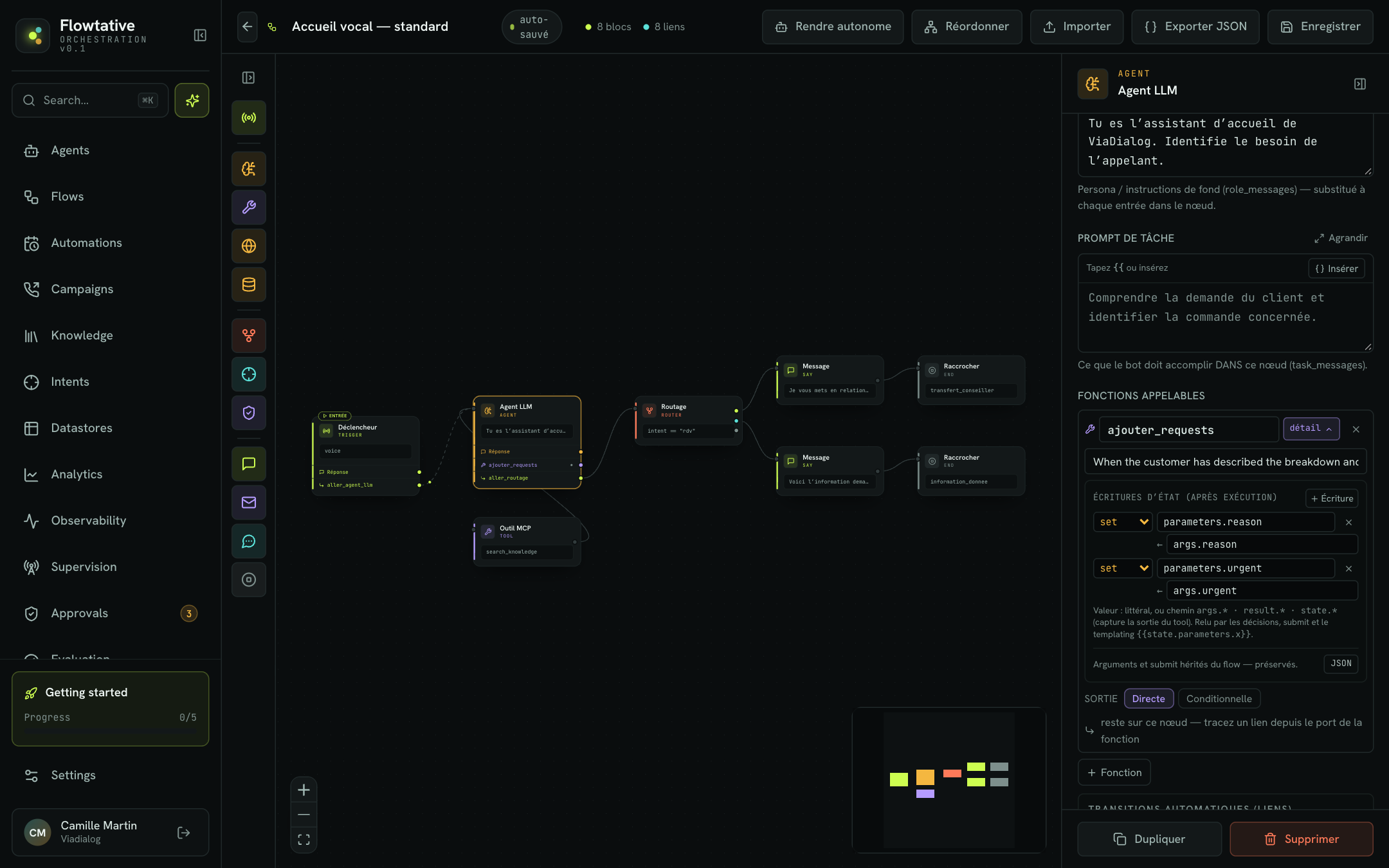
- In an LLM agent block (or the Trigger), click + Function.
- In the name field, choose the tool's identifier from the suggestions.
- Write When to call it?: "Call this function when the customer has given their contract number and the reason for their call."
Store the values
- Click detail (or N params) under the function.
- In State writes (after execution), click Write.
- Choose the operation, enter the path (it always starts with
parameters.) and the value.
Example: set parameters.contract_number ← args.contract_number.
Note
The Arguments (provided by the LLM) section of the detail shows the arguments the flow declares for the function, read-only. To change the information requested, edit the tool's parameters, not the flow.
State writes
Writes apply in order, after the function runs.
| Operation | Effect | Example |
|---|---|---|
set | Assigns a value to the variable. | set parameters.reason ← args.reason |
append | Adds a value to a list. | append parameters.products ← args.product to keep each product mentioned |
merge | Merges an object into the variable. | merge parameters.customer ← result to complete a record |
delete | Removes the variable. | delete parameters.draft |
The value is a fixed text or a path:
| Path | What it refers to |
|---|---|
args.… | An argument provided by the AI in this call. |
result.… | The tool's return, for example result.status. result alone refers to the whole return. |
state.… | A variable the flow already knows. |
Once stored, the value is available in every following block: in a prompt ({{state.parameters.contract_number}}), in a condition of a Conditional Output, in a block field that accepts a path (state.parameters.contract_number).
Tip
A function with no state write does not forget the information: the AI keeps it in the conversation. But only a state write makes it usable by action blocks, conditions and end parameters.
Save to a database
Two ways to write to a base during the call:
| Way | When to use it |
|---|---|
| Function named after the base's Add or Edit tool | The AI decides when, and provides the field values itself. |
| Datastore block, Add or Update operation | The record must be written for sure at that point of the journey, with values already stored in the variables. |
In the Datastore block, each of the Record fields takes a fixed text or a state.* path, for example state.parameters.contract_number. See Block reference.
Warning
Update replaces the whole record: a field left empty is lost. Fill in every field, for example from a search result stored earlier in parameters.customer.
Pass on at the end of the conversation
The End parameters of the Hang up block attach information to the session when it ends. They are recorded on the session's transcript, and included in its JSON export.
- Select the Hang up block.
- Under End parameters, click Free parameter (or Parameter if the list already has a row).
- Enter the key, for example
contract_number(letters, digits and_only). - Switch the value to
pathand enterstate.parameters.contract_number, or leave it asabcfor a fixed value, for exampleoutcome=resolved.
A value set here is never overwritten by the AI. Use fixed values to describe the outcome each Hang up block stands for, and paths for the information collected.
In chat, end parameters are received with the end of the session.
Send to your systems
An end-of-session webhook attached to the agent sends the full transcript of each call session to your server as soon as it ends. Your technical team finds the exchanges and the tool calls there, with their arguments. See Webhooks.
To send information during the call rather than after, call an HTTP / API tool from a function, or use an MCP tool block (see Tools).
Agents without a flow: structured output
An agent that does not follow a flow can answer directly in JSON with the Structured output (JSON) capability: you describe the Schema properties (name, type, description, required) and each of the agent's answers follows that schema. See Define a structured output.
This option suits a processing agent, for example the Data extraction template, which returns name, email, phone and subject from free text. It does not suit an agent that talks with a customer: its entire answer becomes a JSON object.
Check what was collected
- Open the agent's tester, turn on Debug before the first message, then lead the conversation.
- Open the session in Transcripts.
- The diagnostic log shows each variable write (function name, variable, new value) and, when you click an Entered "Node" line, all the variables known at that moment.
An orange warning flags a variable used in a prompt but missing when the block is entered: the expected state write did not happen, or its path is misspelled.
Example: satisfaction survey at the end of the call
You want a score from 1 to 5, the reason for the score and the customer's consent to be contacted again.
- In Datastores, create the
satisfactionbase with the fieldsscore(Integer),reason(Text) andrecontact(Text, "yes" or "no"), then generate its Add tool:ajouter_satisfaction. - In the LLM agent block "Survey", Task prompt: "Ask the customer for a score from 1 to 5, then the reason for this score, then whether they agree to be contacted again. Then call
ajouter_satisfaction." - Add the
ajouter_satisfactionfunction, with the writesset parameters.score ← args.scoreandset parameters.recontact ← args.recontact. - Conditional Output: branch
state.parameters.score≤ less or equal2to an LLM agent "Recovery" that apologizes and offers a callback; otherwise fallback to the Hang up block. - In the Hang up block, add the end parameters
score→state.parameters.scoreandrecontact→state.parameters.recontact, aspath.
Each answer is saved in the satisfaction base, which you can view and export to CSV from Datastores, and the score stays attached to the session.
Best practices
- One variable name per piece of information, stable from one flow to the next (
contract_number,reason): your exports and your server-side rules stay readable. - Ask for one piece of information at a time in the prompt, and have dictated values (numbers, addresses) confirmed before calling the function.
- Describe the format in the tool's parameter, not only in the prompt: that description is what the AI reads when it fills in the argument.
- Check in debug mode that each state write happens, before publishing.
Limits
- There is no automatic extraction at the end of the call: information is stored only if a function received it as an argument, or if a tool returned it.
- A function's arguments cannot be edited in the flow editor: they come from the tool called.
- State writes only target paths that start with
parameters..