Your first agent
Create an agent, configure it and test it by chat then by voice, in about ten minutes.
This guide takes you end to end: you create a customer service callbot from a template, adapt it to your company, give it a knowledge base, then test it in writing and by voice without leaving your browser.
The example used throughout the guide: Horizon Assurances wants an agent that answers its policyholders' frequent questions (opening hours, claim reporting, certificates) and offers a transfer to an advisor when in doubt.
Before you start
- You are signed in to your Flowtative workspace (see Getting around the interface).
- For the voice test: a microphone and a browser allowed to use it.
- Optional: a document to give the agent (FAQ, procedure), as text, PDF or CSV.
Tip
The Getting started journey (card at the bottom of the sidebar) runs a short version of these steps. This guide goes further: it covers detailed configuration, linking the knowledge base and the voice test.
Create the agent
- In the sidebar, click Agents.
- Click New agent, at the top right.
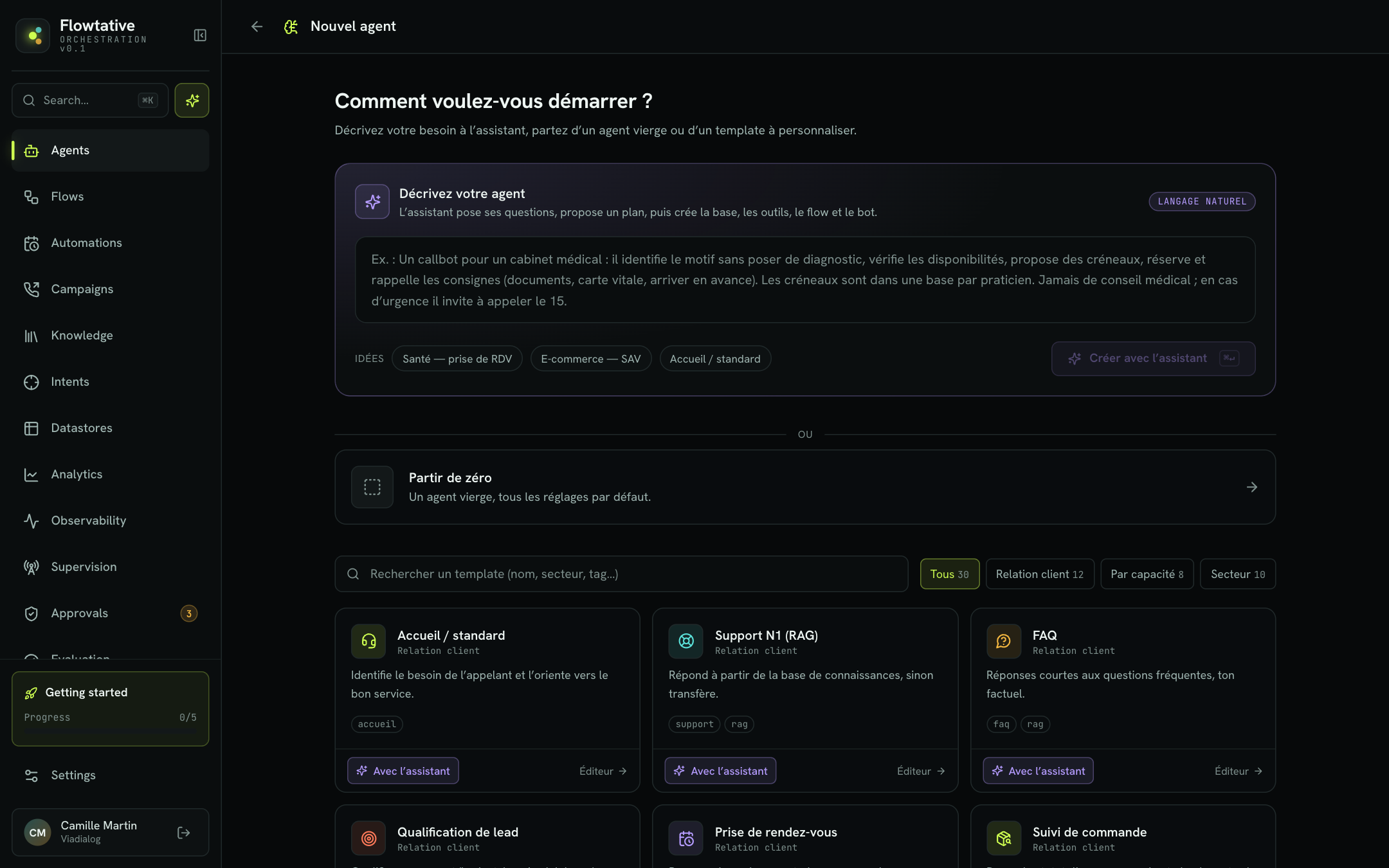
- The How do you want to start? screen offers three starting points:
- Describe your agent: you describe your need in natural language and the assistant creates the agent for you (see Agent creation assistant);
- Start from scratch: a blank agent with all default settings;
- a template to customize, sorted by category (Customer relations, By capability, Sector) and searchable with the Search for a template (name, sector, tag…) field.
- Find the Callbot vocal template (voice callbot, "Real-time voice agent (STT/TTS) for inbound calls") and click Editor.
The editor opens, pre-filled with the template's name, system prompt, capabilities and voice settings. Nothing is saved yet.
Note
Templates marked with a microphone icon, such as Callbot vocal or Voix minimal, turn on the Voice · callbot part of the editor right away. For any other template, you can turn it on later with Enable voice (callbot).
Configure identity and prompt
The editor is organized in sections, listed on the left and grouped under General, Intelligence and Voice · callbot. Start with Identity & prompt.
-
In Agent name, replace the suggested name with
Horizon Assurances front desk. -
Keep the suggested Provider and Model for this first try. You can change them later (see Create and configure an agent).
-
In System prompt, adapt the template's instructions to your business. For example, add at the end:
Scope: policyholder questions about opening hours, claim reporting and certificates.
Never give a reimbursement amount: offer a transfer to an advisor.
To go further on writing it, see Write an agent's prompt.
-
Optional: add Tags (for example
insurance,front-desk) to find the agent in the list.
The template's prompt contains the {{company}} variable. Variables between double curly braces are replaced with conversation data at call time. You will give it a test value in step 5.
| Field | Purpose | Default value (Callbot vocal template) |
|---|---|---|
| Agent name | Name shown in the agent list and in reports. Required. | Callbot vocal |
| Provider | Provider of the language model (LLM). | OPENAI |
| Model | Language model used to generate replies. | gpt-4o-mini |
| System prompt | The agent's background instructions: role, behavior, guardrails. | Voice agent instructions |
| Tags | Free labels to sort and search your agents. | voix, callbot |
Save the agent
- Click Create agent, at the top right.
- The button shows Saving…, then Saved. The agent is created and the editor stays open.
Once the agent is saved, the editor header shows the Test and Debug buttons, and the main button becomes Save. Remember to click Save after each change.
Important
If the agent name is empty, saving is refused with the message "The agent name is required." Other input errors appear in a banner below the header, and the editor opens the relevant section directly.
Give the agent knowledge
A knowledge base lets the agent answer from your own content rather than from its general knowledge.
- In the sidebar, open Knowledge, then click New in the list of bases and name the base, for example
Policyholder FAQ. - Click Add, choose Text, enter a Document title (for example
Opening hours and claims) and paste your opening hours and your claim reporting procedure into Content to index…. Click Index. Other formats (PDF, CSV, website…) are described in Knowledge bases. - Go back to the agent: Agents, then click the
Horizon Assurances front deskcard. - Open the Knowledge (RAG) section.
- Turn on Enable RAG.
- In Knowledge base, choose
Policyholder FAQ. - Click Save.
On save, Flowtative automatically links the search tool for this base to the agent. See Connect a base to an agent.
| Field | Purpose |
|---|---|
| Enable RAG | The agent queries the knowledge base before replying. |
| Knowledge base | The base the agent searches. |
| Search | Search method in the base. Default: HYBRID. |
| Max results | Maximum number of excerpts returned to the agent. |
| Min score | Minimum relevance score (between 0 and 1) for an excerpt to be kept. |
Test by chat
A written test is the fastest way to check the tone and accuracy of replies.
- In the editor header, click Test. The Test the agent panel opens on the right.
- Check that the Chat tab is selected.
- Click the Test variables icon (curly braces) in the panel header. Variables used in the prompt, such as
company, are detected automatically. - Set
companytoHorizon Assurances. - In the Your message… field, type
Hello, what time does your customer service open?and press Enter. - Check that the reply uses the opening hours from your knowledge base.
- Test an edge case, for example
How much will I be reimbursed for my windscreen?: the agent should offer a transfer rather than give an amount.
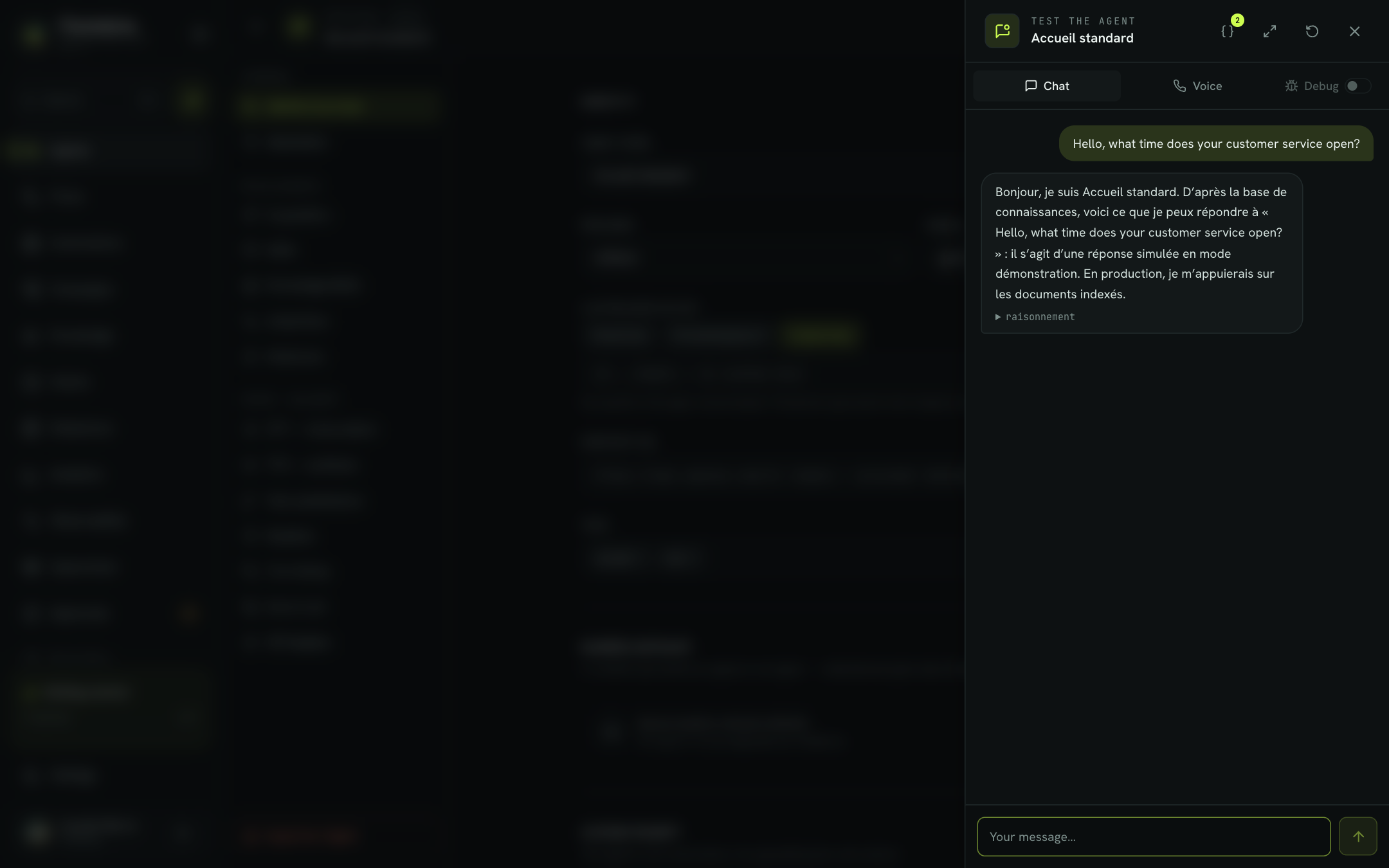
Other panel controls:
| Control | Effect |
|---|---|
| Reset (circular arrow) | Clears the current conversation and starts over. |
| Debug | Adds a flow diagnostic log (variables, nodes, writes) to the conversation transcript. This setting is fixed when the conversation opens: reset it to change it. |
| Expand the panel | Widens the test panel. You can also drag its left edge. |
| New conversation | Offered when the conversation exceeds the agent's context budget. Your message is kept. |
Tip
You can also start a test from the agent list: each card has a Test button.
Test by voice
The voice test reproduces a real call: your voice is transcribed, the agent replies, and its reply is spoken with the configured synthetic voice.
- In the test panel, click the Voice tab.
- Click Start the call.
- Allow microphone access when your browser asks.
- Wait for the Listening status, then speak: "Hello, I would like to report a claim."
- Follow the status indicator: You're speaking…, The agent is thinking…, The agent is speaking…. The exchanges appear in the panel as the call goes on.
- To hang up, click the round end-call button (crossed-out handset). The status changes to Call ended, and the Call again button lets you start a new call.
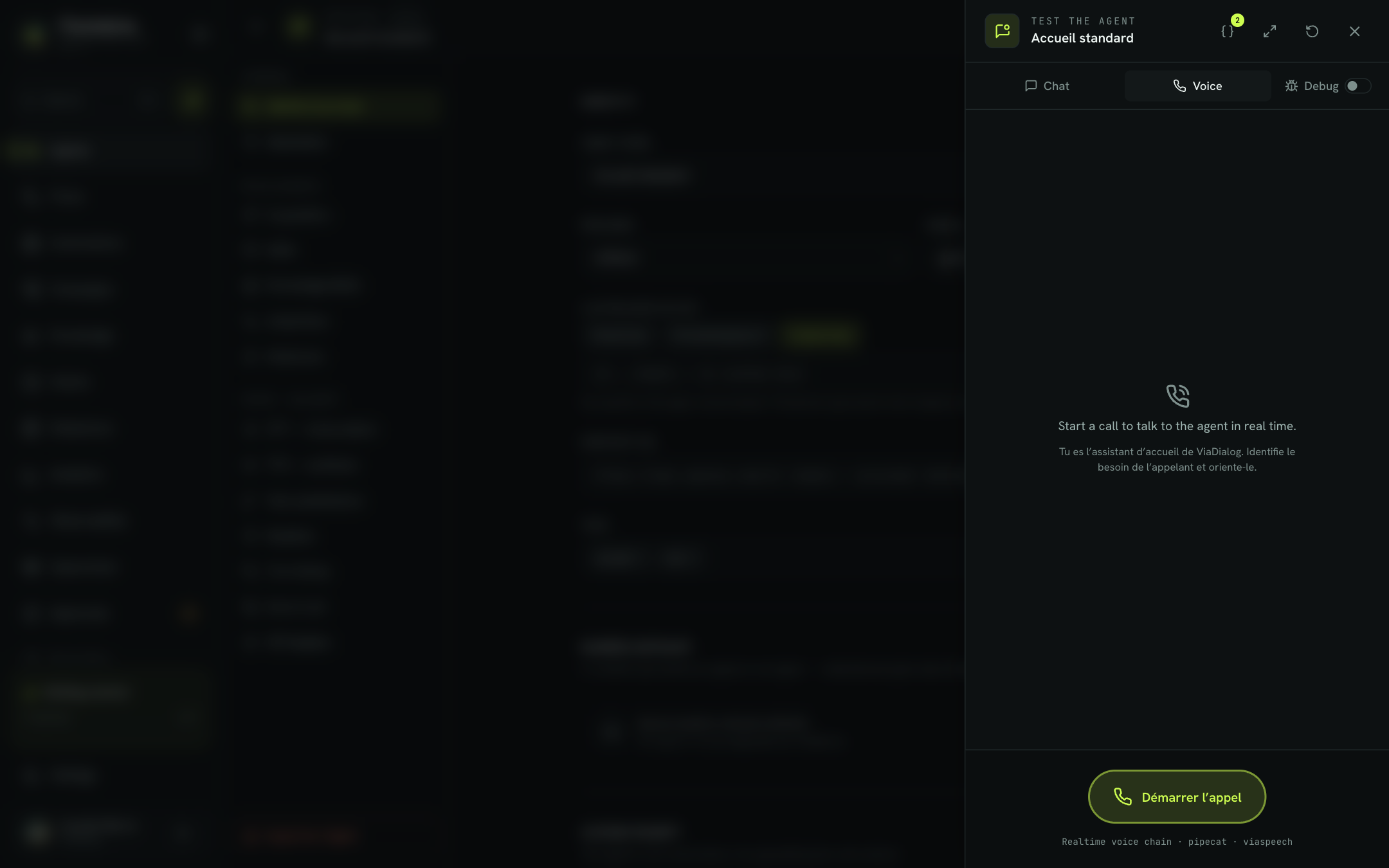
Warning
The voice test only works with a saved agent. Otherwise, the message "This agent must be saved before the voice test." appears. Test variables are also passed to the voice call; a variable whose key is not a valid identifier (letters, digits, _, optionally dotted like caller.phone_number) is flagged and not passed.
To adjust the voice, transcription or turn-taking, use the sections of the Voice · callbot group: STT — transcription, TTS — synthesis, Text substitutions, Realtime, Turn-taking, End of call. They are detailed in Configure a callbot's voice and Test an agent.
What's next
Your agent answers correctly by chat and by voice. To put it into service:
- Make it reachable by phone: assign it a number in Settings > Telephony & Trunk. Once attached, the number appears in the Inbound number box of the agent's Identity & prompt section. See Telephony.
- Structure the journey: draw a flow (identification, reason, transfer) and link it to the agent in the Linked flow section. See Flows and Save and publish.
- Give it tools: looking up a file, booking an appointment, transferring. See Tools.
- Monitor its conversations: review exchanges in Transcripts and measure their quality in Evaluation.
Best practices
- Test edge cases, not only the happy path: out-of-scope questions, sensitive requests, a caller who changes their mind.
- Change one thing at a time, save, then test again with Reset: you will know which change caused which effect.
- Write the prompt for speech when the agent is a voice agent: short sentences, no lists or formatting, spoken confirmation of key information.
- Keep an explicit guardrail in the prompt: what the agent must never do, and when it must offer a transfer.