Databases (Datastores)
Create structured data tables, define their fields, import your CSV files and make them available to your agents and flows.
Datastores are structured databases organized as tables: one row per record, one column per field. Where a knowledge base holds free text in which the agent looks for answers, a Datastore holds precise data that an agent can read and write during a conversation: a customer found by phone number, an order and its status, an appointment to record, a lead to qualify.
This page explains how to create a base, define its fields, enter and import data, and generate the tools that let your agents and flows access it.
Before you begin
- Bases are managed from Datastores in the main menu.
- Prepare the list of fields you need and their type (see Field types).
Two kinds of bases
| Kind | Use | Fields |
|---|---|---|
| Standard base | Any business data: customers, orders, stock, appointments, tickets. | Free schema: you define your columns after creation. |
| Contact base | Contact records for call campaigns and customer relationship. | Pre-typed contact record: you tick the fields you want at creation. International phone format and automatic deduplication. |
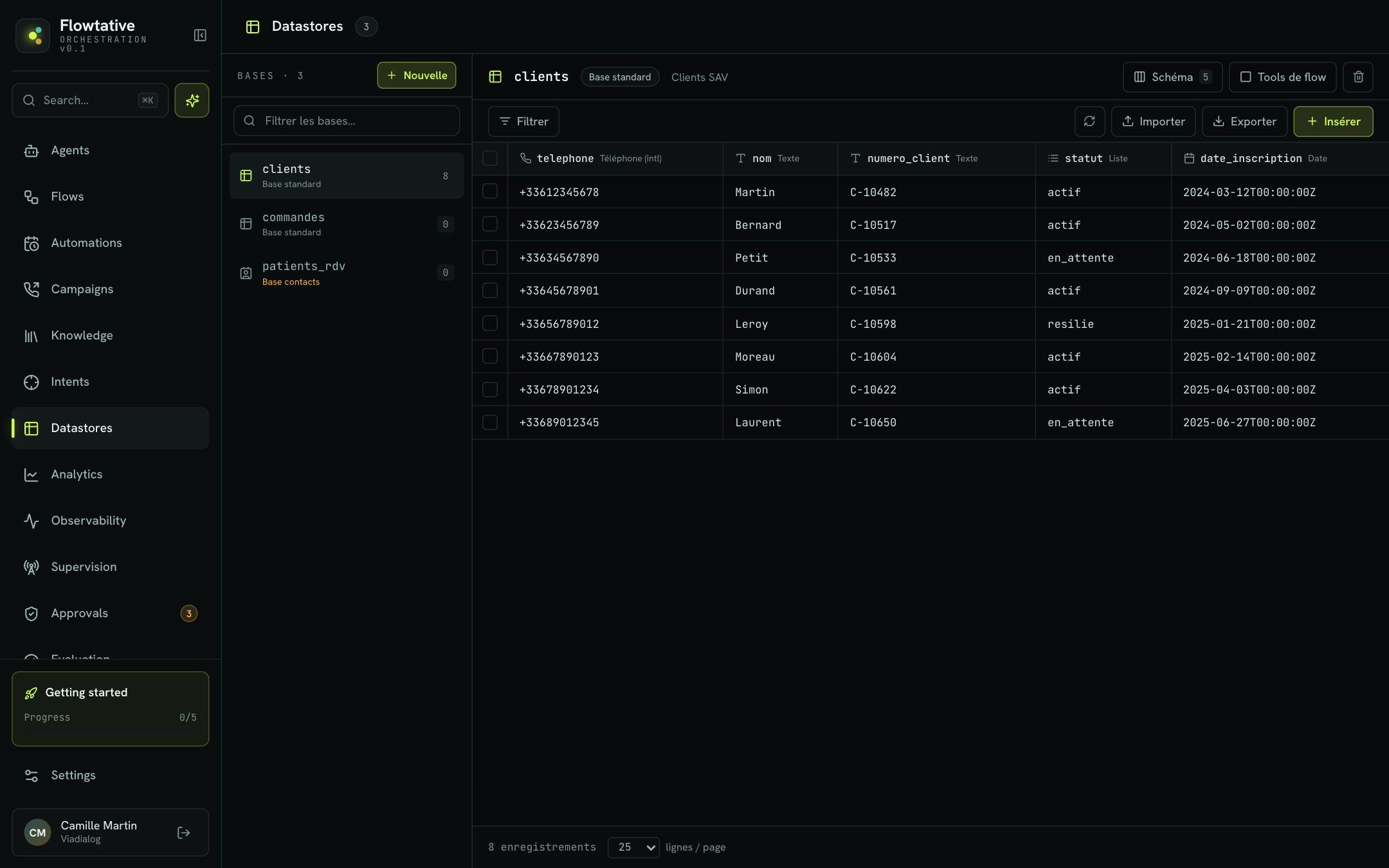
The kind is shown under each base name in the left column, and as a badge at the top of the table. It is set at creation.
Create a base
- Open Datastores.
- In the left column, click New.
- Enter the base Name (for example
customers,ordersorleads). - Choose the Base type: Standard base or Contact base.
- For a contact base, tick the Record fields to keep (at least one).
- Click Create the base.
If the name is already taken or the schema is rejected, the error message appears at the bottom of the window.
Fields offered for a contact base
All fields are ticked by default. Field names are fixed by the app.
| Field | Type |
|---|---|
civilite (title) | List |
prenom (first name) | Text |
nom (last name) | Text |
telephone (phone) | Phone (intl) |
mobile | Phone (intl) |
email | |
societe (company) | Text |
fonction (job title) | Text |
adresse (address) | Text |
code_postal (postal code) | Postal code |
ville (city) | Text |
pays (country) | Text |
date_naissance (date of birth) | Date |
fuseau_horaire (time zone) | Time zone |
notes | Comment (long) |
A deduplication field is set automatically: telephone if ticked, otherwise mobile, otherwise email, otherwise the first field. Two contacts cannot share the same value for this field.
Define the schema
The schema is the list of fields (columns) of the table. A standard base is created with no columns: the table shows "This table has no columns yet." and the Define the schema button.
- Click Schema (the number of fields is shown on the button) or Define the schema.
- Click New field.
- Enter the field name (for example
customer_number) and choose its type. - Repeat for each field. The trash icon removes a field.
- Click Save.
A field is a column of the table. Its type drives value validation and the generated tools. Two fields cannot have the same name: duplicates are flagged and block saving.
Note
For a contact base, the phone must be of type Phone (intl) (the French format is rejected) and a single deduplication field is required. The server checks these rules on save.
Warning
Removing a field from the schema removes its column from the table. If flow tools were generated for this base, update them afterwards (see Outdated tools).
Field types
| Type | Expected content | Sample value |
|---|---|---|
| Text | Short text | Smith |
| Comment (long) | Long text | Loyal customer, prefers a morning callback. |
| Number | Decimal number | 3.14 |
| Integer | Whole number | 42 |
| Amount | Monetary amount | 19.99 |
| Percentage | Percentage | 15 |
| Date | Date (entered with a date picker) | 2026-09-01 |
| Hour | Time of day | 14:30 |
| Timestamp | Date and time | 2026-09-01T14:30:00 |
| Duration | Duration in seconds | 3600 |
| Phone (FR) | French number | 0612345678 |
| Phone (intl) | International number | +33612345678 |
| Email address | john.smith@example.com | |
| URL | Web address | https://example.com |
| Image (URL) | Address of an image | https://example.com/logo.png |
| Postal code | Postal code | 75001 |
| Time zone | Time zone | Europe/Paris |
| SIRET | French company number | 73282932000074 |
| Social security no. | French social security number | 184127645108946 |
| List | One or more values, comma-separated when typing | Mrs, Mr |
| Auto-increment (managed) | Number assigned automatically | Filled by the base, not editable |
Values are checked on save: a value that doesn't match the field type is rejected.
View and filter data
The table shows the records with, for each column, the icon and label of its type. The table footer shows the total number of records and lets you choose 25, 50 or 100 rows / page.
To filter:
- Click Filter.
- Choose a field, an operator and a value.
- Click Apply.
| Operator | Meaning |
|---|---|
| contains | The value contains the text entered (default). |
| starts with | The value starts with the text entered. |
| ends with | The value ends with the text entered. |
| = / ≠ | Equal / not equal. |
| > / ≥ / < / ≤ | Comparisons, for numbers and dates. |
Only one filter applies at a time. It shows in the toolbar; click it (or Remove the filter) to clear it. The Reload button refreshes the table.
In the left column, Filter bases… finds a base by name or description, and the ↑ / ↓ keys move from one base to the next.
Add and edit records
- Insert: click Insert, fill in the fields in the Insert a record panel, then click Insert.
- Edit: click a row. The Edit the record panel opens; click Update to save.
- Delete: tick one or more rows (or the header box for the whole page), click Delete, then Confirm deletion.
A field left empty is not saved; clearing a field while editing erases its value. Auto-increment (managed) fields don't appear in the form. If the record is rejected, the reason appears at the bottom of the panel.
Import a CSV
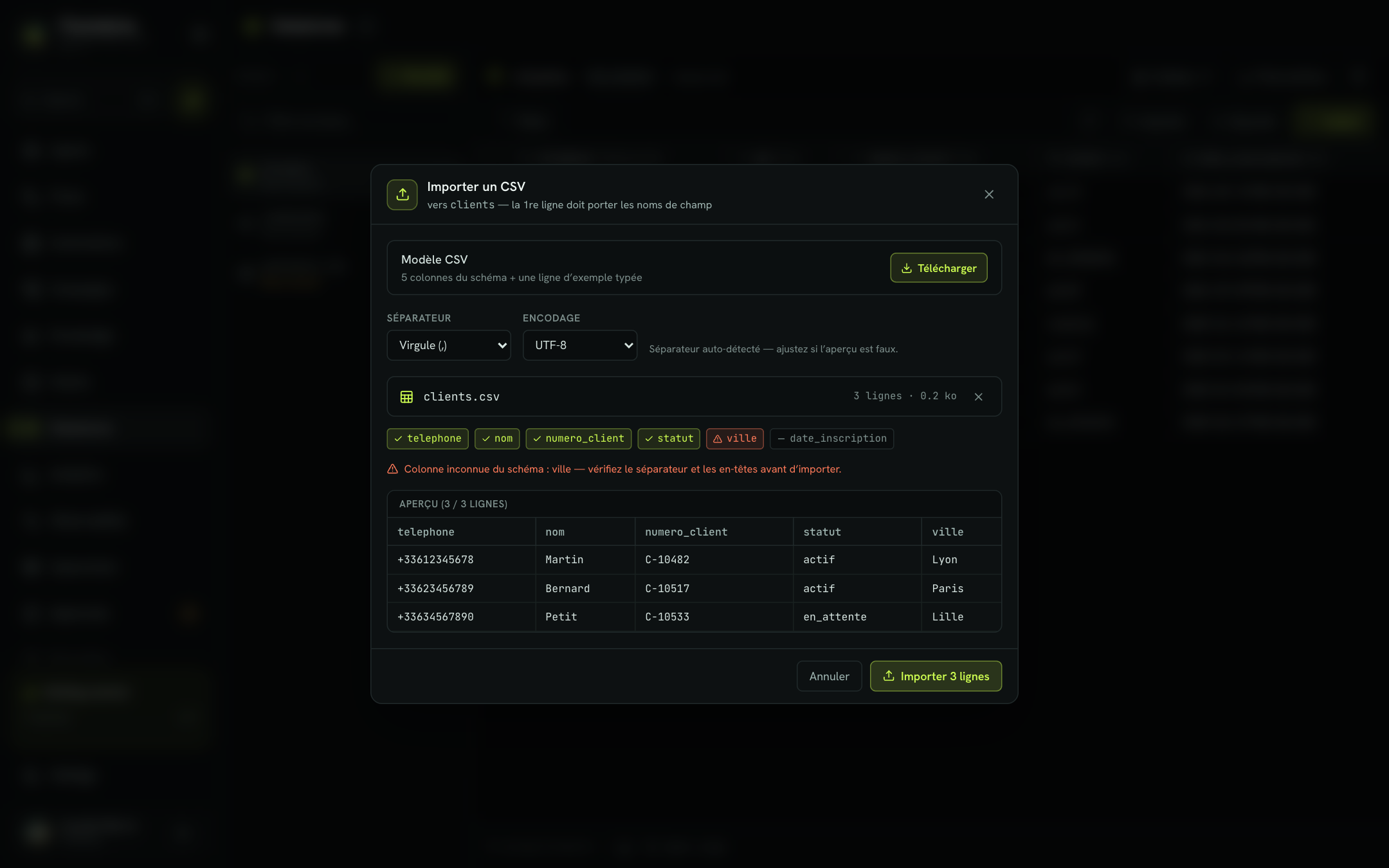
Import adds the rows of a CSV file in one go, for example an export from your CRM or order tool. The Import button is only active if the base has at least one field.
- Click Import.
- Optional: in CSV template, click Download to get a file with the schema columns and a typed sample row.
- Drop your file onto the area, or click to choose it.
- Check the Separator (detected automatically) and the Encoding.
- Review the columns and the preview of the first 5 rows.
- Click Import N rows.
| Option | Possible values | Default |
|---|---|---|
| Separator | Comma (,), Semicolon (;), Tab, Vertical bar (|) | Detected on the file's first line |
| Encoding | UTF-8, ISO-8859-1, Windows-1252 | UTF-8 |
The file's first line must contain the field names: columns are matched by name. Before import, each header is marked:
- green: recognized column;
- orange: column unknown to the schema. Check the separator and header spelling before importing;
- gray: schema field missing from the file. It will stay empty.
Tip
A file exported from a French-language Excel often uses semicolons and Windows-1252 encoding. If accents look wrong in the preview, change the encoding.
After import, a report shows the number of rows inserted and, if any, the Rows in error with their line number and the reason for rejection (first 20 shown). Click Import another file to continue, or Close.
Export
Export downloads the table page currently shown as CSV (file <base name>-page<N>.csv). To export more rows, increase rows / page or export page by page.
Give an agent or a flow access
An agent or a flow reaches a base through tools generated from the base. The base path is fixed in the tool: the model only handles business parameters, such as a phone number or a name.
- Click Flow tools.
- The Tools for this base section lists existing tools. Search (free query), Add and Edit are pre-ticked if they don't exist yet.
- In Generate, tick the tools you want.
- Click Create N tools.
| Tool | Generated name | What it does |
|---|---|---|
| Search (free query) | rechercher_<base> | The model writes the filter itself (field, operator, value). Flexible, but requires a model comfortable with the syntax. |
| Targeted search by field | rechercher_<base>_par_<field> | One tool per ticked field, with a fixed "contains" filter: the model only provides the value to look for. This is the most reliable option. |
| Add | ajouter_<base> | Inserts a record, with one parameter per schema field. |
| Edit | modifier_<base> | Replaces a whole record: the tool requires the identifier and every field. The model is guided to search for the record first. |
The tools created can be used in a flow's MCP tool block or as a function of an LLM agent block (see Tools). To delete a tool, click its trash icon in Tools for this base, then Delete. A flow can also read and write a base directly with the Datastore block (see Block reference).
Important
Edit replaces the whole record; it is never a partial update: an omitted field is lost. The tool therefore forces the model to send back every field, changed or not.
Example: identify the caller
Your customers base contains phone, name, customer_number and status. You generate Targeted search by field on phone and the Edit tool.
- At the start of the call, the agent calls
rechercher_customers_par_phonewith the caller's number and gets their record. - It greets the customer by name and adapts its approach to their
status. - At the end of the call, it updates the record with
modifier_customers, sending back every field.
Setting this up in a flow is detailed in Recognize the caller and Save to a database.
Outdated tools
Generated tools reflect the schema at creation time. If you add, remove or rename a field, an orange banner says so at the top of the table: "N tools linked to this base no longer match the current schema".
- Click show which to display the list.
- Click Update linked tools. Tools are updated in place: flows that use them don't need any change.
- A targeted search tool whose field no longer exists cannot be updated. It is flagged separately: check the flows that call it, then delete it from Manage tools.
Delete a base
Click the trash icon at the top right of the table. Flowtative first checks whether the base is in use:
- if agents or flows use it (through its tools or a Datastore block), deletion is refused and the list of agents and flows involved is shown, with a link to each. Remove the base and its tools from them, then try again;
- otherwise, click Delete the base to confirm.
Warning
Deleting a base erases all its records. It is irreversible.
Best practices
- Explicit field names, lowercase with no spaces (
customer_number,appointment_date): they appear as-is in the tools read by the model. - The right type from the start. A Phone (intl) or Email field avoids malformed values.
- Prefer targeted search by field over free queries for frequent lookups (by phone, by customer number): the model is less likely to make mistakes.
- Import a small file first, a few rows, to validate headers and encoding, then the full file.
- Update the tools after each schema change, before republishing your flows.
Learn more
Tools
Create tools, test them, use them in a flow and link them to an agent.
Block reference
The role, fields and a usage example for each block type of the flow editor.
Outbound call campaigns
Understand how an AI agent calls a contact base, with retries, within a legal calling window, and writes the outcome back to each record.
Knowledge bases
Create a knowledge base, feed it with your documents, FAQs, websites and support tools, then check what your agents will find in it.
Connect a base to an agent
Give an agent access to a knowledge base, in chat and on voice calls, through the search tool added automatically.
Outbound call campaigns
Understand how an AI agent calls a contact base, with retries, within a legal calling window, and writes the outcome back to each record.