Knowledge bases
Create a knowledge base, feed it with your documents, FAQs, websites and support tools, then check what your agents will find in it.
A knowledge base gathers the content your agents search to answer customers: terms and conditions, customer service FAQs, product sheets, internal procedures, help center pages. Each piece of content is split into segments and indexed, so an agent finds the passage that answers a customer's question in milliseconds, instead of guessing the answer.
This page explains how to create a base, feed it and keep it up to date. To have an agent use it, see Connect a base to an agent.
Before you begin
- Bases are managed from Knowledge in the main menu (page title: Knowledge base).
- To import from Mayday, Zendesk, Stonly or Mindsay, the matching integration must first be connected in Settings > Connectors.
Create a base
- Open Knowledge.
- In the left column, click New.
- Enter the base name (for example "Customer service FAQ"), then confirm with
Enteror the confirm button.
The new base opens right away. Each base has its own address in the app (/knowledge/<id>): you can share it with a colleague or find it again after a reload.
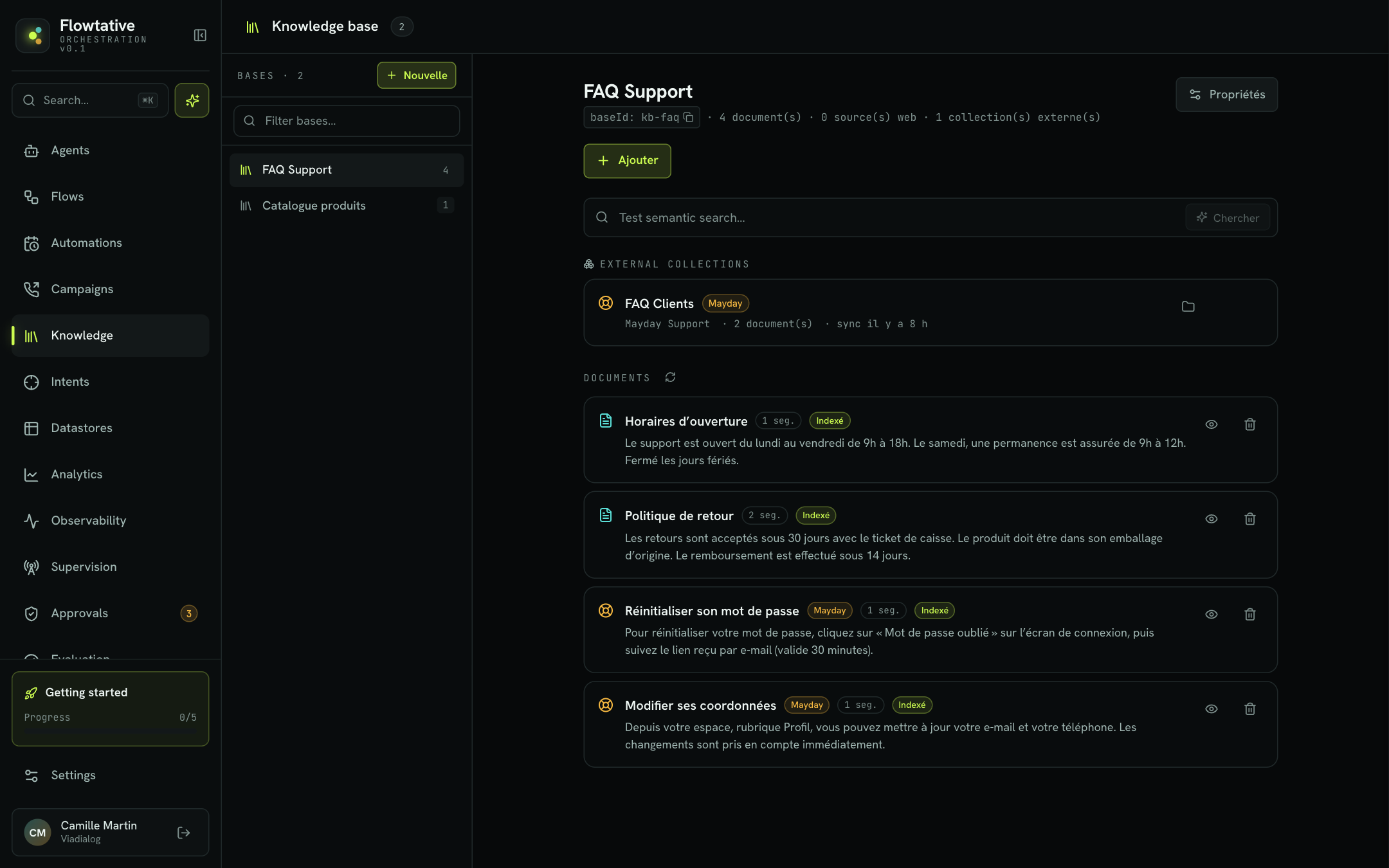
Move between bases
- The left column lists your bases, each with the number of documents it contains.
- The Filter bases… field finds a base by name, ignoring case and accents ("general" finds "Général").
- Bases are shown 15 per page.
- The
↑and↓keys move from one base to the next when the cursor is not in an input field.
Add content
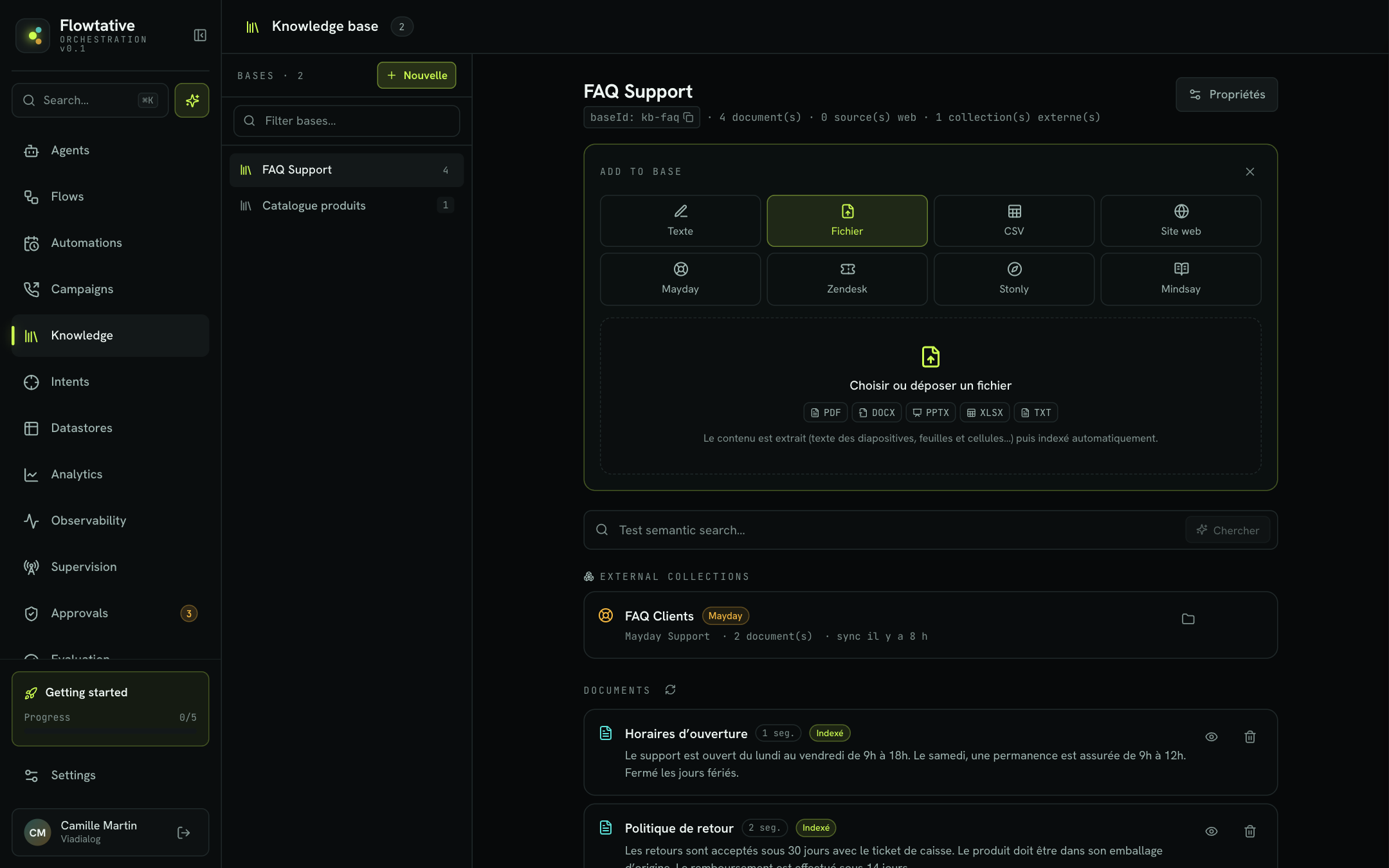
Click Add under the base name. The Add to base panel offers eight source types.
| Type | What it adds | When to use it |
|---|---|---|
| Text | A document typed by hand | A short answer, an instruction, a text you don't have as a file |
| File | An imported document (PDF, Word, PowerPoint, Excel, text) | Terms and conditions, guides, price lists |
| CSV | A set of question / answer pairs | An existing FAQ exported from a spreadsheet |
| Website | The pages of a site, explored automatically | Your help center or public product pages |
| Mayday, Zendesk, Stonly, Mindsay | A collection (or, for Mindsay, a base) from your support tool | Keep the base aligned with your content management tool |
Text
- Choose Text.
- Fill in Document title and the content in Content to index….
- Optional: enter a Source URL (optional), shown with the document.
- Click Index.
The title and content are required.
File
- Choose File.
- Click Choose or drop a file, or drag and drop the file onto the area.
The content is extracted (slide text, sheets and cells…) then indexed automatically. The file name becomes the document title, and a badge shows its format in the list.
| Format | Extension |
|---|---|
.pdf | |
| Word | .docx (.doc also accepted) |
| PowerPoint | .pptx |
| Excel | .xlsx |
| Text | .txt (.md also accepted) |
The format is checked before upload. A file in another format, without an extension or empty is rejected with an explicit message, and the panel stays open so you can choose another one. A file that is too large is rejected with the message "File too large to be imported."
Question / answer CSV
CSV suits FAQs: each row becomes a document.
- Choose CSV.
- If needed, click Download the CSV template to start from a ready-to-fill file.
- Click Choose a CSV file (or drop the file).
The file must be comma-separated and have three columns:
| Column | Content | Example |
|---|---|---|
question | The question asked by the customer | What are your opening hours? |
response | The answer to give | Support is open Monday to Friday, 9am to 6pm. |
option | Indexing mode: QUESTION, RESPONSE or QUESTION_RESPONSE | QUESTION_RESPONSE |
Warning
The option column only accepts these three values. Any other value makes the import fail. The downloadable template only uses valid values.
Indexing of a CSV continues after upload: the new documents appear in the list after a few seconds. If they don't, click the refresh icon next to Documents.
Website
Flowtative explores the site from the address you give, discovers the linked pages, then indexes them.
- Choose Website.
- Enter the start address (for example
https://example.com/help). - Optional: a Title (optional) to recognize the source.
- Choose the Refresh mode (see below).
- Adjust Max pages (100 by default, 0 = no limit) and Depth (2 by default, 0 = start page only, 10 at most).
- Click Crawl.
| Refresh | Behavior |
|---|---|
| Manual (default) | Discovered pages wait for your go-ahead (Index button); refreshing is done by hand. |
| Weekly | Automatic indexing after exploration, then re-exploration and re-indexing every 7 days. |
| Monthly | Same, every 30 days. |
| Quarterly | Same, every 90 days. |
Each site you add appears under Web sources with its status, the number of pages, the frequency and the date of the last sync.
| Status | Meaning |
|---|---|
| Exploring… | Flowtative is going through the site. |
| Exploration failed | Exploration failed: check the address and the exploration settings (Configure). |
| To index | Exploration finished in manual mode. Click Index the N discovered pages. |
| Indexing pending / Indexing… | Pages are being indexed. |
| Up to date | All pages are indexed. |
While an exploration or indexing is running, no other action is possible on the source.
Configure a website source
Hover over the source, then click the Configure icon to open the Configure the source panel.
| Setting | Description | Default |
|---|---|---|
| Title | Displayed name of the source | Title entered at creation |
| Language | Content language (e.g. en) | Empty |
| LLM content cleaning | Has the page text cleaned before indexing | Off |
| Automatic frequency | Manual, Weekly, Monthly or Quarterly | Choice made at creation |
| Max pages | Maximum number of pages explored (0 = no limit) | 100 |
| Depth | Number of links followed from the start page | 2 |
| Duration (s) | Maximum duration of one exploration, from 15 to 10,800 seconds | 900 |
| Included paths (whitelist) | Only explore these paths (e.g. /docs/*) | None |
| Excluded paths | Never explore these paths (e.g. /blog/*) | None |
| Follow internal subdomains | Also explore the site's subdomains | On |
| Follow external links | Explore links to other sites | Off |
| Ignore root path restriction | Go outside the start address path | Off |
The Advanced section adds: Allowed external domains (when external links are followed), Allowed internal subdomains, HTML tags to exclude (e.g. nav, footer, to skip menus and footers), Country (proxy) and Credit budget (0 = ∞).
The same panel offers three one-off actions, available depending on the source status:
- Re-explore now: reads the site again to find new and modified pages (once the source is up to date).
- Index new pages: only indexes pages not yet indexed.
- Re-index everything: re-indexes all pages with the current settings, for example after changing cleaning or language.
Click Save to apply the settings.
Mayday, Zendesk, Stonly and Mindsay
- Choose the tool.
- If no integration is connected, the panel points you to Settings > Connectors. Connect your workspace, then come back.
- Select a collection in Choose a collection… (for Mindsay: Choose a Mindsay base…). The number of documents in each collection is shown.
- Click Import the collection (Mindsay: Import the base).
Attached collections appear under External collections. For each one, you can:
- click the card to show only its documents (a collection · … filter appears above the list; click it to remove it);
- Synchronize to fetch the latest changes;
- Remove from base (confirmation Remove?).
For Mindsay, a real-time integration is shown by the real time label instead of the sync date.
Track your documents
The Documents section lists the content of the base, 10 per page. Each document shows its title, an excerpt, the number of segments and status badges.
| Badge | Meaning |
|---|---|
| Indexed | The document is split into segments and searchable by your agents. |
| Processing | Indexing is in progress. |
| Failed | Indexing failed. The document detail explains why. |
| Draft / Deactivated | Document state in the base (not in production). |
| Suggestion, In review, Approved, Rejected, Archived | Review step of the document, when it has one. |
| Triangle and number | Number of processing errors. |
Click a document (or View content) to open its detail:
- the source URL, if any;
- the Processing errors, with their date and message;
- the Content, in Rendered mode (formatted reading) or RAW (exact indexed text);
- the Indexed segments, that is the passages the search can return.
To delete a document, click the Delete document icon.
Warning
Deleting a document is immediate, with no confirmation.
Test the search
Before handing the base to an agent, check that it returns the right passages.
- In the Test semantic search… field, type a question the way a customer would ask it, for example "How long do I have to return an item?".
- Click Search.
Up to 5 results are shown, each with the document title, an excerpt and a relevance score between 0 and 1. Only passages scoring at least 0.3 are kept. If nothing comes up, the message "No segment found." is shown: rephrase the question, or add to the base.
Base properties
Click Properties at the top right of the base.
| Property | Description |
|---|---|
| Name | Rename the base, then click Save. |
| Embeddings configuration | Model used to turn documents and questions into comparable vectors. A searchable list lets you choose among the available configurations. |
| Identifier | The base identifier, with a copy button. |
Important
After changing the embeddings configuration, re-index the base: existing vectors are no longer comparable with new ones.
Three actions sit at the bottom of the panel:
- Re-index: recomputes indexing for all documents.
- Empty the base: permanently deletes all documents. The base, its web sources and its integrations remain.
- Delete the base: permanently deletes the whole base, with its documents, web sources and support tool attachments.
To empty or delete a base, you must type its exact name before confirming. Both operations are irreversible.
Best practices
- One base per scope. For example, keep "Customer service FAQ" and "Product catalog" apart: a support agent doesn't need technical sheets, and more targeted results give better answers.
- Short, titled documents. One question per document in a FAQ, an explicit title: the search returns more precise passages.
- Test with your customers' words. Reuse real phrasings from your transcripts rather than internal vocabulary.
- Limit site exploration. Use Included paths and HTML tags to exclude to keep only useful content (help center, product pages) and skip menus, blog and legal notices.
- Choose automatic refresh for sites that change often, to avoid outdated answers.
Learn more
Connect a base to an agent
Give an agent access to a knowledge base, in chat and on voice calls, through the search tool added automatically.
Create and configure an agent
Create an agent from scratch or from a template, then set its model, prompt, capabilities, knowledge, flow and webhooks.
Settings and connectors
Manage your profile, display preferences, knowledge and calendar connectors, and MCP servers.
Databases (Datastores)
Create structured data tables, define their fields, import your CSV files and make them available to your agents and flows.