Outbound call campaigns
Understand how an AI agent calls a contact base, with retries, within a legal calling window, and writes the outcome back to each record.
A campaign lets an AI agent call a list of contacts on its own: appointment reminders, delivery confirmations, overdue invoice follow-ups, satisfaction surveys or prospecting. The agent calls within the hours you allow, retries contacts who did not answer, and the outcome of each call is written back to the contact's record.
This page covers the concepts to know before you create your first campaign. To create one step by step, see Create a campaign.
What a campaign is made of
A campaign brings together four elements, picked in the creation wizard:
| Element | Role | Where to prepare it |
|---|---|---|
| Calling agent | The AI agent that leads the conversation. Its prompt can use record columns (${contact.prenom}, {{rdv_date}}…). | Agents |
| Contact base | The list of people to call: a Datastore of the Contact base type, with at least one phone column. | Datastores |
| Caller ID | The number displayed on the contact's phone. It is never hidden. | Settings > Telephony & Trunk |
| Calling window | The days and time ranges during which the agent may call, in a given time zone. | In the wizard, When step |
On top of these four elements come the call settings: number of attempts per contact, delay before a retry, voicemail behaviour and number of simultaneous calls.
Campaign types
The type does not change how calls are placed, but it reminds you of the applicable legal framework and enables extra checks for prospecting.
| Type | Typical use | Rule shown in the wizard |
|---|---|---|
| Appointment reminder | A medical practice reminding patients the day before | Service under contract: legal hours, no consent required. |
| Confirmation | A carrier asking customers to confirm a delivery slot | Service under contract: legal hours, no consent required. |
| Follow-up | A collections team following up on overdue invoices | Follow-up under an ongoing contract: legal hours, max 4 attempts / 30 days. |
| Survey | Measuring satisfaction after an intervention | Post-interaction survey: legal hours, the agent must let people decline. |
| Prospecting | Sales calls to prospects | Opt-in mandatory since 11 Aug 2026: a consent column is required, plus a dedicated ARCEP prefix. |
Important
For Prospecting, the wizard requires a consent column: records without a positive value (empty, "non", "no", "false", "0") are excluded. The caller ID must also start with a dedicated ARCEP prefix (0162, 0163, 0270, 0271, 0377, 0378, 0424, 0425, 0568, 0569, 0948, 0949).
The caller ID
The caller ID is picked from the numbers on your account. Flowtative applies three rules:
- The number must be valid in international format (a French number starting with 01…09 is converted automatically).
- A French mobile number (06 or 07) cannot be shown on an outbound call.
- For prospecting, the number must carry a dedicated ARCEP prefix.
If no number is available, the wizard shows "No number available. Add one in Settings → Telephony." A campaign never calls without a caller ID: if the number is missing, the campaign stays paused and its page asks you to pick one.
The calling window
The window defines when the agent may call. By default, Flowtative offers the French legal window for consumers: Monday to Friday, 10:00 to 13:00 and 14:00 to 20:00, Paris time, excluding public holidays.
You can adapt it: pick the days, add or remove ranges, change the time zone or include public holidays. An indicator tells you at all times whether your window is still compliant:
- "Compliant with decree 2022-1313 (Mon–Fri 10–13h, 14–20h)" when every day is a weekday and every range fits within 10:00–13:00 or 14:00–20:00;
- "Outside B2C legal hours: time-stamped consent from the contact is required." otherwise.
The window applies to every call, the first one as well as retries. Excluded public holidays are those of metropolitan France (including Easter Monday, Ascension Day and Whit Monday).
Retries
A contact is not always reachable on the first try. Retries define what happens next.
| Call outcome | What happens |
|---|---|
| Reached | The contact is done. |
| Declined | The contact is done. |
| No answer | New attempt after the chosen delay, as long as attempts remain. |
| Busy | New attempt after the chosen delay, as long as attempts remain. |
| Voicemail | If Voicemail closes the contact is checked (default), the contact is done. Otherwise it is retried like a "No answer". |
A retry never falls outside the window. If the delay would push it past the current range, it moves to the start of the next range the same day, or otherwise to the first range of the next calling day.
Example. Window 10:00–13:00 / 14:00–20:00, retry after 2 hours. A patient does not answer at 10:30: they are called again around 12:30. They do not answer at 12:00: 14:00 would be past the morning range, so they are called again in the 14:00–20:00 range. A failure at 19:00 moves them to the next morning, from 10:00.
When all attempts are used without success, the contact moves to No attempts left.
Note
The legal cap is 4 attempts per number over 30 days, across all businesses. In the wizard, contacts already called 4 times over 30 days are flagged and excluded from the audience.
Simultaneous calls
The Simultaneous calls setting defines how many calls the agent handles in parallel, from 1 to 4 (2 by default). The cap of 4 keeps capacity for your inbound calls. The higher it is, the faster the first pass.
Campaign lifecycle
A campaign always shows one of these four phases:
| Phase | Meaning |
|---|---|
| Scheduled | The campaign is launched with a future start date. No call has been placed yet. |
| Running | The campaign calls within its window (outside the window, it waits for the next range). |
| Paused | You paused it: no new call starts until you resume it. |
| Done | You closed it, or its end date has passed. It no longer calls. |
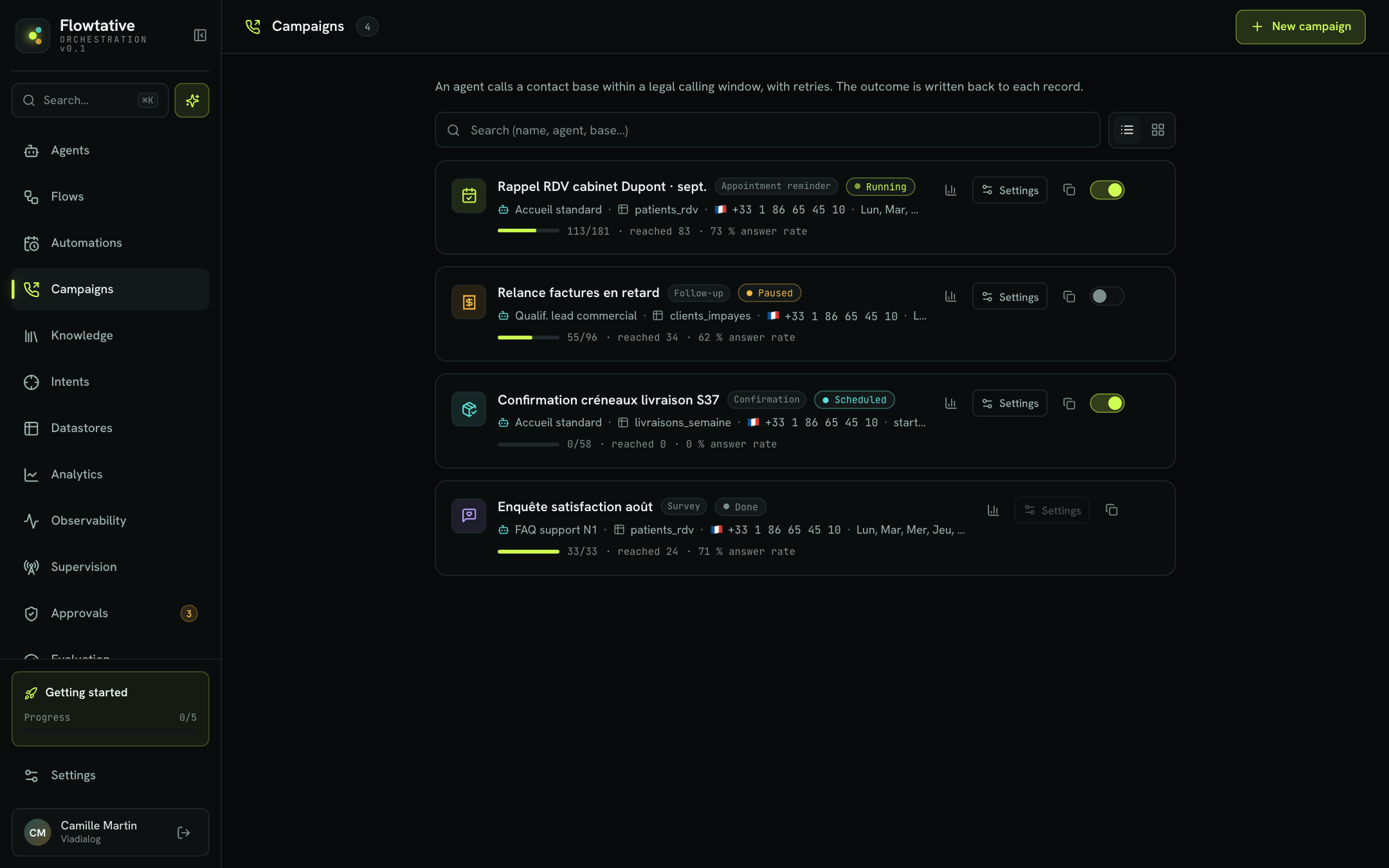
Moving to Done by closing is final. To start again with the same settings, duplicate the campaign. See Track and manage a campaign.
The outcome on each record
For each contact, the campaign records its call status (To call, In progress, Done), the number of attempts, the last call date and the outcome (Reached, No answer, Busy, Voicemail…). If the agent has a tool to update the base, it can also write a business result in a record column, for example "Appointment confirmed" or "Payment promise". This result feeds the campaign's Results tab.
Tip
Add a column to your base whose name suggests a result (resultat, statut, issue, qualification, result, status…) and ask the agent, in its prompt, to write the conversation outcome there. Flowtative detects it automatically for the report.
Best practices
- Test the agent in chat and voice before launching a campaign, then use Call me to test at the last step of the wizard.
- Keep the suggested legal window, unless your contacts gave explicit, time-stamped consent.
- Start with 2 simultaneous calls and 3 attempts, then adjust based on the Results tab (the Best slot tells you when your contacts answer most).
- Clean your base before importing it: the wizard excludes invalid numbers and duplicates, but a clean base gives a reliable audience.
Learn more
Create a campaign
Launch an outbound call campaign in three steps with the creation wizard, from picking the agent to the test call.
Track and manage a campaign
Track a campaign's progress, view each contact's details, reset a contact, change settings, close or delete.
Datastores
Create structured data tables, define their fields, import your CSV files and make them available to your agents and flows.
Create an agent
Create an agent from scratch or from a template, then set its model, prompt, capabilities, knowledge, flow and webhooks.