Getting around the interface
Sign in, navigate Flowtative and set your theme, language and profile.
This page describes what is common to all of Flowtative: signing in, the sidebar, the command palette, keyboard shortcuts and personal settings (profile, language, theme).
Sign in
Open the Flowtative address provided by ViaDialog. The Access your workspace screen appears. Depending on your workspace configuration, it offers one of these two modes.
ViaDialog credentials
- In Organization, enter your organization identifier.
- In Username, enter your personal username (for example
first.last). - In Password, enter your password.
- Keep Stay signed in checked if you are on a personal computer.
- Click Sign in.
ViaDialog SSO
- In Organization, enter your workspace identifier.
- Click Continue with ViaDialog SSO, then authenticate on your organization's page.
After signing in, Flowtative opens the Agents page. On your first visit, it first opens the Getting started journey (see Welcome).
Note
If sign-in fails, check your organization identifier: it is provided by ViaDialog or by your administrator. The Contact your administrator link below the form reminds you who to ask.
The theme selector (Dark, Light, Auto) is available at the top right of the sign-in screen.
The sidebar
The sidebar, on the left, gives access to every page. From top to bottom:
| Area | Content |
|---|---|
| Header | The Flowtative logo and the Collapse menu button. |
| Search | The Search… field (shortcut ⌘K) and the Ask AI button (sparkles), which open the command palette. |
| Navigation | Agents, Flows, Automations, Campaigns, Knowledge, Datastores, Analytics, Observability, Supervision, Approvals, Evaluation, Transcripts, Team. The active page is highlighted. A badge on Approvals shows the number of pending requests. |
| Bottom of the menu | The Getting started card (until the journey is finished), Settings, then your name, your organization and the Sign out button. |
The navigation list scrolls if the window is too short; the header and the bottom of the menu always stay visible.
Collapse the menu
To save space, especially in the flow editor, collapse the menu into an icon rail:
- Click Collapse menu next to the logo, or press
⌘B(Ctrl+Bon Windows). - Hover over an icon to show the page name.
- To go back to the full menu, click Expand menu or press
⌘B/Ctrl+Bagain.
In collapsed mode, the Getting started progress appears as a ring around a rocket icon. Your choice is remembered in your browser.
The command palette
The command palette lets you go to any page or run an action without leaving the keyboard.
- Press
⌘K(Ctrl+Kon Windows), or click Search… in the sidebar. - Type a few letters: the list filters (search ignores accents).
- Move with the
↑↓arrows, then confirm with↵. - Press
Escto close.
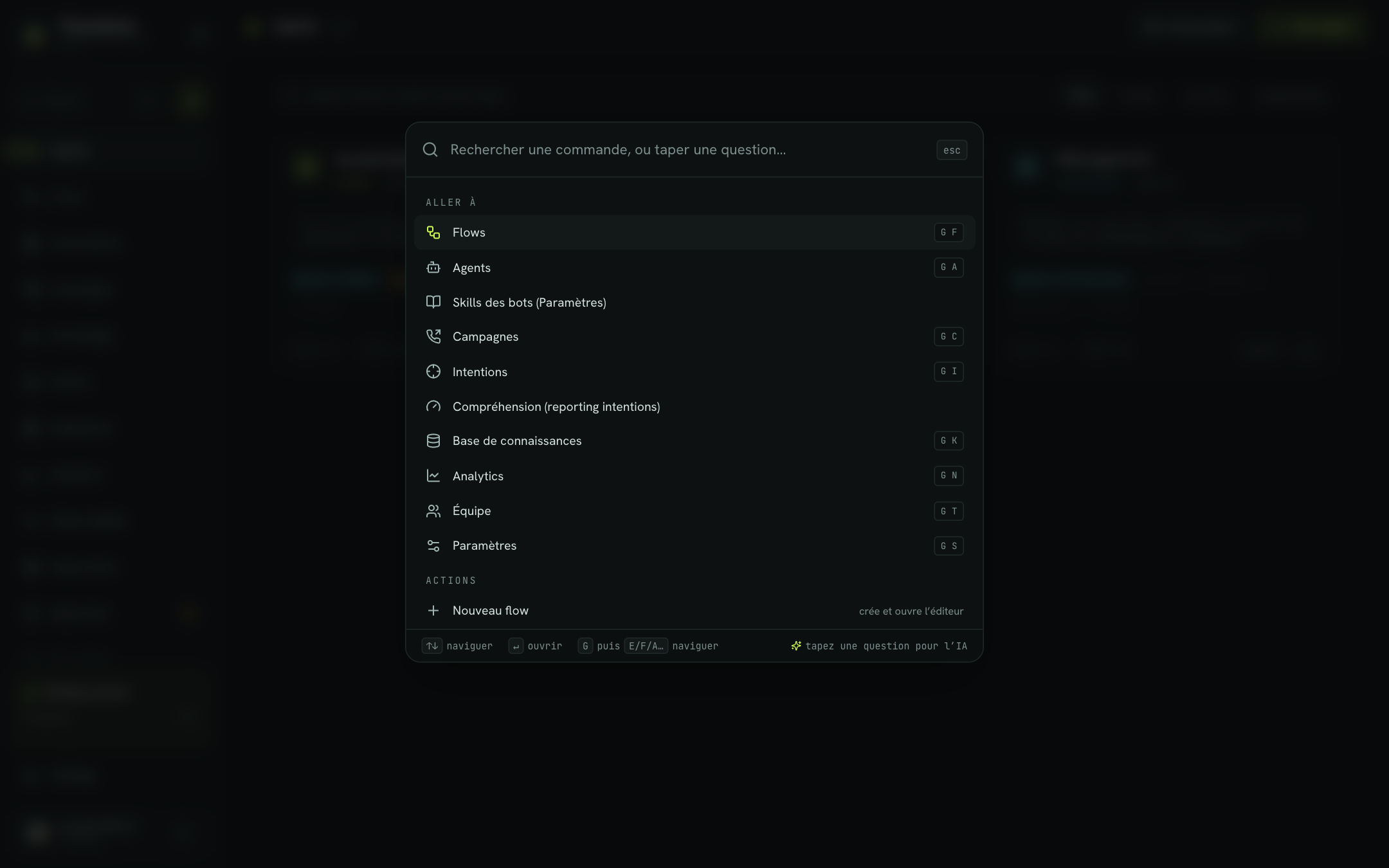
Available commands:
| Section | Command | Effect |
|---|---|---|
| Go to | Flows, Agents, Campaigns, Knowledge base, Analytics, Team, Settings | Opens the matching page. |
| Go to | Bot skills (Settings) | Opens the Skills section of the settings. |
| Actions | New flow | Creates a flow and opens the editor. |
| Actions | New campaign | Opens the campaign creation wizard. |
| Actions | New agent | Opens the Agents page. |
| Actions | Toggle theme | Switches from the dark theme to the light theme, or the other way round. |
| Actions | Sign out | Ends your session. |
Ask AI
When you type text in the palette, the first line offers Ask AI: "your text". Confirm it to get short, predefined help about Flowtative's main features (agents, flows, knowledge, campaigns…), for example "how do I test an agent by voice?". These answers are quick pointers: for details, refer to this documentation. The Ask AI button in the sidebar opens this mode directly. Click commands to go back to the command list.
Keyboard shortcuts
| Shortcut | Action |
|---|---|
⌘K / Ctrl+K | Open or close the command palette. |
⌘B / Ctrl+B | Collapse or expand the sidebar. |
G then A | Go to Agents. |
G then F | Go to Flows. |
G then C | Go to Campaigns. |
G then K | Go to Knowledge. |
G then N | Go to Analytics. |
G then T | Go to Team. |
G then S | Go to Settings. |
Esc | Close the palette, or leave Ask AI mode. |
G-then-letter shortcuts are chained: press G, release it, then press the letter within about one second. They are inactive while you type in a text field. The flow editor has its own shortcuts, described in The visual editor.
Your profile
Your profile is set in Settings > Profile, the first section of the settings.
| Field | Description |
|---|---|
| Avatar URL | Address of an image used as your profile picture. Remove avatar (cross) deletes it. |
| First name / Last name | Your first and last name. |
| Your contact address. | |
| Phone | Your number, in international format (for example +33…). |
| Language | Interface language (see below). |
| Time zone | Your time zone. |
Click Save to confirm. The button is only active if you have changed a field.
To change your password, fill in Current, New and Confirm in the Password block, then click Change password.
The Getting started block offers Restart the journey, which reopens the guided journey (agent, knowledge, number, test, team).
Change the language
Flowtative is available in ten languages: French, English, Spanish, German, Italian, Portuguese, Dutch, Polish, Arabic and Russian.
- Open Settings > Profile.
- In Language, choose your language. The interface changes immediately.
- Click Save to keep this choice in your profile.
On your first sign-in, Flowtative uses your browser's language if it is available, otherwise French. In Arabic, the interface is displayed right to left.
Note
Some interface text, such as agent templates, the command palette or part of the agent editor, is currently shown in French whatever language you choose.
Change the theme
Flowtative offers three themes:
| Theme | Effect |
|---|---|
| Dark | Dark background. Default theme. |
| Light | Light background. |
| Auto | Follows your system's light/dark setting and changes along with it. |
- Open Settings > Profile.
- In the Appearance block, click Dark, Light or Auto.
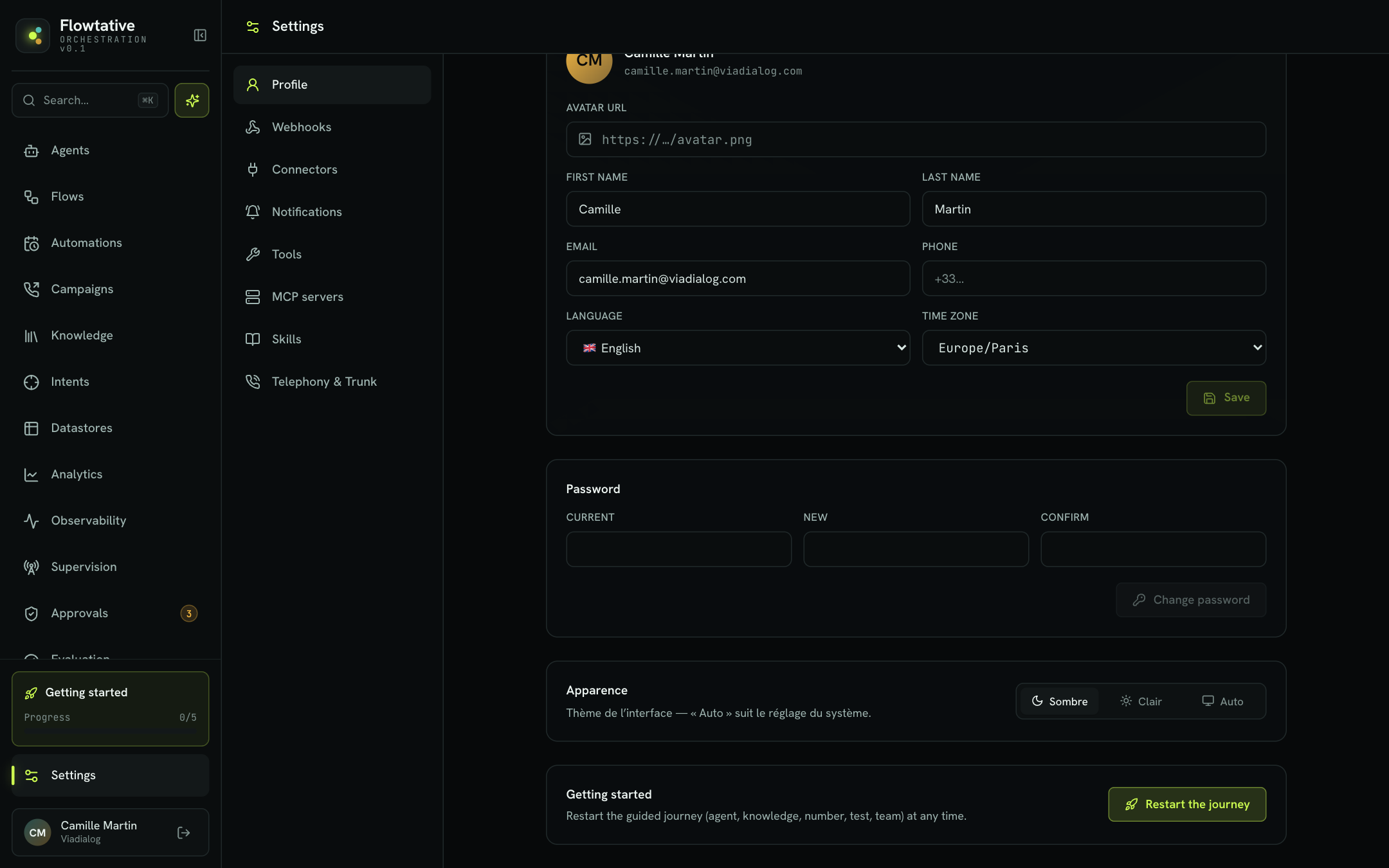
To switch quickly, use the palette's Toggle theme command (⌘K). It alternates between light and dark, and leaves Auto mode. The theme is remembered in your browser: it applies to this device only.
Sign out
Click the Sign out icon to the right of your name, at the bottom of the sidebar, or use the palette's Sign out command. You return to the sign-in screen.