Welcome to Flowtative
Discover what Flowtative does, who it is for and where to find each feature.
Flowtative is the ViaDialog platform for designing, testing and running AI agents that answer your customers by phone and in writing. You describe how your agents behave, connect them to your content and tools, then monitor their activity and quality day to day.
Browse the documentation
Each section groups the guides for one area of the app.
Agents
Create and configure your AI agents, then test them by chat and voice.
Flows
Draw a conversation journey with connected blocks on a visual canvas.
Knowledge
Knowledge bases and datastores where your agents look up their answers.
Campaigns & automations
Have an agent call a contact base, run an agent on a schedule, handle human approvals.
Monitoring & quality
Analytics, observability, live supervision, transcripts and evaluations.
Administration
Settings, webhooks, telephony, team and frequently asked questions.
Recent changes to the application are listed month by month in What's new.
Who Flowtative is for
Flowtative is built for teams that design and operate automated customer service:
- Customer service and contact center managers: you define what the agent must do (greet, qualify, answer frequent questions, transfer), and you monitor conversations and answer quality.
- Workspace administrators: you manage team members, phone numbers, webhooks and connectors.
- Supervisors: you follow live calls, handle human approvals and review transcripts.
You don't need development skills to create a first agent. Advanced features (flows, tools, HTTP requests) are available from the same interface when your journeys grow more complex.
What you can do
A concrete example: a health insurer wants a callbot to handle inbound calls to its customer service. With Flowtative, it:
- creates an agent from the Callbot vocal template and writes its instructions;
- gives it a knowledge base with its FAQ and procedures, so it answers from its own content;
- tests it in writing, then by voice, right in the browser;
- assigns it a number so policyholders can call it;
- adds a flow to structure the journey (identification, reason for calling, transfer to an advisor);
- then monitors volumes, the agent's operational health and answer quality.
The same logic applies to outbound calls: a campaign has an agent call a contact base, within a legal calling window, with retries.
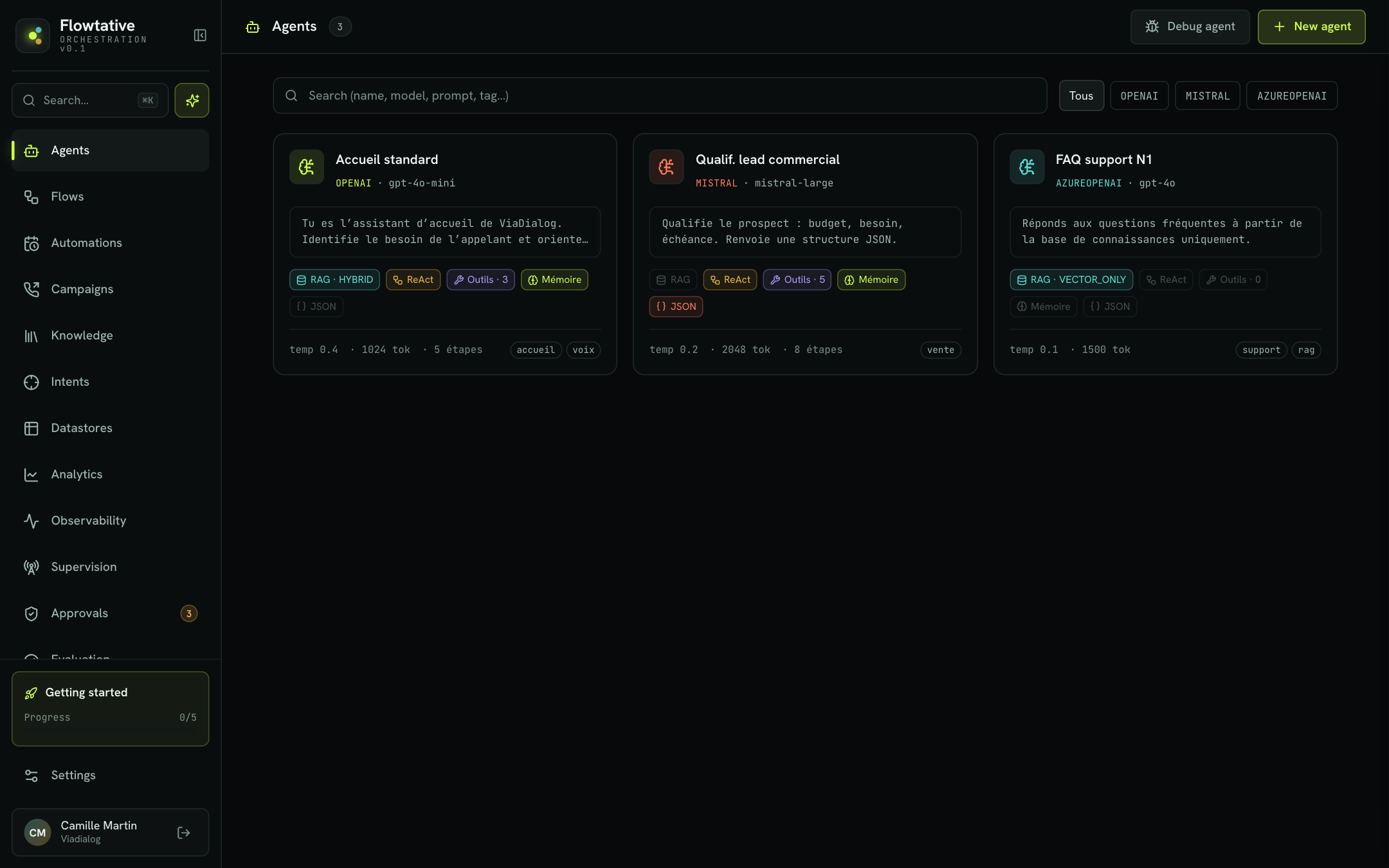
Feature map
The sidebar groups every feature. The table below explains what each entry is for and where to find its documentation.
| Menu entry | What it is for | Documentation |
|---|---|---|
| Agents | Create and configure your AI agents: model, prompt, knowledge, tools, voice. Test them by chat and voice. | Agents |
| Flows | Draw a conversation journey with connected blocks on a visual canvas. | Flows |
| Automations | Run an agent without inbound interaction: on a schedule, or on a call from an external system. | Automations |
| Campaigns | Have an agent call a contact base, within a legal calling window, with retries. | Campaigns |
| Knowledge | Create knowledge bases (text, PDF, CSV, websites) where your agents look up their answers. | Knowledge |
| Datastores | Manage data tables (customers, contracts, contact bases) read and written by your agents and flows. | Datastores |
| Analytics | Track your agents' activity indicators over a period. | Analytics |
| Observability | Check the operational health of agents: volume, cost, latency, tool reliability, errors. | Observability |
| Supervision | Follow ongoing calls live. | Supervision |
| Approvals | Handle the human approval requests raised by your flows. A badge shows the number of pending requests. | Approvals |
| Evaluation | Score conversation quality with an evaluation grid and a judge agent. | Evaluations |
| Transcripts | Review past conversations, listen to recordings, export. | Transcripts |
| Team | View the members of your workspace, manage their roles and their access. | Team |
| Settings | Profile, webhooks, connectors, notifications, tools, MCP servers, skills, telephony. | Settings |
Your first visit
On your first visit, Flowtative opens the Getting started journey. It guides you through seven screens: Welcome, Agent, Knowledge, Number, First test, Team, Ready. Every step except agent creation can be skipped with Skip this step.
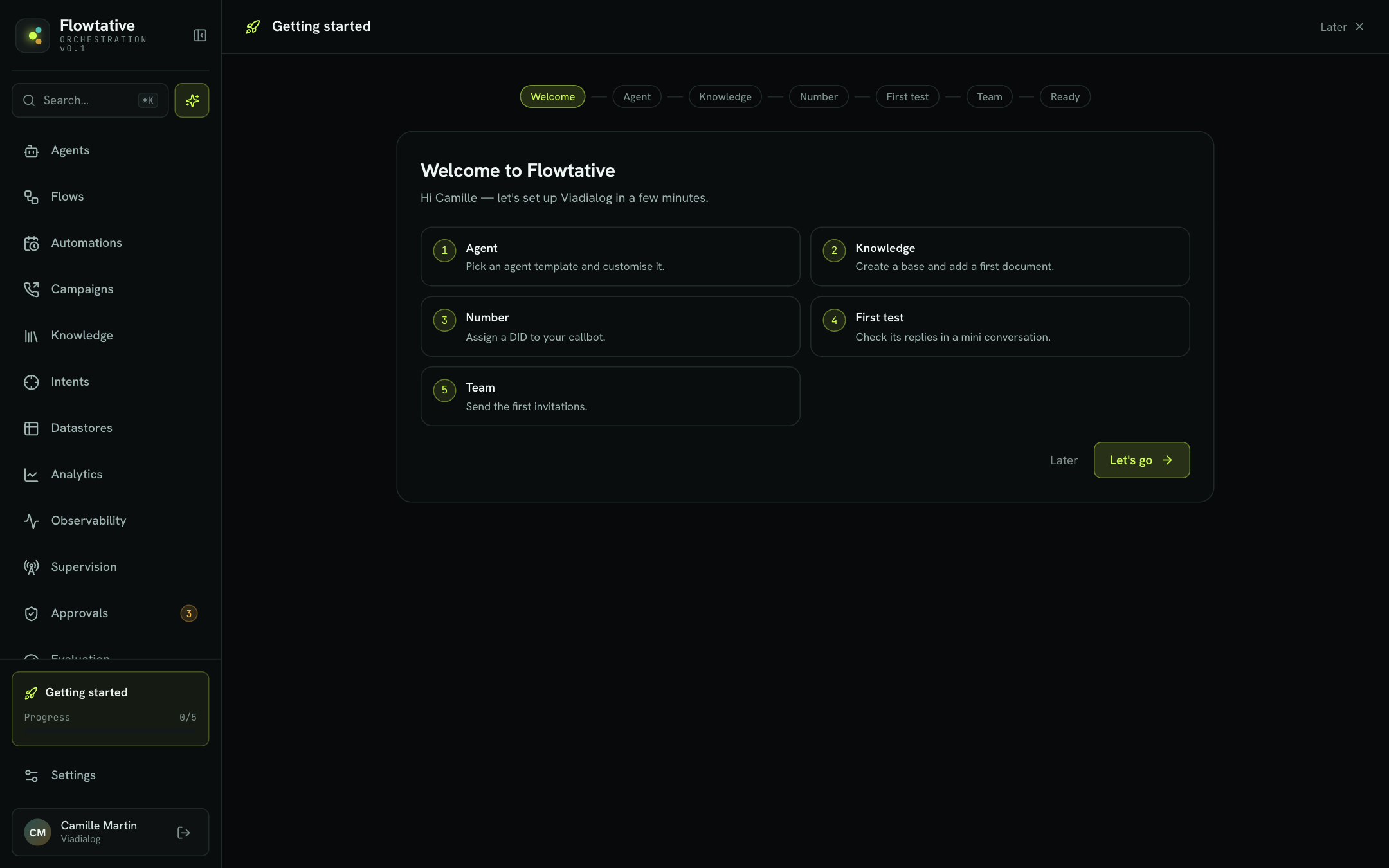
| Step | What you do |
|---|---|
| Agent | You pick an agent template (filterable by category), enter the Agent name, then click Create agent. |
| Knowledge | You enter the Base name and, if you wish, a First document (optional) (a title and pasted text), then click Create base. |
| Number | You pick an available number and click Use this number: it is reserved for the agent you created. If no number is available, click Request a DID: the ViaDialog team provisions the number and routes it to your agent. |
| First test | You exchange a few messages with the agent. Replies come from the real engine. |
| Team | You can enter your colleagues' email addresses, separated by commas, then click Invite. This step sends no email and creates no account: to give a colleague access, ask your administrator. |
| Ready | A summary lists what was done, with a link to each useful page. Click Finish. |
Note
The base created during the journey is not linked to the agent automatically. Open the agent afterwards, Knowledge (RAG) section, to link it. The quickstart details this step.
You can leave the journey at any time with Later. Until it is finished, the Getting started card stays visible at the bottom of the sidebar, with your progress (for example 3/5). Once the journey is finished, you can restart it from Settings > Profile > Restart the journey.