Skills
Write blocks of instructions that your agents load only when they need them, and attach them to your agents.
A skill is a block of instructions written in Markdown that an agent loads on demand. Rather than lengthening the system prompt with every possible procedure, you store them in skills: the agent's prompt only contains their catalog (name and description), and the agent loads a skill's full content when the situation calls for it.
Why use skills
- A shorter, more reliable prompt. On each turn, the model only reads names and descriptions, not pages of procedures.
- Shared procedures. The same skill (for example the cancellation procedure) serves several agents; you update it once.
- A clear structure. Skills are organized as a tree (
after-sales,after-sales/return,after-sales/refund).
Example: an after-sales agent attaches the after-sales skill. When a customer asks to return a product, the agent loads after-sales/return, which details the return conditions, lead times and information to ask for.
Find your skills
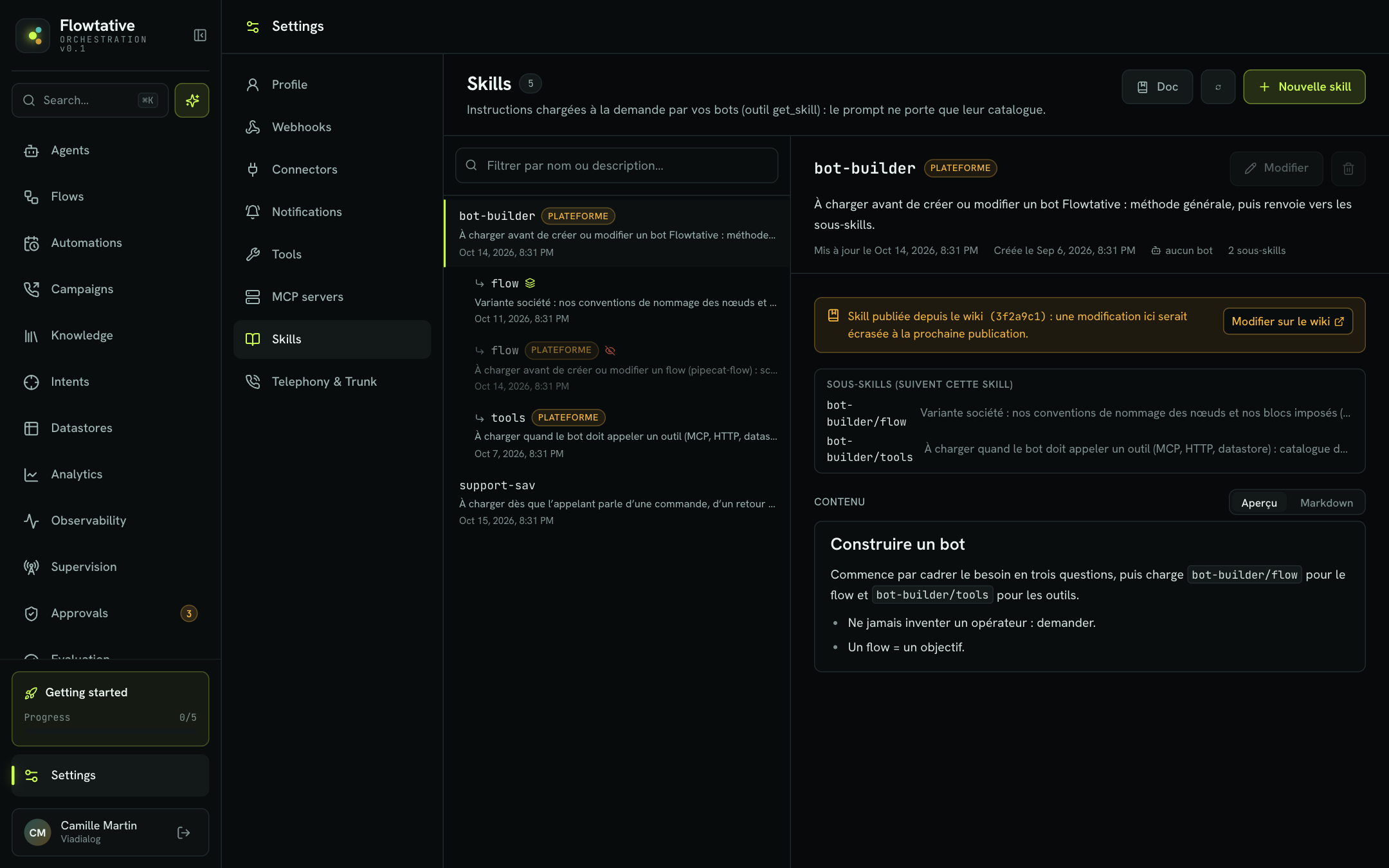
Skills are managed in Settings > Skills. The page has two panes:
- On the left: the tree of skills visible to your company, with a Filter by name or description… field. Sub-skills are indented under their parent skill.
- On the right: the details of the selected skill, or the editor.
The counter next to the title shows the number of skills. The refresh button reloads the list.
Company skills and platform skills
| Type | Badge | Description |
|---|---|---|
| Company skill | company | Created by your company, visible only to it. |
| Platform skill | platform | Provided for all companies. Read-only for your company. |
If your company creates a skill with the same name as a platform skill, your agents load yours: it carries the platform override badge, and the platform skill shows as hidden. This is how you adapt a standard procedure to your internal rules.
Create a skill
- In Settings > Skills, click New skill.
- Fill in the Name (skill address), for example
after-sales/return. - Write the Description — WHEN to load it.
- Write the Content (Markdown). The Preview tab shows the rendering.
- Click Save.
| Field | Rules | Limit |
|---|---|---|
| Name (skill address) | Required. Lowercase segments (letters, digits, hyphens) separated by /. The format is checked as you type. | 100 characters, 5 levels |
| Description — WHEN to load it | Required. One or two sentences: it is all the model sees before loading the skill. A counter shows the number of characters. | 1,000 characters |
| Content (Markdown) | Required. The full instructions: direct guidance, explicit rules, examples. | 200,000 characters |
Tip
Write the description as a trigger: "Load before handling a product return request" rather than "Returns documentation". The model decides whether to load the skill based on this sentence alone.
Organize into sub-skills
The / in the name creates a hierarchy: after-sales/return is a sub-skill of after-sales. Attaching after-sales to an agent also makes all its sub-skills reachable, without checking them one by one.
Example tree for a customer service center:
after-sales
after-sales/return
after-sales/refund
billing
billing/payment-plan
cancellation
Content example
# Returning a product

## Conditions
- Returns accepted within 30 days of delivery.
- Product unused, in its original packaging.

## Information to ask for
1. The order number.
2. The product concerned.
3. The reason for the return.

## Rules
- Never promise a refund before the product is received.
- If the order is more than 30 days old, offer a transfer to an advisor.
View, edit, delete
Click a skill in the tree to show its details: name, badge, description, creation and update dates, number of bots attaching it and number of sub-skills.
- Attached to: lists the agents using the skill; click an agent to open its editor.
- Sub-skills (follow this skill) lists its sub-skills.
- The content is shown as Preview or raw Markdown.
- Edit opens the editor; the trash icon deletes the skill.
Before deletion, a Delete the skill …? window lists the agents that will no longer be able to load it. Sub-skills are not deleted, but they can no longer be reached through this name.
Note
A skill is read-only in two cases: it is a platform skill, or it is published from a wiki (a banner says so, with an Edit on the wiki link; a change made in Flowtative would be overwritten at the next publication).
Attach a skill to an agent
- Open the agent in the editor.
- Click Skills in the left menu (Intelligence group).
- Check the skills the agent may load. The sub-skills of a checked skill appear checked and greyed out, with the mention follows its parent skill.
- Click Save.
The Manage skills link leads to Settings > Skills. If an attached skill has been deleted, an Attached skills not found warning flags it: click it to remove it.
Best practices
- One skill, one situation. One procedure per skill, with a description that says exactly when to load it.
- Write for the model. Direct guidance, lists, complete examples; avoid vague wording.
- Keep permanent rules in the prompt. The tone, identity and guardrails that apply to the whole conversation stay in the system prompt; one-off procedures go into skills.
- Test the trigger. In the tester, ask a question that should trigger the skill and check that the answer applies its procedure.
Learn more
Create and configure an agent
Create an agent from scratch or from a template, then set its model, prompt, capabilities, knowledge, flow and webhooks.
Test an agent
Talk to an agent in writing or by voice, inject test variables and turn on the diagnostic log before going live.
Settings and connectors
Manage your profile, display preferences, knowledge and calendar connectors, and MCP servers.