Automations
Run an agent without inbound interaction, on a schedule or when an external system asks, and track its run history.
An automation runs an agent without a customer calling or writing in: every morning at 8:00 to prepare a callback list, every 15 minutes to process pending requests, or when your CRM asks because a case changed state. You pick the agent, the trigger and, if needed, variables passed on every run.
Before you begin
- The agent to run must exist. Its flow must be able to run without anyone on the other end: in the flow editor, the Make autonomous button marks it as such. Only blocks with no customer exchange (Datastore, MCP tool, HTTP request, Message without waiting for a reply, Human validation, Hang up) can then be reached from the entry. See Make a flow autonomous.
- Prepare, if needed, the variables the agent expects (for example a reason or a priority).
Create an automation
- In the menu, click Automations.
- Click New automation.
- Enter the Name, for example "Morning outbound reminders".
- In Agent to run, search the agent by name, model or tag.
- Under Trigger, check Scheduled, API call, or both.
- Set the Schedule (if Scheduled is checked).
- Add Default variables if the agent needs them.
- Make sure Automation active is on.
- Click Create.
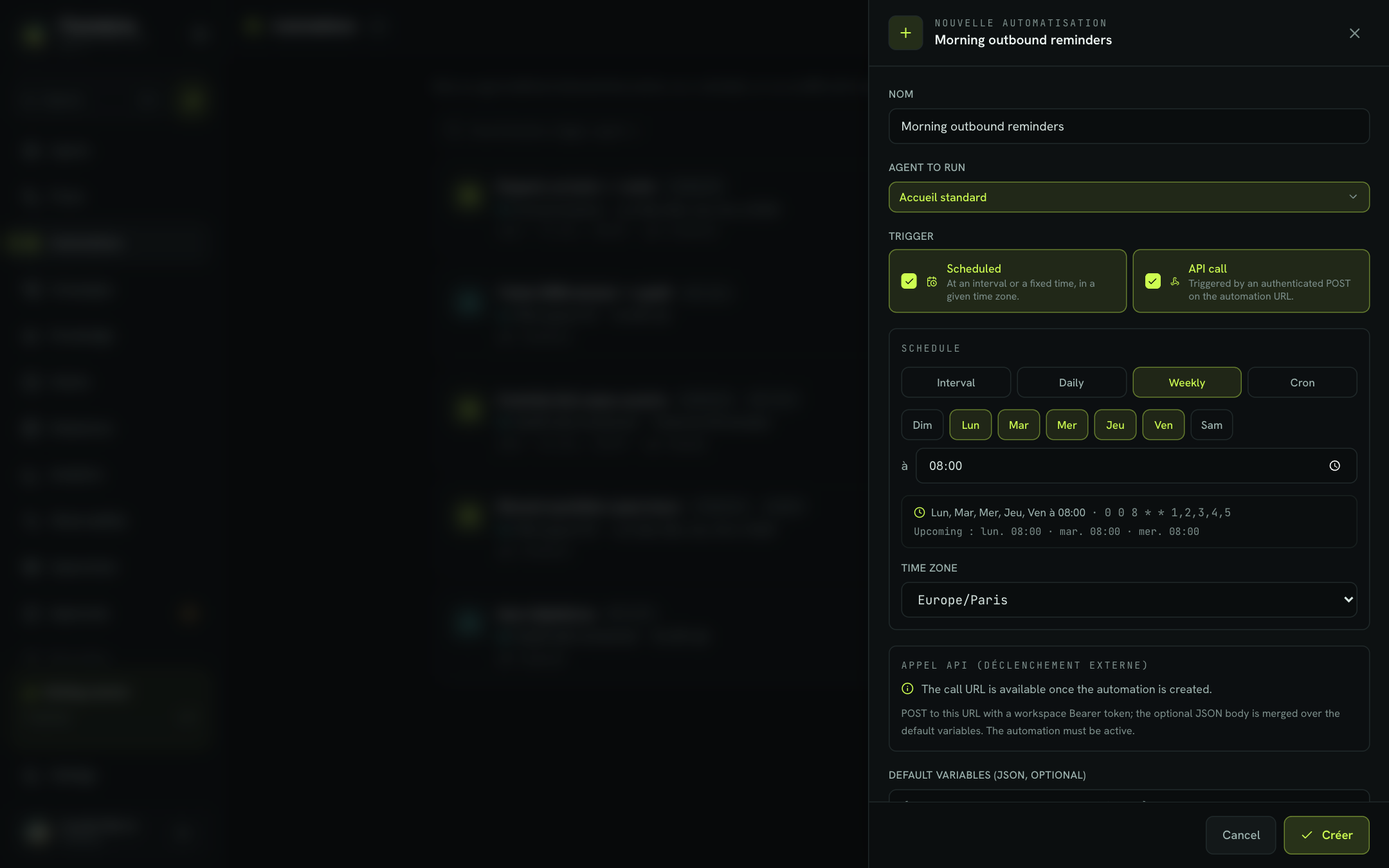
Fields
| Field | Description | Default |
|---|---|---|
| Name | Automation name, shown in the list. | Empty (required) |
| Agent to run | The agent whose flow is run. | None (required) |
| Trigger | Scheduled ("At an interval or a fixed time, in a given time zone.") and/or API call ("Triggered by an authenticated POST on the automation URL."). At least one. | Scheduled |
| Schedule | The run pattern (see below). | Daily, every day at 09:00 |
| Time zone | Time zone in which the schedule is evaluated. | Europe/Paris |
| Default variables (JSON, optional) | A JSON object passed to the agent on every trigger, for example { "reason": "rappel_commercial" }. See Variables and dynamic data. | Empty |
| Automation active | An inactive automation does not run. | On |
The Create button stays greyed out while a rule is not met; the message next to it says which one (missing name, missing agent, no trigger, incomplete cron, missing time zone or invalid JSON).
Set the schedule
The schedule offers four modes:
| Mode | Setting | Example |
|---|---|---|
| Interval | Every N minutes or hours. | Every 15 minutes |
| Daily | Every day at a given time. | Every day at 08:00 |
| Weekly | One or more days (Sun to Sat) and a time. | Mon, Wed, Fri at 18:30 |
| Cron | A 6-field cron expression: seconds, minutes, hours, day, month, day of week. | 0 0 9 * * MON-FRI |
Below the settings, a summary spells out your schedule in plain words ("Every day at 08:00"), with the equivalent cron expression and the next three runs under Upcoming (except in Cron mode).
Tip
In Cron mode, a 5-field expression (classic crontab format) is accepted: Flowtative prefixes it with "0" for the seconds. For example, 30 7 * * 1-5 becomes 0 30 7 * * 1-5, that is Monday to Friday at 7:30.
Trigger through an API call
With the API call trigger, an external system (CRM, ticketing tool, internal script) can start the automation when it needs to.
- Create the automation with the API call trigger: the call URL is only available once the automation is created.
- Reopen the automation with Edit (pencil icon).
- In API call (external trigger), click Copy URL, or Copy a curl example to get a ready-to-adapt request.
The call is a POST to this URL with an access token from your workspace. The optional JSON body is merged over the default variables: a key sent in the call adds to or overrides the automation's key. The automation must be active.
Example. Default variables { "priority": "normal" }. Your ticketing tool calls the URL with { "priority": "high", "ticket": "CS-4471" }: the agent receives priority = high and ticket = CS-4471.
Note
Variable keys cannot be empty, nor contain "." or "$".
Manage your automations
For each automation, the list shows its triggers, the "disabled" mention when relevant, the agent, the pattern (or "On API call"), the next run and the author. A search filters by name, trigger or agent, and you can switch between List and Cards.
| Action | Effect |
|---|---|
| History (clock icon) | Opens the run history. |
| Test now (play icon) | Starts an immediate run. Available if the automation is active and has the API call trigger. Its status then shows on the row. |
| Edit (pencil icon) | Reopens the configuration panel; save with Save. |
| Toggle | Enables or disables the automation. |
| Delete (bin, on hover) | Deletes the automation. |
Warning
Deleting an automation is immediate, with no confirmation. To stop it temporarily, use the toggle instead.
Track runs
The History lists the most recent runs, with their total count.
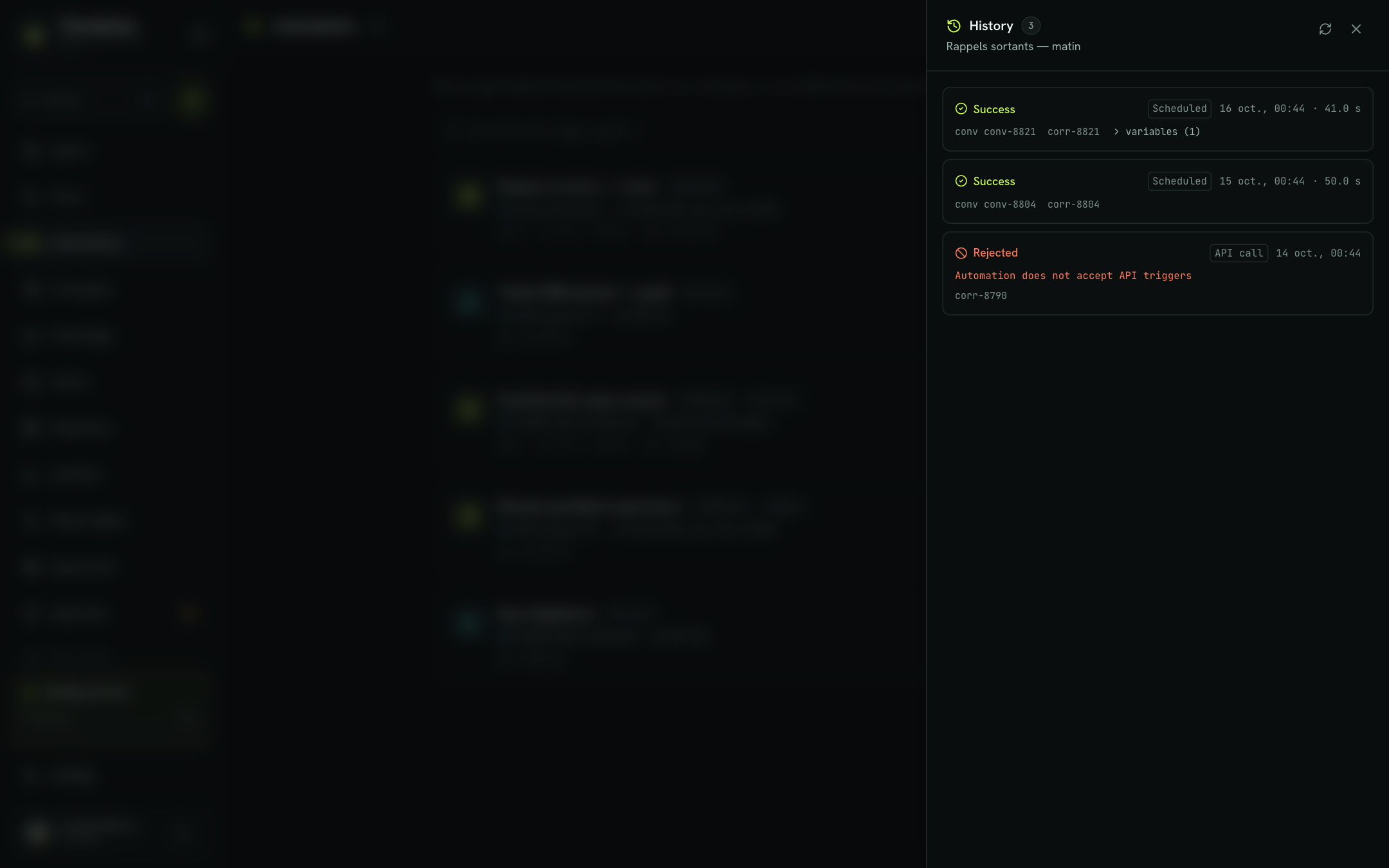
| Status | Meaning |
|---|---|
| Queued | The run was requested and is waiting for its turn. |
| Running | The agent is running. |
| Success | The run completed normally. |
| Failed | The run failed; the error message is shown, for example an unreachable external service. |
| Rejected | The request was not accepted, for example an API call on an automation that does not have that trigger. |
Each run also shows its trigger (Scheduled or API call), the date, the duration, the ID of the resulting conversation and, in one click, the variables received. The refresh button reloads the list.
Best practices
- Pick a name that says when and why: "Quote follow-up D+3 — every day 10:00".
- Check the Upcoming runs before creating: they confirm the time zone and time.
- Test with Test now before letting a schedule run, then check the History.
- For a run that needs a human's agreement before acting (refund, commercial gesture), add a Human validation block to the flow. See Human approvals.
Learn more
Human approvals
Handle the approval requests a flow submits to a human before going on, from the Approvals console.
The visual editor
Build a flow in the editor, link blocks, configure each step and use the shortcuts.
Block reference
The role, fields and a usage example for each block type of the flow editor.
Webhooks
Receive the full transcript of each session on your server, signed to prove where it comes from.