Agent creation assistant
Create a complete agent by describing your need in plain language, or have the assistant diagnose an existing agent.
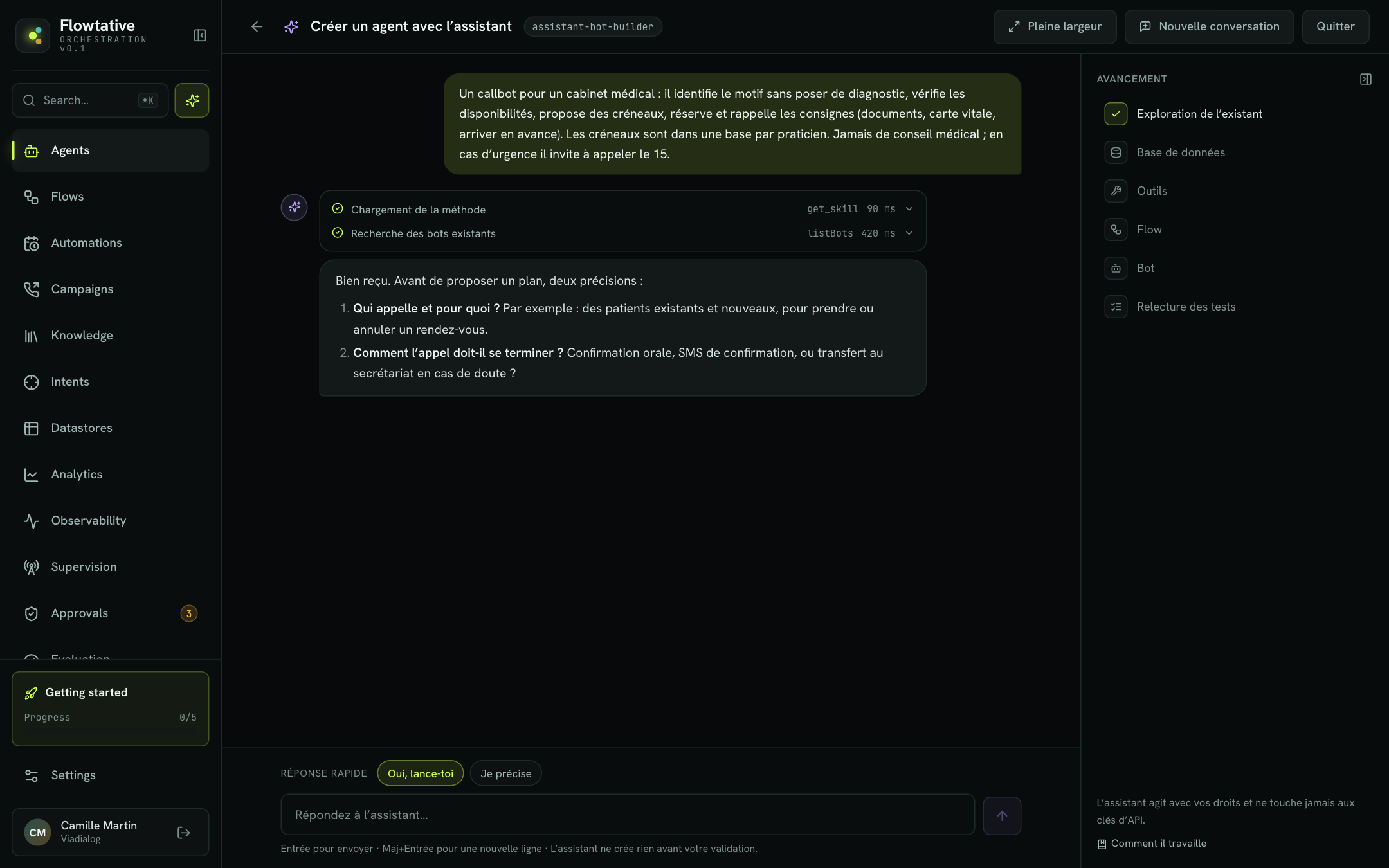
The agent creation assistant is a conversational agent that builds for you. You describe your need in your own words; it asks its questions, proposes a plan, then, once you approve, creates the database, the tools, the flow and the bot. The same assistant can also diagnose an existing agent that does not behave as expected.
Before you start
- The assistant must be available for your company. Otherwise, the screen shows The creation assistant is not available for your company: create your agent from a template or from scratch instead.
- The assistant acts with your permissions: it can only create what you could create yourself.
- It never touches API keys. An agent created without a key must be completed in the editor before it can be tested.
Create an agent with the assistant
- Open Agents, then click New agent.
- In the Describe your agent block, write your need. You can start from one of the suggested Ideas.
- Click Create with the assistant (or
⌘↵/Ctrl+Enter). The Create an agent with the assistant screen opens and sends your description. - Answer the assistant's questions in the Reply to the assistant… field.
- When the assistant submits its plan, review it. Click Yes, go ahead to approve it, or Let me clarify to correct it.
- Follow the progress in the right-hand pane. When the bot is created, the Agent created card offers Open the agent.
You can also start from a template: on its card, click With the assistant. The assistant then receives the template's brief as its first request.
Important
The assistant creates nothing before you approve the plan. Until you answer "yes", you can change your mind with no consequence.
Write a good description
Describe who calls, what for, with which data, and how the call should end. The more precise you are, the fewer questions the assistant asks.
Example:
An appointment booking callbot for a dental practice with two practitioners. Slots last 30 minutes, Monday to Friday from 9 am to 6 pm. The patient gives their name, number and reason for the visit; the bot offers three slots, confirms the choice and hangs up. For an emergency, it transfers to the front desk.
The Progress pane
The right-hand pane tracks the assistant's work steps:
| Step | What the assistant does |
|---|---|
| Exploring what exists | Looks at the bots, flows, databases, MCP servers and tools already in your account. |
| Database | Creates the database the agent needs (for example the slots), then reads or writes data in it. |
| Tools | Adds an MCP server if needed, saves and tests the tools the bot will call. |
| Flow | Validates then saves the conversation journey. |
| Bot | Saves the agent. |
| Reviewing tests | Searches and reviews transcripts to check the behavior. |
Each step goes through the to-do, running, done or failed states. Below each assistant answer, the list of its actions can be expanded to see the parameters and the result of each operation.
The Created in this conversation section lists the items created (Bot, Flow, Base, Tool), each with a link to open it. The mention key to enter flags a bot created without an API key: open it and enter the key in Identity & prompt.
Screen controls
| Control | Role |
|---|---|
| Full width / Reading width | Widens the conversation, handy for reviewing a long plan or schema. |
| Pane icon | Collapses or shows the Progress pane. Collapsed, it keeps the step icons and direct access to the created agent. |
| New conversation | Starts again from a blank conversation. Items already created are kept. |
| Quit | Returns to the agent list. |
In the input field, Enter sends the message and Shift+Enter adds a new line.
Debug an existing agent
When an agent does not answer as expected, the assistant can analyze it: it loads its configuration, flow, tools and recent conversations, then proposes a diagnosis. It changes nothing without your consent.
- Open debugging:
- from the Agents list, click Debug agent;
- or from an agent's editor, click Debug: the agent is then preselected.
- Under Which agent do you want to debug?, choose the agent.
- Describe the problem, or pick a typical request:
- It does not answer as expected
- A tool fails
- The flow gets stuck
- Review the latest calls
- Send. Your first message goes with attached context (the target agent and its last five conversations), which you can read by expanding Context attached for the assistant.
- Read the diagnosis. If the assistant proposes fixes, click Yes, apply to apply them, or Let me clarify to steer the analysis.
Choosing another agent to debug starts a new conversation. To look for the cause yourself from what you observe, see also Troubleshooting by symptom.
Example: "Since yesterday, the Main reception agent no longer transfers calls to the accounting department. The customer says 'accounting' and the agent replies it cannot help."
Limits
- The assistant does not save API keys: enter them yourself in the editor.
- If the conversation gets too long, an error message offers New conversation; your last message is put back in the input field.
- Always review the created agent and test it before going live: see Test an agent.
Learn more
Create and configure an agent
Create an agent from scratch or from a template, then set its model, prompt, capabilities, knowledge, flow and webhooks.
Test an agent
Talk to an agent in writing or by voice, inject test variables and turn on the diagnostic log before going live.
Flows
Understand what a flow is, how it runs, and how to manage your flows from the list.
Skills
Write blocks of instructions that your agents load only when they need them, and attach them to your agents.