Flows
Understand what a flow is, how it runs, and how to manage your flows from the list.
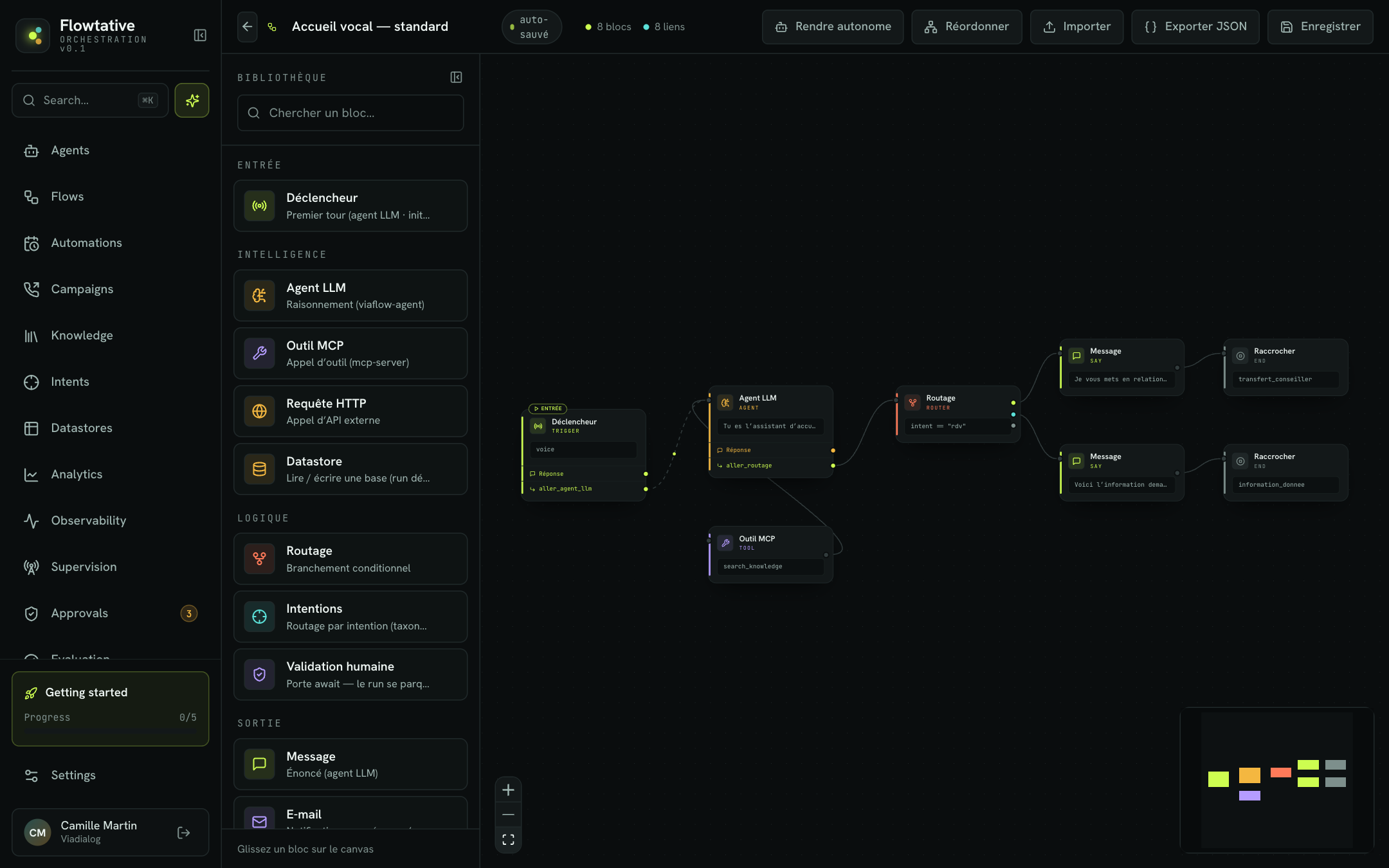
A flow describes, block by block, the path of a conversation: what the agent says when it picks up, the questions it asks, the tools it calls, the decisions it makes and how the exchange ends. Where a prompt alone lets the model improvise the order of the steps, a flow sets the structure of the journey while still letting the AI handle each step in its own words.
Use a flow as soon as your journey has mandatory steps (identification, legal notice, eligibility check), branches (call reason, opening hours, customer status) or deterministic actions (lookup in a database, confirmation SMS, transfer to an advisor).
The building blocks of a flow
| Element | What it is |
|---|---|
| Block | A step of the journey. Each block type has a specific role: an AI speaking turn, a message, a database read, an SMS, a human approval, the end of the call… See the block reference. |
| Link | An arrow drawn from the output of one block to the input of another. A link sets the next step. |
| Function | An action the AI can decide to call during a conversational block (Trigger, LLM agent). A function can call a tool, store a piece of information and take a transition to another block. |
| Entry | The block where the conversation starts. It carries the Entry badge on the canvas. |
| Variables | The information collected during the conversation (email, order number, lookup result…). They are shared by all blocks and can be reused in texts as {{state.parameters.email}}. |
How a flow runs
A flow linked to an agent runs on every conversation of that agent, on voice calls and in chat alike. The conversation starts on the Entry block, then moves from block to block.
Two families of blocks coexist:
- Conversational blocks — Trigger, LLM agent, Message. The AI talks with the user according to the block's prompt. It moves to the next block when it calls a transition function: either a function you declared, or the transition generated automatically from a link (see Automatic transitions).
- Action blocks — Datastore, SMS, Email, MCP tool. They run as soon as the block is entered, without going through the model, then immediately continue to the block linked to their output.
The Hang up block ends the conversation, with or without a farewell message, and can transfer the call. The Human validation block puts the conversation on hold until an operator decides.
Important
An action block must always be linked to a next block. Without an outgoing link, it shows the No next step badge and the flow is rejected when it is loaded.
Which block is the entry?
The Entry block is chosen automatically:
- the Trigger block, if there is one;
- otherwise, a block that receives no link (never a Hang up block).
The Entry badge shown on the canvas matches exactly the block where the conversation will start. If you duplicate the Trigger, the original stays the entry.
Example: a front-desk switchboard
A customer service team receives calls for three reasons: order tracking, appointment booking, complaint. The flow can look like this:
- Trigger — the AI greets the caller and recites the recording notice.
- LLM agent — the AI asks for the reason for the call and calls the matching transition function.
- Datastore — for order tracking, looks up the order by number in your database.
- LLM agent — the AI gives the status and answers questions.
- SMS — sends a summary to the caller.
- Hang up — farewell message, or transfer to an advisor for a complaint.
A detailed, field-by-field example is in The life of a call.
Managing your flows
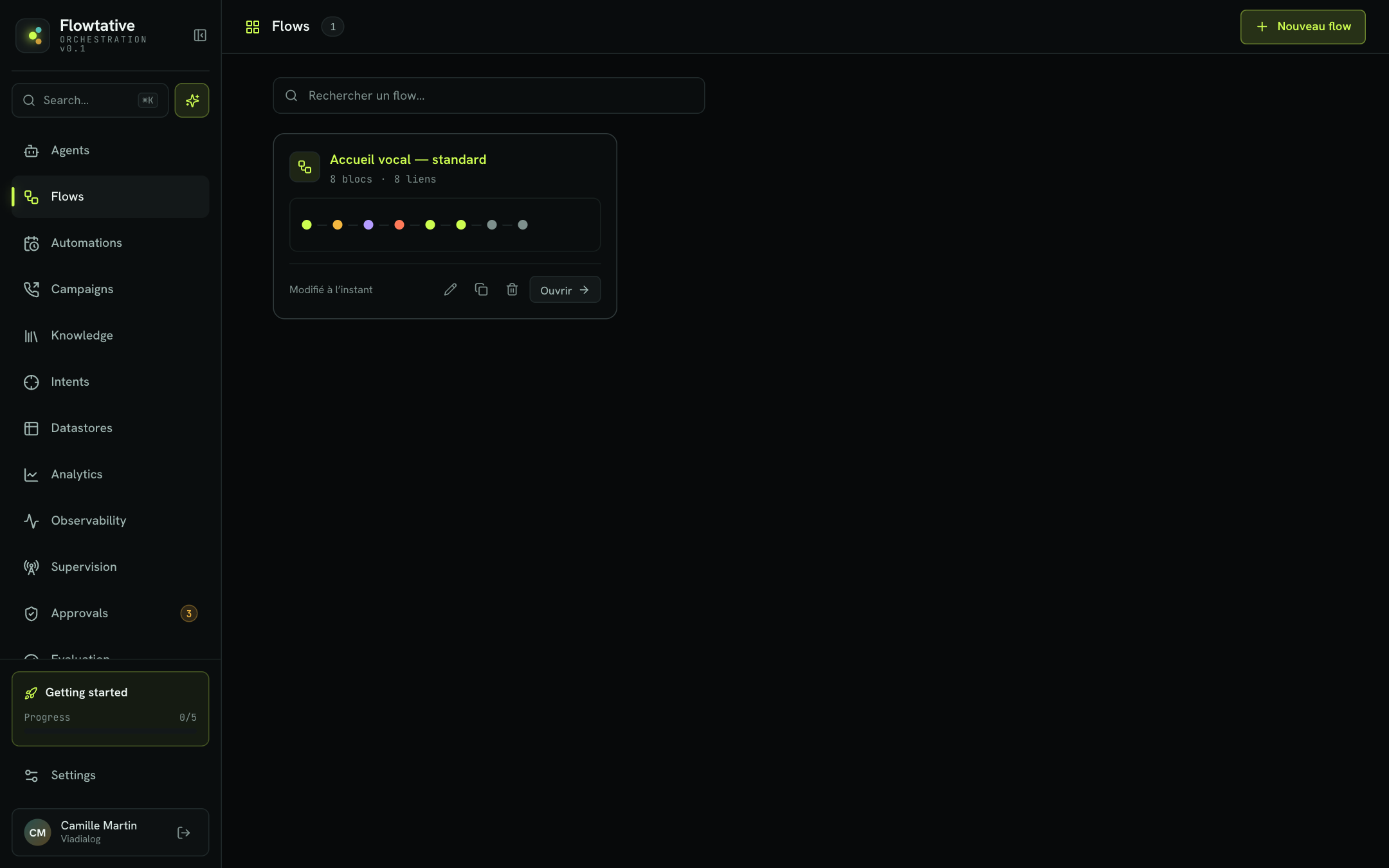
The Flows page (left menu) lists all the flows of your workspace, from the most recently modified to the oldest, 9 per page.
Each card shows:
- the flow name and the number of blocks and links;
- a preview strip with one colored dot per block;
- the date of the last change ("Modified 5 min ago").
Create a flow
- Click New flow at the top right.
- The editor opens on a flow named "New flow", which already contains a Trigger block.
- Rename it by clicking its name in the top bar.
Search for a flow
Type a few letters in Search a flow…. The search runs on the name and ignores accents and case. The search and the current page are kept when you come back from the editor.
Rename, duplicate, delete
Hover over a card to reveal its actions:
| Action | Effect |
|---|---|
| Rename (pencil) | The name becomes editable. Enter confirms, Esc cancels. |
| Duplicate (copy) | A Duplicate this flow? window suggests the Copy name (by default the name followed by "(copy)"). The copy includes all blocks and links. |
| Delete (trash) | Asks for confirmation with Confirm / Cancel. |
| Open | Opens the flow in the editor. Clicking the name or the preview does the same. |
Note
A flow linked to one or more agents cannot be deleted. The message "Deletion not possible: this flow is linked to…" lists the agents concerned, with a link to each. Remove the flow from these agents (or delete them), then try again.
Best practices
- One flow, one journey. Create one flow per use case (front desk, appointment booking, satisfaction survey) rather than one giant flow.
- Name every block. A block's label is also used to name the automatic transitions the AI reads: "Order lookup" is clearer than "LLM agent".
- Start small. A Trigger, an LLM agent and a Hang up block are enough for a first test; add the branches afterwards.
Learn more
The visual editor
Build a flow in the editor, link blocks, configure each step and use the shortcuts.
Block reference
The role, fields and a usage example for each block type of the flow editor.
Save and publish
Save a flow, manage its versions, link it to an agent, make it autonomous and export it.
The life of a call
Connect Flowtative's building blocks before, during and after a call, with a complete end-to-end flow example.