Team and roles
View the members of your workspace, assign them a role, and suspend or remove access.
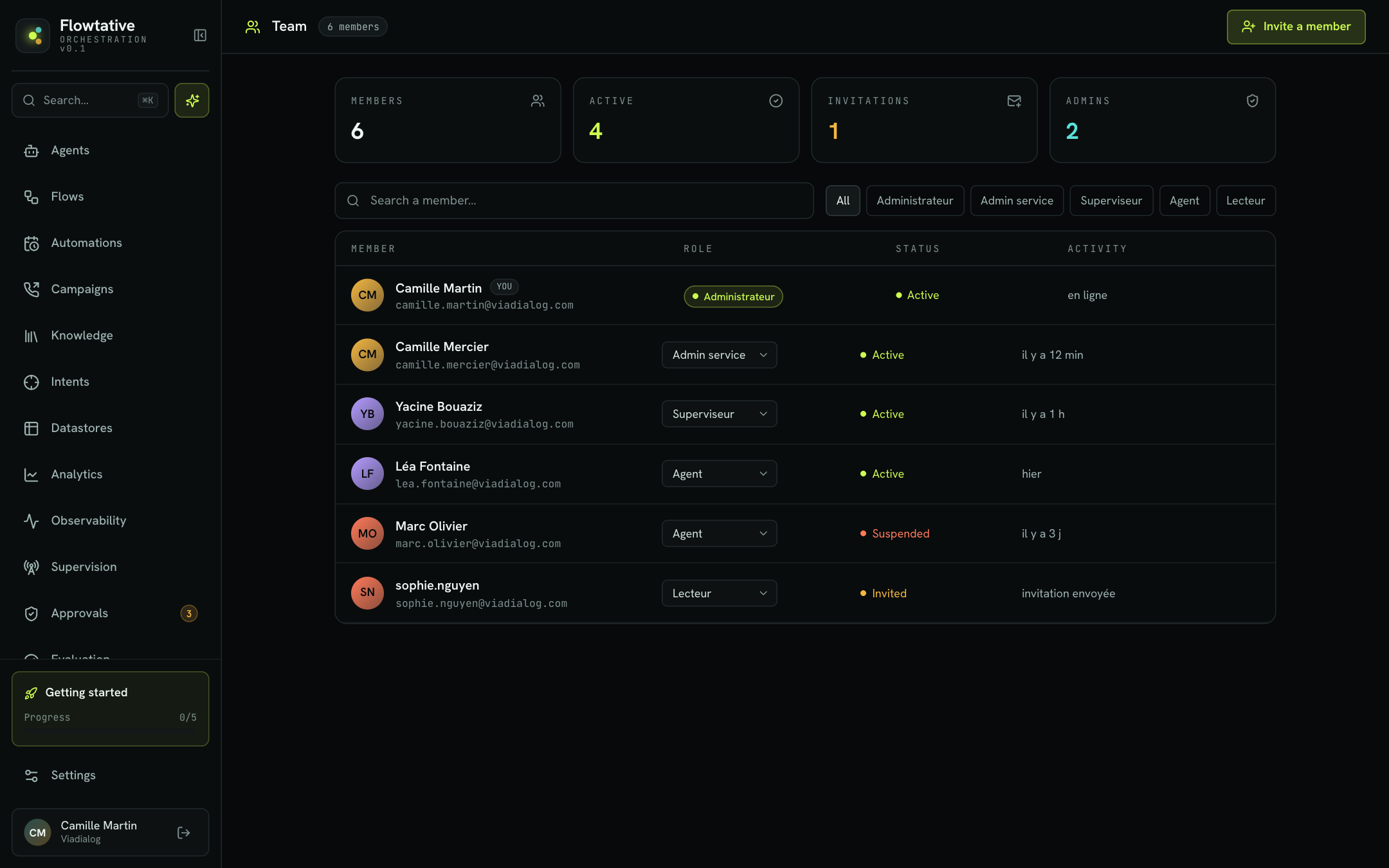
The Team page lists the people who have access to your Flowtative workspace: agent designers, contact center supervisors, advisors who take over transferred conversations. You assign roles and manage access there.
To open it, click Team in the side menu (/team).
Overview
At the top of the page, four counters summarize your workspace:
| Counter | What it counts |
|---|---|
| Members | Everyone in the list. |
| Active | Members whose account is active. |
| Invitations | Accounts that are not activated yet. |
| Admins | Administrator or Service admin members. |
The total number of members also appears next to the page title.
The member list
Each line shows:
| Column | Content |
|---|---|
| Member | Name, email address and avatar. Your own line carries the YOU tag. |
| Role | The member's role, editable from the list. |
| Status | Active, Invited or Suspended. |
| Activity | Time since the account was last updated (for example "3 days ago"). |
The list shows 10 members per page.
Search and filter
- The Search a member… field filters on name and email address.
- The All, Administrator, Service admin, Supervisor, Agent and Reader buttons filter by role.
- Reset clears the search and the filter.
Your search, filter and current page are kept when you leave the page and come back.
Roles
Flowtative offers five roles, from the broadest to the most limited. The description below is the one shown in the application.
| Role | Description | Typical profile in a customer contact center |
|---|---|---|
| Administrator | Full management of the workspace, members and billing. | Platform owner, IT department |
| Service admin | Creates and deploys flows, agents and MCP tools. | Customer experience project lead, journey designer |
| Supervisor | Supervises runs and transcripts in real time. | Floor supervisor, quality manager |
| Agent | Handles conversations transferred by the bots. | Customer advisor |
| Reader | Read-only access to flows and statistics. | Management, controlling |
An account without a recognized role appears as Reader.
Change a member's role
- Find the member in the list.
- In the Role column, open the drop-down list.
- Choose the new role.
The change is saved immediately. If it fails, the previous role is restored and an error banner appears at the top of the page (for example "Could not update the user (403)."). Close it with the cross.
Note
You cannot change your own role: on your line, the role is read-only. Ask another administrator to do it.
Suspend, reactivate or remove a member
Actions appear on the right when you hover over a line.
| Action | Available for | Effect |
|---|---|---|
| Suspend | An active member | The account is deactivated. The member moves to Suspended. |
| Reactivate | A suspended member | The account is reactivated. The member moves back to Active. |
| Remove from workspace | Any member except you | The account is removed from the workspace, without confirmation. |
Warning
Remove from workspace applies on click. If you only want to cut access temporarily (leave, end of assignment), prefer Suspend.
These actions are never offered on your own line.
Example: organizing a floor of 20 advisors
- 1 Administrator: the platform owner.
- 2 Service admin: the people who design and evolve agents and flows.
- 3 Supervisor: floor supervisors, who follow ongoing calls and review transcripts.
- 20 Agent: the advisors who take over conversations transferred by the bots.
- 2 Reader: management, who check the statistics.
When an advisor leaves the team for a few weeks, suspend their account. Remove them from the workspace when they leave for good.
Best practices
- Keep the number of Administrator accounts to the minimum, but keep at least two: each can then fix the other's role.
- Review access every quarter with the role filter and the Admins counter.
- Suspend rather than remove when in doubt: a suspension is undone in one click.
Learn more
Getting around the interface
Sign in, navigate Flowtative and set your theme, language and profile.
Supervision
Follow your AI agents' ongoing calls and conversations in real time, line by line.
Human approvals
Handle the approval requests a flow submits to a human before going on, from the Approvals console.
FAQ and troubleshooting
Find answers to common questions and fixes for the error messages Flowtative can display.