Configure a callbot's voice
Set the transcription, voice synthesis, pronunciation, turn-taking and end of call of a voice agent.
A callbot listens to the caller, transcribes their speech into text (STT), has the model answer, then reads the answer with a synthetic voice (TTS). This page describes every setting of the Voice · callbot group in the agent editor.
Before you start
- Open the agent in the editor (Agents, then click its card).
- If the Voice · callbot group does not appear in the left menu, click Enable voice (callbot). Voice templates (microphone icon) already have it.
- For the ElevenLabs voice, your company must have an ElevenLabs key, or you must enter one.
Tip
Every field in this group is optional. An empty field uses the platform default: only fill in what you want to change.
STT — transcription
The STT — transcription section turns the caller's speech into text. First choose the STT engine: DEEPGRAM (default) or VIASPEECH.
Deepgram engine
| Field | Description | Example shown |
|---|---|---|
| Model | Deepgram transcription model. | nova-2 |
| Language | The caller's language code. | fr |
| Keywords (boost) | Words to recognize better, with an optional weight, separated by commas. Useful for your brand, product or city names. | ViaDialog:2,callbot:1.5 |
| Endpointing | Silence duration (in ms) after which a sentence is considered finished. | 700 |
| End of utterance | End-of-utterance detection delay (in ms). | 1000 |
| Punctuation | Adds punctuation to the transcript. On by default. | — |
| Interim results | Partial transcripts before the end of the sentence. On by default. | — |
VIASPEECH engine
| Field | Description | Default value |
|---|---|---|
| Language | The caller's language code (for example fr). | Empty |
| ASR model | auto, wav2vec or whisper. | auto |
| Result mode | all, end_only or inter_only. | all |
| Hotwords (vocabulary) | Proper names, brands and business terms to favor. Type a word then Enter. | None |
| Punctuation & casing | Adds punctuation and capital letters. | On |
TTS — voice synthesis
The TTS — voice synthesis section gives the callbot its voice. Choose the TTS engine: ELEVENLABS (default) or VIASPEECH.
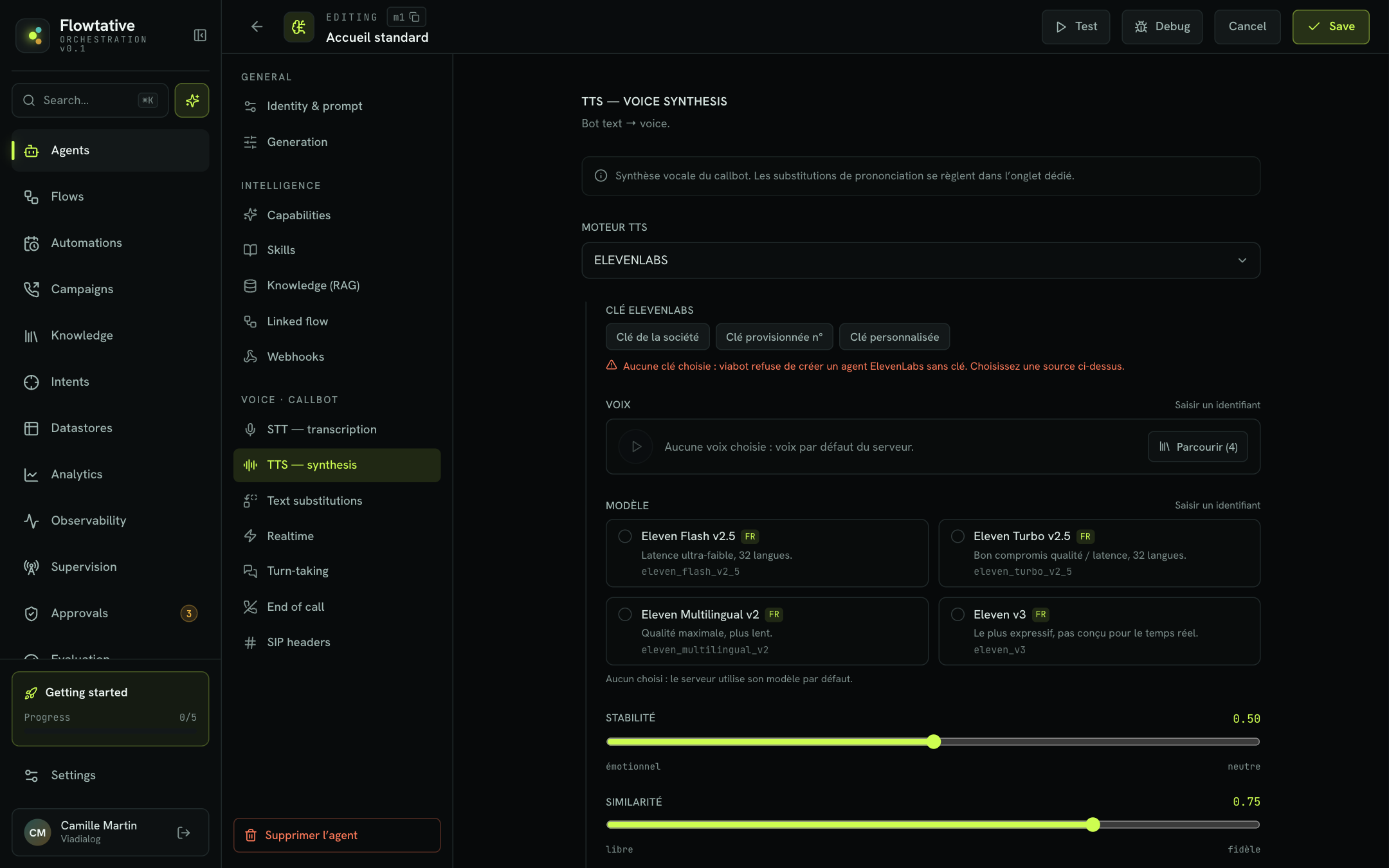
ElevenLabs key
| Mode | How it works |
|---|---|
| Company key | Your company's ElevenLabs key (the one marked as default if there are several). The key never goes through the browser. |
| Provisioned key # | A specific key of your company, picked from the list or typed by its number. For example a client's ElevenLabs account and its cloned voices. |
| Custom key | A key pasted directly on the agent (sk_…). It is stored on the agent and read back masked. |
After pasting a custom key, the Save as a company key block lets you turn it into a company key, with a description (for example "ElevenLabs account — client cloned voices"): it becomes reusable by your other agents, and its voices can be browsed and played in the editor. The agent then switches to this key.
Note
A custom key that has already been saved is never sent back to the browser: the voices of its account cannot be listed. To browse them, click Replace and paste the key again, or use a company key.
Voice
- Under Voice, click Browse.
- Choose the Account voices tab (voices already on the ElevenLabs account) or ElevenLabs library (the public library).
- Filter by name, accent, use or ID. In the library, the French only filter limits the list to French voices.
- Click the play button to hear a sample.
- Select the voice. From the library, Add and choose adds it to your ElevenLabs account.
You can also click Enter an ID to paste a voice ID. With no voice chosen, the server's default voice is used.
Model
The Model is chosen among the models of the ElevenLabs account. The recommended badge marks the models the chosen voice is optimized for; not trained marks a less faithful rendering.
Warning
Some models are designed for recording, not for real time: their latency is high during a call. The editor warns you. For a callbot, prefer Flash v2.5 or v3 Conversational.
Rendering settings
Only the settings accepted by the chosen model are offered.
| Setting | Description | Default value |
|---|---|---|
| Stability | From emotional to neutral. With the v3 model, three presets: Creative, Natural, Robust. | 0.50 |
| Similarity | From loose to faithful to the original voice. | 0.75 |
| Style | From understated (recommended) to exaggerated. | 0 |
| Speed | From × 0.70 (slower) to × 1.20 (faster). | × 1.00 |
| Speaker boost | Strengthens the resemblance to the original voice; adds a little latency. | On |
The Listen with these settings block synthesizes a test sentence (300 characters at most) with the current voice, model and settings. Each playback uses characters from your ElevenLabs account quota.
Advanced settings
| Field | Description | Example shown |
|---|---|---|
| Latency optim. (0–4) | Streaming latency optimization level. | 4 |
| Audio format | Format of the audio stream produced. | pcm_16000 |
| Chunk schedule | Successive sizes of the text chunks sent to synthesis. | 120,160,250,290 |
VIASPEECH engine
| Field | Description | Example shown |
|---|---|---|
| Voice | Voice ID. | cecile |
| Language | Language code. | fr |
| Alignment mode | none or statistical. | none |
Text substitutions
The Text substitutions section corrects the callbot's pronunciation before voice synthesis: acronyms, brand names, abbreviations.
- Under Word → pronunciation, click Add a substitution.
- Type the word as written (for example
CRM) and the form to pronounce (C R M). - Turn on Case-insensitive so that
ViaDialogandviadialogare handled the same way. - For more general patterns, use Regex rules then Add a regex rule (for example
\bMr\.→Mister). - Save the agent.
Literal substitutions (whole word) are applied first, then regex rules.
| Limit | Value |
|---|---|
| Cumulative entries (literal + regex) | 200 at most |
| Regex pattern length | 64 characters at most, and the pattern must be valid |
| Duplicate key | The last one wins (flagged by Duplicate key — the last one wins.) |
Example for a customer service: CDR → C-D-R, ASAP → as soon as possible, \bMrs\b → Missus.
Substitutions fix how a word is pronounced. For the form of replies (short sentences, numbers spelled out, confirmations), give instructions in the prompt: see Write for the ear.
Realtime
The Realtime section replaces the classic chain (transcription, model, synthesis) with an end-to-end audio session, for example with OpenAI's Realtime API. Turn on Use the Realtime API to show its settings.
| Field | Description | Default value |
|---|---|---|
| Model | Realtime model (for example gpt-realtime). | Empty |
| Voice | alloy, ash, ballad, coral, echo, sage, shimmer, verse, marin or cedar. | (default) |
| VAD mode | Speech detection: semantic_vad or server_vad. | (platform default) |
| Caller transcription | gpt-4o-transcribe, gpt-4o-mini-transcribe or whisper-1. | (default) |
| Noise reduction | near_field (close microphone) or far_field (distant microphone). | (off) |
| Interruption (barge-in) | The caller can interrupt the bot. | On |
Turn-taking
The Turn-taking section sets how the callbot decides the caller has finished speaking. These settings are ignored in Realtime mode or with Deepgram Flux.
| Field | Description | Example shown |
|---|---|---|
| Detection mode | Smart Turn (AI judges each pause) or VAD (fixed-length silence). Empty: platform default. | — |
| Resume delay (VAD) | Silence, in seconds, after which the bot takes its turn in VAD mode. | 0.6 |
| Min. words to interrupt | Number of words the caller must say to interrupt the bot. | 3 |
Tip
If the bot cuts off callers who pause (reading out a contract number, for example), try Smart Turn or increase the resume delay.
End of call
| Field | Description | Default value |
|---|---|---|
| End-of-conversation tools | IDs of the tools whose call marks the end of the conversation (for example transfer_to_agent). | None |
| Wait for the end of the message before hanging up | Lets the bot finish its last sentence before hanging up. | On |
Best practices
- Listen before going live. Use Listen with these settings with a real sentence from your journey ("Your appointment is confirmed for Tuesday at 2:30 pm").
- Keep the style understated. An exaggerated style makes the voice sound less natural on the phone.
- Fill in keywords and substitutions with your product names: this is often the most noticeable gain in perceived quality.
- Test with a real voice call from the tester: see Test an agent.
Learn more
Create and configure an agent
Create an agent from scratch or from a template, then set its model, prompt, capabilities, knowledge, flow and webhooks.
Test an agent
Talk to an agent in writing or by voice, inject test variables and turn on the diagnostic log before going live.
Telephony
Connect your numbers to your voice agents and declare the SIP trunks of your phone system.
Troubleshooting by symptom
voice cutting in, speed, misheard words.