The visual editor
Build a flow in the editor, link blocks, configure each step and use the shortcuts.
The flow editor is a canvas where you drop blocks and link them together. Each block is configured in a side panel, without writing code. This page describes the interface and the building gestures; the details of each block are in the block reference.
Before you start
Open a flow from the Flows page (Open button on a card) or create one with New flow. Each flow has its own address in the editor: you can bookmark it to come back to it directly.
Editor areas
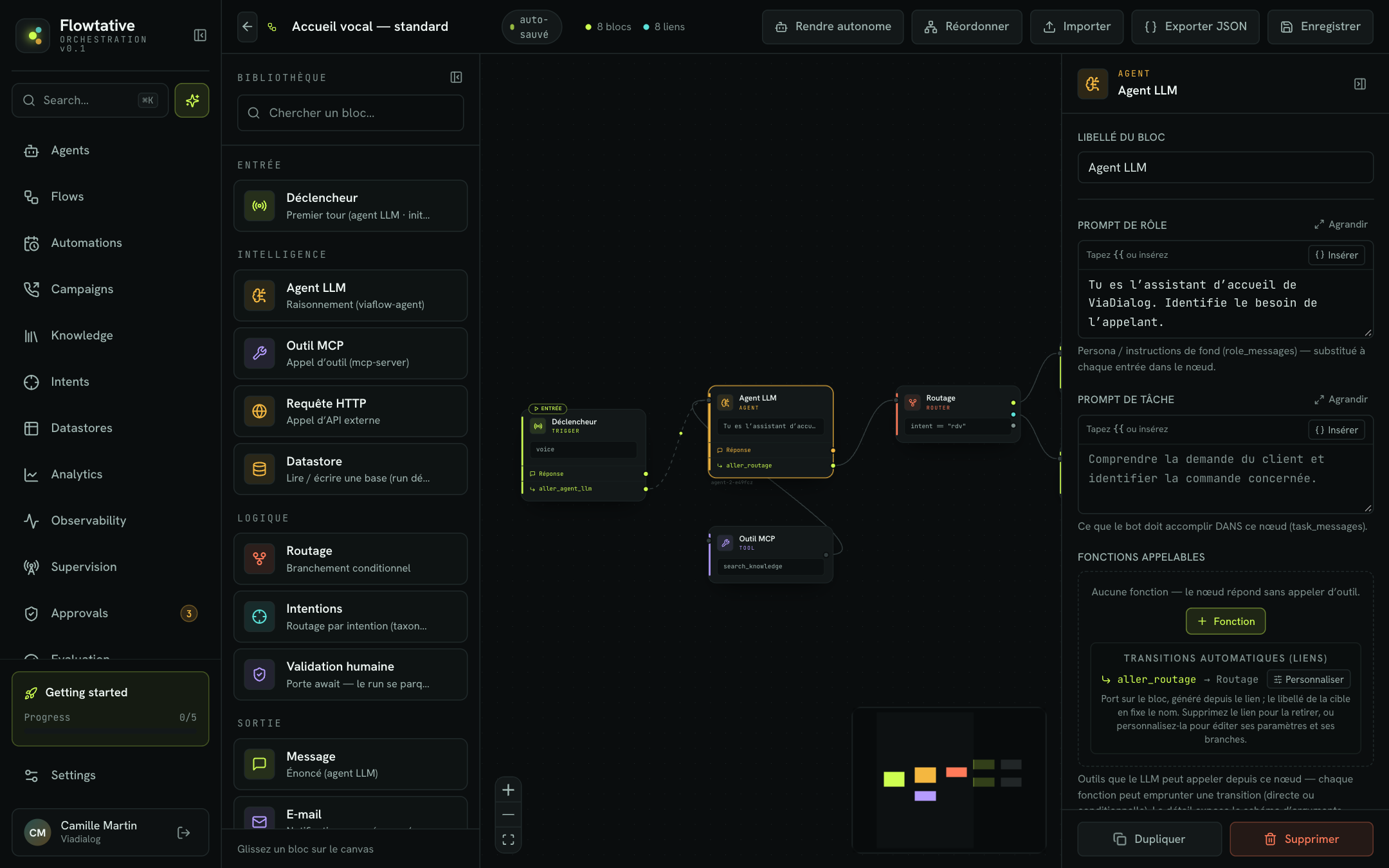
| Area | Role |
|---|---|
| Top bar | Back to flows, flow name, block and link counters, version history, and the Make autonomous, Rearrange, Import, Export JSON and Save actions. |
| Library (left) | The available blocks, grouped by category: Entry, Intelligence, Logic, Output. |
| Canvas (center) | The flow graph. Zoom controls at the bottom left, minimap at the bottom right. |
| Configuration panel (right) | The settings of the selected block. It only appears when a block is selected. |
The library
- Search a block… filters the list by name, tag (
AGENT,SMS…) or description. - The collapse button folds the library into a column of icons that you can still drag onto the canvas. Your choice is remembered.
The configuration panel
- It opens automatically when you click a block.
- The collapse button shrinks it into a thin column to free up the canvas.
- Drag its left edge to widen it (useful for long prompts). The width is remembered.
- At the bottom of the panel: Duplicate and Delete the block.
Building a flow
Add a block
- Find the block in the Library.
- Drag it onto the canvas, where you want it.
- The block is added and selected: the configuration panel opens.
- Fill in the Block label, then its fields.
Link two blocks
- Point at an output handle, on the right of a block.
- Drag to the input handle, on the left of the next block.
- Release: the link is created.
Some blocks have several outputs, each with its label shown on hover: Success (2xx) and Error / timeout for an HTTP request, Decision received and Timeout for a human approval. Conversational blocks (Trigger, LLM agent) show one row per function, each with its own output handle.
Note
A function output handle has only one target. Drawing a new link from that handle replaces the previous one.
Select, move, delete
- Click a block to select it, click the canvas background to clear the selection.
- Drag a block to move it.
- Select a block or a link, then press
BackspaceorDeleteto remove it. Functions that pointed to a deleted block lose their target.
Duplicate a block
Select a block, then press ⌘D / Ctrl+D, or click Duplicate in the panel. The copy, named "(copy)", takes over the full configuration and the outgoing links of the original block.
Rearrange the graph
The Rearrange button in the top bar automatically lays out the blocks from left to right following the links. Handy after an import or when the canvas gets messy.
Automatic transitions
A conversational block only moves to the next block when the AI calls a transition function. To save you from declaring them one by one, Flowtative generates them from your links.
When you draw a link from the Reply output (or Start for the Trigger) to another block:
- a row appears on the source block, named after the target: a link to "Appointment booking" creates the
aller_appointment_bookingtransition; - the AI receives a generated instruction: move to that step once the goal is reached (or wrap up the call if the target is a Hang up block);
- renaming the target block renames the transition; deleting the link removes it.
These transitions are listed in the panel under Automatic transitions (links). Click Customize to turn one into an editable function: you can then change its description, add state writes or a conditional output. A customized transition carries the link badge.
Tip
The target block's label gives its name to the transition the AI reads. Choose explicit labels: "Advisor transfer", "Appointment confirmation". Full example in Trigger the transfer.
Visual cues
| Cue | Meaning |
|---|---|
| Entry badge | The block where the conversation starts. |
| No next step badge | An action block (Datastore, SMS, Email, MCP tool) with no outgoing link. The flow would be rejected on load: link its output. |
| Keypad icon | The phone keypad (DTMF) is configured for this block. |
| Grey dot on a function | The function has no transition: the AI stays on the block after calling it. |
| Orange dot on a branch | Conditional branch with no target: draw a link from its output handle. |
Colored tag (AGENT, DATA…) | The block type. |
| Grey box under the title | The configuration summary (prompt, URL, selected database, closing reason…). |
Writing prompts and texts
Long text fields (prompts, message, instruction) have an Expand button that opens a full-screen editor:
- the text is saved as you type, nothing to confirm;
- a Variables panel lists the flow variables; click one to insert it at the cursor;
- the block's functions are highlighted in the text;
- a counter shows characters, words, lines and an estimate in tokens;
- Undo changes restores the text as it was when you opened the editor;
Escor⌘↵/Ctrl+↵close the editor, like the Done button.
Using variables
In fields that accept them, write {{path}}: the value is substituted each time the block is entered. Add a fallback value with {{path || default}}, for example Hello {{state.parameters.firstName || there}}.
The suggested variables come from:
- the state writes declared in the flow's functions;
- the Result variable of Datastore blocks;
- variables already used in other blocks.
See Variables and dynamic data.
Shortcuts
| Shortcut | Action |
|---|---|
⌘D / Ctrl+D | Duplicate the selected block |
Backspace / Delete | Delete the selected block or link |
Esc | Close the full-screen text editor |
⌘↵ / Ctrl+↵ | Close the full-screen text editor |
The duplicate and delete shortcuts are inactive while the cursor is in an input field, and while previewing an older version.
Saving
Every change is kept automatically in your browser (auto-saved badge). To publish your changes and create a new version, click Save. See Save and publish.
Best practices
- Draw the main path first, from the entry to the Hang up block, then add the special cases.
- Watch for No next step badges before saving.
- Use Rearrange after each batch of additions to keep the graph readable for the whole team.
Learn more
Block reference
The role, fields and a usage example for each block type of the flow editor.
Tools
Create tools, test them, use them in a flow and link them to an agent.
Save and publish
Save a flow, manage its versions, link it to an agent, make it autonomous and export it.
Variables and dynamic data
Personalize prompts and flow blocks with data from the call, the conversation and contact bases, and plan for missing values.