Observability
Track the operational health of your AI agents (volume, cost, latency, tools, errors) and analyze an exchange step by step.
The Observability page gives a technical, operational view of your AI agents: how many conversations they handle, what they cost, how fast they respond, whether their tools work and how often they fail. Where Analytics measures the business outcome (resolution, handoff, abandon), observability measures how well the agents run.
Open it from the sidebar, Observability entry.
Before you start
Metrics are computed from the conversations' Audit log. For an agent to appear with all its measurements, turn on the Audit log option in the Capabilities section of its configuration (see Create an agent). You can set its Retention (days) there; left empty, the server default applies.
An active agent without an audit log still appears in the list, labeled not audited (see below).
Page filters
| Filter | Description | Default |
|---|---|---|
| Channel | All, Voice or Chat. | All |
| Date range | Calendar to pick an exact range. A single-day range shows hour-by-hour charts; a longer range, day by day. | None |
| Duration | 24 h, 7 days or 30 days: a rolling window ending now. Choosing a duration clears the exact range. | 7 days |
The LIVE badge in the header shows that the data comes from the conversation audit trail.
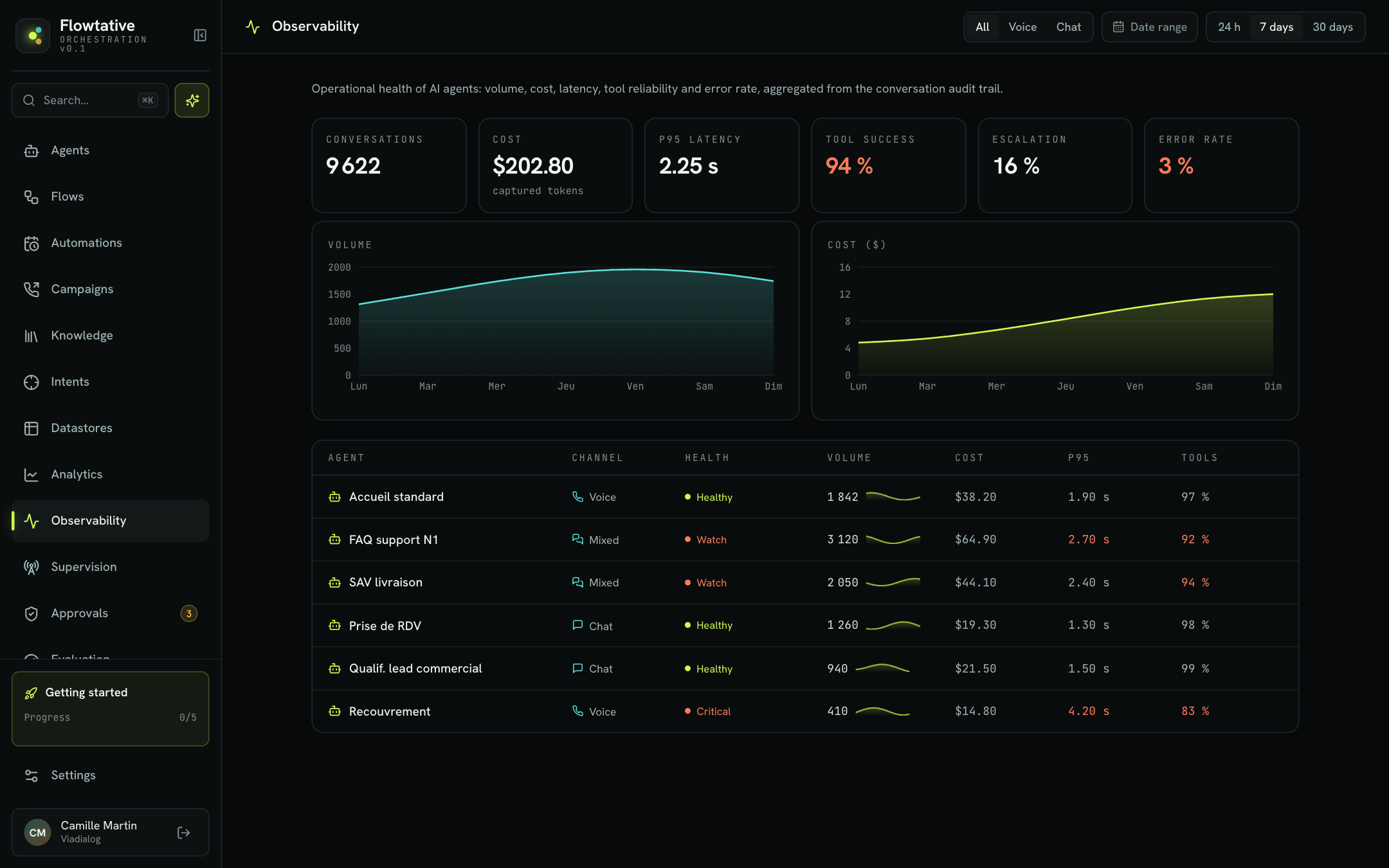
Fleet metrics
The "fleet" means all your agents for the selected period and channel. Six cards summarize it; a value turns orange when it crosses an alert threshold.
| Metric | What it measures | Alert threshold (orange) |
|---|---|---|
| Conversations | Number of distinct conversations in the period. | — |
| Cost | Estimated language model cost, in dollars. The estimated · tokens × rate label reminds you that it is computed from the tokens actually consumed multiplied by the model's rate. | — |
| p95 latency | Processing time of an exchange under which 95% of exchanges fall (average weighted by each agent's volume). | Above 2.5 s |
| Tool success | Share of exchanges completed without an error, tools included. The tool-by-tool detail is in each agent's panel. | Below 95% |
| Escalation | Not available in the audit trail: the card shows "—". See Human handoff in Analytics. | — |
| Error rate | Share of exchanges that ended in an error. | Above 3% |
A note below the cards reminds you: Estimated cost (real tokens × rate) · escalation/CSAT not available in the audit trail.
Note
An "exchange" is one round trip between the customer and the agent: a question, the generated answer and any tool calls. A conversation usually includes several exchanges.
Trends
Two charts show the trend over the period:
- Volume: the number of conversations per hour (24 h period) or per day;
- Cost ($): the estimated cost per hour or per day.
A cost peak without a volume peak often points to a longer prompt, a growing conversation history or a model change.
Agent ranking
The table lists your agents by decreasing volume.
| Column | Description |
|---|---|
| Agent | Agent name. |
| Channel | Voice, Chat or Mixed (the agent served on both channels). |
| Health | Status computed from the error rate and p95 latency (see below). |
| Volume | Number of conversations, with a mini chart of the last seven days. |
| Cost | Estimated cost over the period. |
| p95 | p95 latency of exchanges, orange above 2.5 s. |
| Tools | Success rate, orange below 95%. |
Health status
| Status | Condition |
|---|---|
| Healthy | Error rate at or below 3% and p95 latency at or below 2.5 s. |
| Watch | Error rate above 3% or p95 latency above 2.5 s. |
| Critical | Error rate above 8% or p95 latency above 4 s. |
"Not audited" agents
An agent active in the period according to its transcripts, but whose audit log is off, is labeled not audited. Only its volume is known: cost, latency and tools show "—". Clicking its row opens its transcripts directly, filtered on that agent. Fleet averages only cover audited agents.
If no conversation took place in the selected period and channel, the page shows No conversations in this period and offers Show the last 30 days.
Agent panel
Click an audited agent to open its panel on the side. The header shows its channel and health status; the Transcripts button opens the transcripts list.
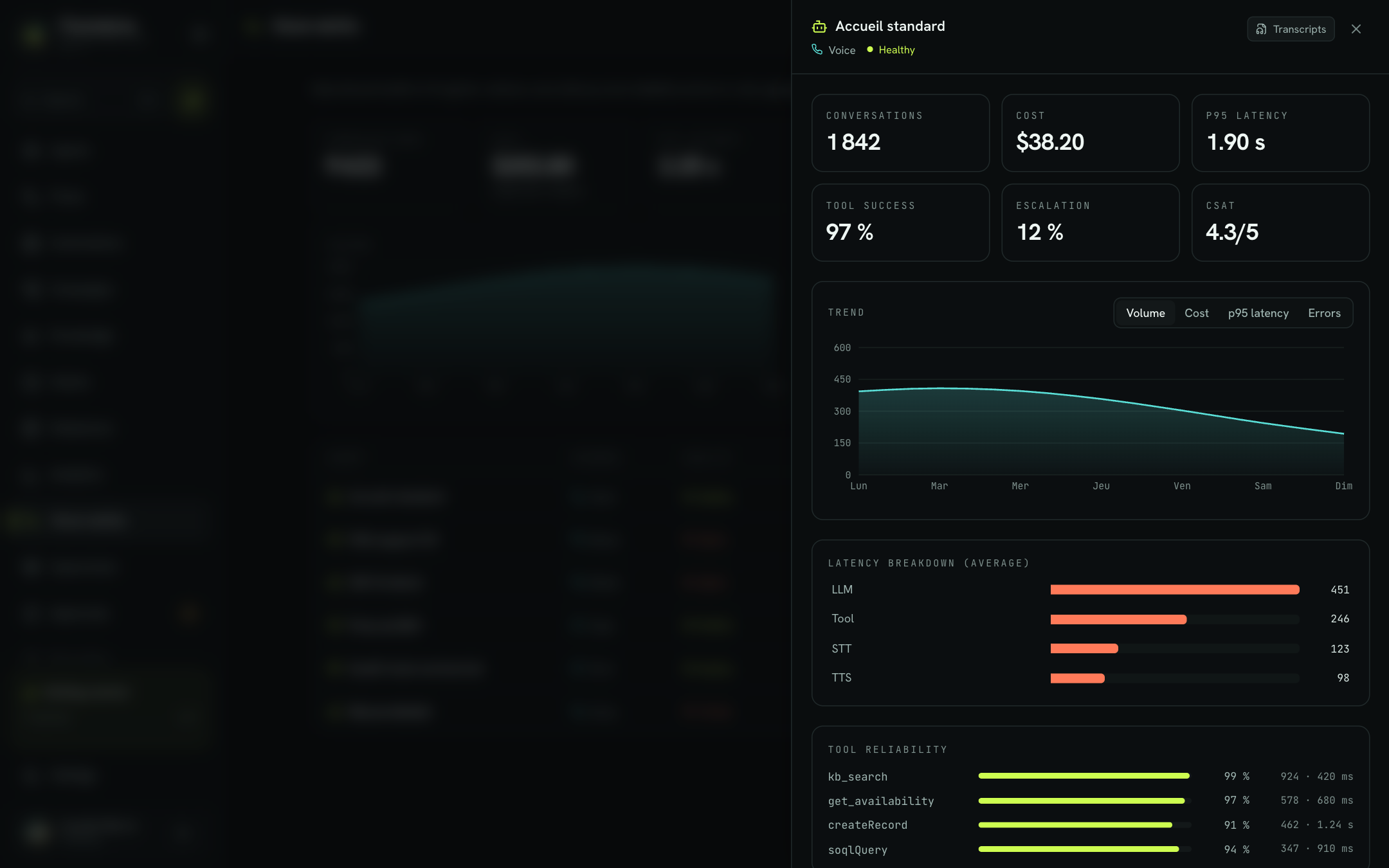
| Section | Content |
|---|---|
| Metrics | Conversations, Cost, p95 latency, Tool success, Escalation and CSAT. Escalation and CSAT show "—" when not available. |
| Trend | Chart over the period, with a selector: Volume, Cost, p95 latency or Errors. |
| Latency breakdown (average) | Average time spent in each step: LLM (generation), Tool (tools), and for voice STT (speech-to-text) and TTS (text-to-speech). |
| Tool reliability | For each tool: success rate (orange below 90%), number of calls and p95 duration. |
| Cost by model | Estimated cost and number of tokens per language model used. |
| Errors | The most frequent errors, grouped by message. |
| Recent traces | The agent's latest exchanges: start of the customer's question, number of turns, duration and cost. An orange dot marks a failed exchange. |
Note
The latency breakdown and tool reliability are computed on a sample of the agent's most recent exchanges.
Analyze a trace
A trace breaks an exchange down into steps ("spans") on a timeline. Use it when a customer reports a slow or wrong answer.
- In an agent's panel, click an exchange in the Recent traces section.
- The Trace page opens. Its summary shows the agent, the Start, the Duration, the Cost, the number of Spans and the status (OK or failed).
- Read the waterfall: each row is a step, positioned by its start time, with its duration to the right of the bar.
- Click a step to show its detail in the right-hand panel.
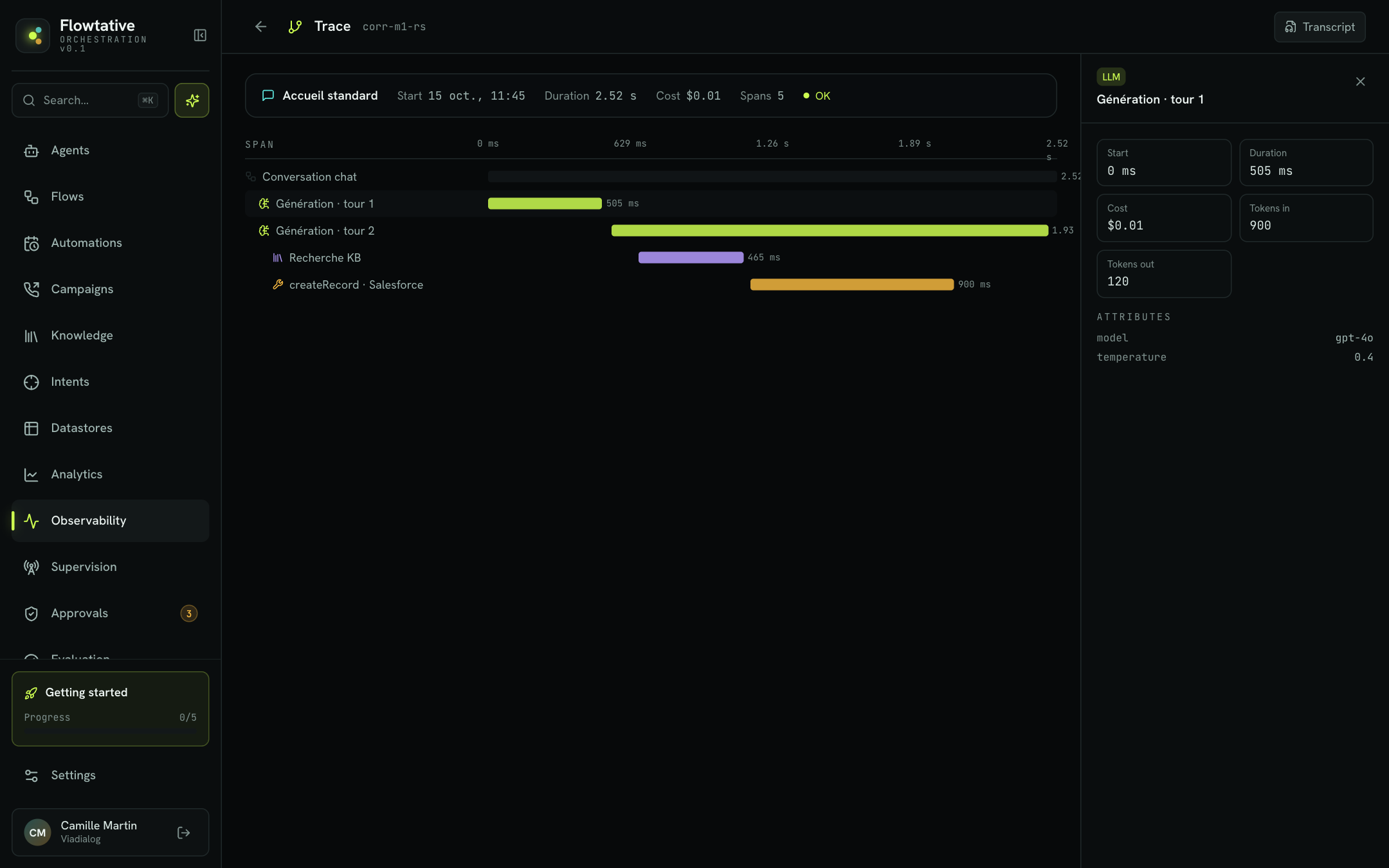
Step types
| Type | Meaning |
|---|---|
| Pipeline | The whole exchange, from question to answer. Background bar, paler. |
| LLM | Response generation by the language model. |
| Tool | Execution of a tool (call to your information system, calendar, CRM…). |
| RAG | Search in a knowledge base. |
| STT | Speech-to-text. |
| TTS | Text-to-speech. |
| Guardrail | Safety or moderation check. |
A failed step is flagged with a warning icon and an orange bar.
Step detail
| Field | Description |
|---|---|
| Start | Offset from the start of the exchange. |
| Duration | Step duration. |
| Cost | Estimated cost, for steps that have one. |
| Tokens in / Tokens out | Tokens sent to the model and tokens generated (LLM steps). |
| Error message | Shown in orange if the step failed; for a tool, it shows the start of the returned response. |
| Attributes | Additional information: model and temperature for an LLM step, base, search type and number of results for a RAG step, tool type and arguments sent for a Tool step. |
The Transcript button in the header opens the transcripts page. If the requested exchange does not exist, or no longer exists, in the audit log, the page shows Trace not found.
Best practices
- Turn on the audit log for all your production agents, otherwise they stay "not audited" and you lose cost, latency and errors.
- Handle Critical agents first. Open their panel, check the Errors section, then a failed trace to identify the faulty step.
- Cross-check latency and tools. A high p95 latency often comes from a slow tool: the Latency breakdown shows whether the time is spent in the LLM or in tools.
- Treat cost as an estimate, useful for comparing agents or periods, not as an invoice.