Evaluations
Automatically score the quality of your agents' conversations with an evaluation grid and an AI judge, and track drifts.
The Evaluation page applies a contact center's quality process to your AI agents: a grid of criteria, a score per criterion, an overall verdict and improvement areas. Scoring is done by a "judge": an AI agent that reads the conversation and scores it according to your grid's instructions.
Open it from the sidebar, Evaluation entry. Three tabs organize the page:
| Tab | Use |
|---|---|
| Overview | Evaluation dashboard: average scores, trend, drifts. |
| Sessions | Evaluate one conversation, or all those not yet evaluated. |
| Grids | Create and edit your evaluation grids. |
Before you start
- Create at least one grid with a Score auto (AI) question: these are the only questions the judge scores.
- Choose the agent that will act as the judge. A dedicated agent, with a strong model and a low temperature, gives more consistent verdicts. See Create an agent.
Design a grid
- Open the Grids tab.
- Click New. A grid is created with a first question.
- Enter the Grid name, for example "Customer service quality".
- Leave Active grid on to make it available for evaluation.
- Complete the suggested question, then click Add a question for each additional criterion.
- Click Create grid.
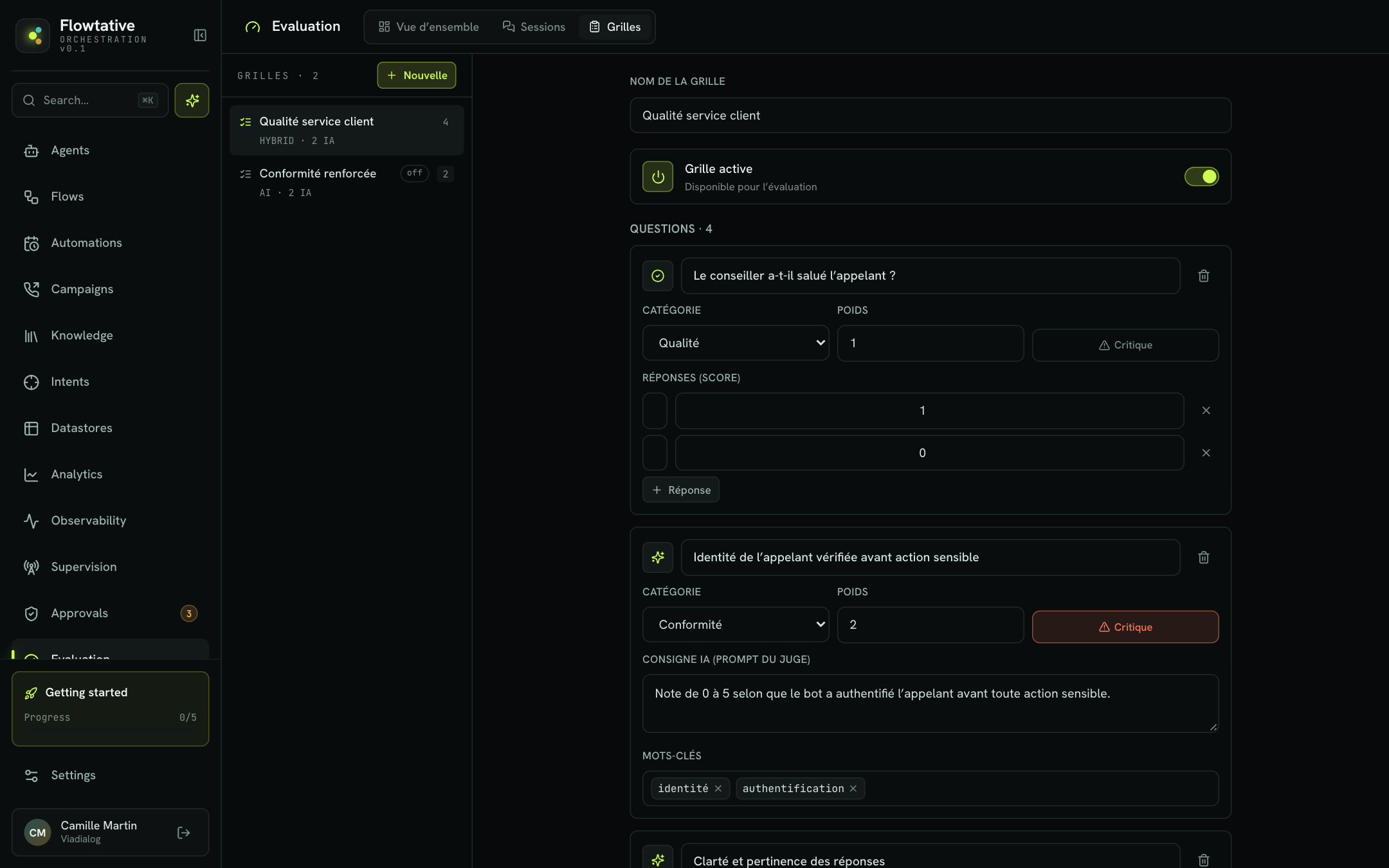
The grid list shows, for each grid, the number of questions, its type and the number of AI-scored questions (for example HYBRID · 2 IA). The off label marks an inactive grid.
Question fields
| Field | Description | Default |
|---|---|---|
| Label | The criterion being evaluated, phrased as a question or a statement: "Caller identity verified before any sensitive action". | Empty |
| Category | Compliance, Technical, Quality or Resolution. Used to classify your criteria. | Compliance |
| Weight | Importance of the criterion in the weighted overall score. Set 2 for an important criterion. | 1 |
| Critical | Marks the criterion as critical in the grid. | Off |
| AI instruction (judge prompt) | Score auto (AI) questions only. Scoring instruction given to the judge, out of 5. | Empty |
| Keywords | Score auto (AI) questions only. Terms associated with the criterion, stored with the grid. | None |
| Answers (score) | Questions with answers (yes/no, choice, rating): each possible answer and its score. | Depends on the type |
The question type is shown by the icon to the left of the label. Questions added from this screen are of type Score auto (AI). A grid can also contain other question types (Yes / No, Single choice, Multiple choice, Rating, Comment): they are kept in the grid, but only Score auto (AI) questions are scored by the judge.
Tip
A good instruction is factual and measurable. Prefer "Score from 0 to 5 depending on whether the bot authenticated the caller before any sensitive action" to "Is the bot serious?".
Generate questions with AI
- Click Generate (AI).
- Describe the grid's context in the Grid context — the AI derives the criteria from it field, for example "reception callbot, appointment booking, GDPR compliance".
- Click Generate questions. The suggested criteria are added to the grid; review them before saving.
The Improve prompts button rewrites the instructions of existing Score auto (AI) questions to make them more precise and measurable.
Note
Generation uses the judge agent chosen in the Sessions tab. Without a judge agent, the result is simulated, as the label below the field states.
Manage grids
- Save applies your changes.
- Duplicate creates a copy of the grid, after confirming its name; handy for adapting a grid to each business line.
- Delete asks for confirmation (Confirm?) before permanently deleting the grid.
Evaluate conversations
- Open the Sessions tab.
- In the header, choose the Evaluation grid. Grids without an AI question are grayed out with the "(no AI question)" label.
- Choose the Judge agent. The list offers your voice agents if you have any, otherwise all your agents.
- Select a conversation in the left column.
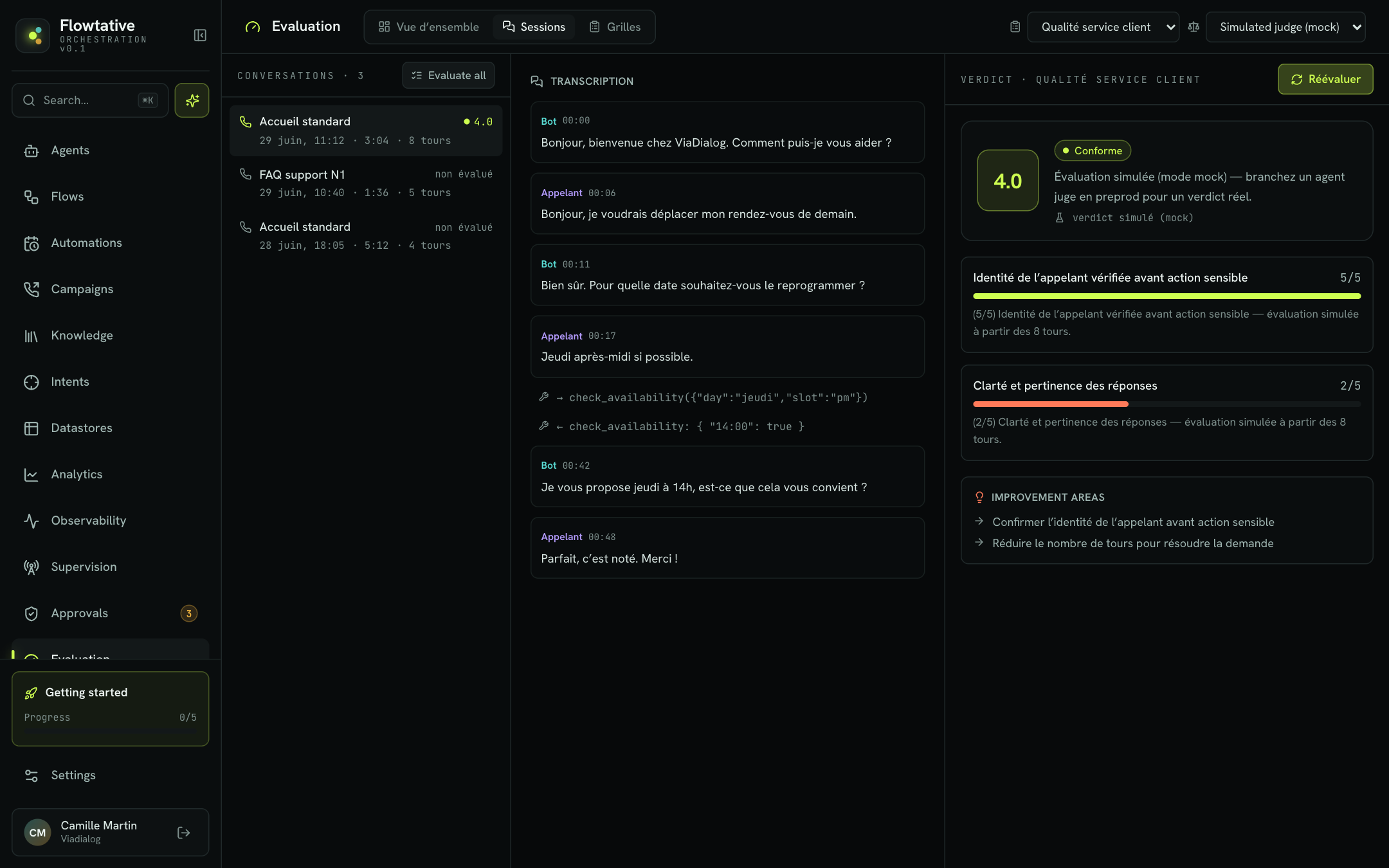
- Click Evaluate. The verdict appears to the right of the transcript.
To score at once all listed conversations not yet scored, click Evaluate all. Progress shows on the button (for example 3/12). The Re-evaluate button runs the judge again on an already scored conversation, for example after changing the grid.
Warning
The Simulated judge (mock) option produces a demo verdict, with no real analysis of the conversation. Always select a judge agent for your evaluations.
The Conversations column shows the 50 most recent conversations, with their score or the not evaluated label, the date, the duration and the number of turns.
Read a verdict
| Element | Description |
|---|---|
| Overall score | Score out of 5, weighted by criteria. |
| Verdict | Compliant (4 and above), Watch (from 2.5 to below 4) or Non-compliant (below 2.5). |
| Synthesis | One sentence summarizing the evaluation. |
| Judge | The model or agent that delivered the verdict. |
| Criteria | For each Score auto (AI) question: score out of 5, score bar and the judge's justification. |
| Improvement areas | Concrete recommendations to improve the agent. |
Track quality over time
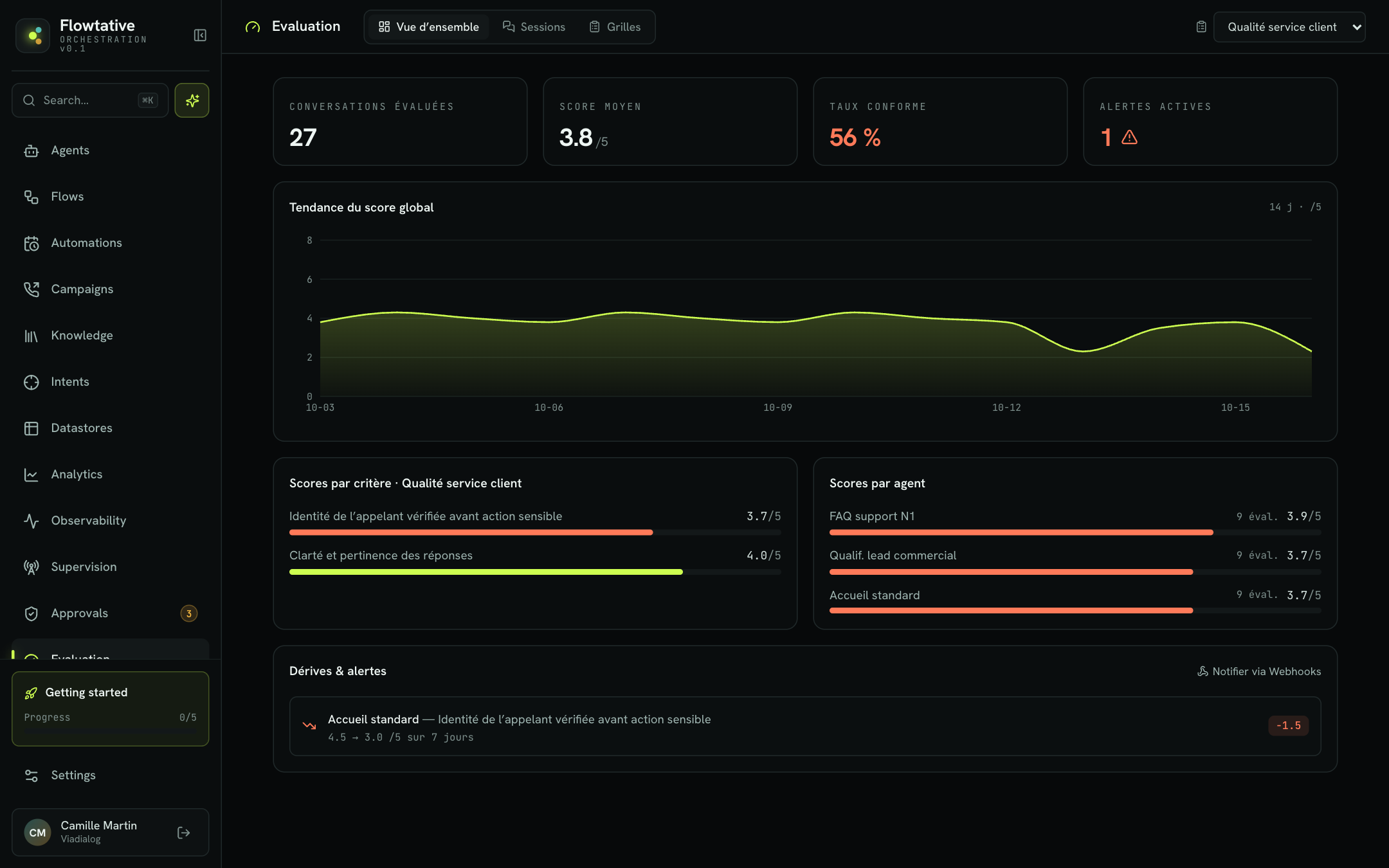
The Overview tab aggregates the evaluations for the grid selected in the header.
| Metric | Description |
|---|---|
| Evaluated conversations | Number of evaluations made with this grid. |
| Average score | Average of overall scores, out of 5. |
| Compliance rate | Share of evaluations with a Compliant verdict; green from 70%. |
| Active alerts | Number of drifts detected (see below). |
| Overall score trend | Average score day by day over the last 14 days. |
| Scores by criterion | Average score of each criterion in the grid. |
| Scores by agent | Average score and number of evaluations per agent, colored by verdict. |
Drifts & alerts
The Drifts & alerts panel compares, for each agent and each criterion, the average score of the last 7 days with that of the previous 7 days. A drop of at least 0.5 point is flagged as a drift, with both averages and the gap. It is rated Non-compliant if the recent average falls below 2.5, Watch otherwise.
Example: "Accueil standard — Caller identity verified before any sensitive action: 4.2 → 2.0 /5 over 7 days" shows that the agent stopped checking identity, often after a change to its prompt or flow.
With no drift, the panel states that no drift was detected over the last 7 days.
Limits
- Verdicts and evaluation history are stored in your browser. They are not shared with other team members and disappear if you clear the site's data.
- Grids, on the other hand, are saved for your whole organization.
Best practices
- Keep a grid to 4 to 8 criteria: beyond that, the judge's justifications become shallow.
- Test your grid on a few known conversations (a good one, a bad one) before applying it at scale.
- Re-evaluate after each grid change, otherwise you compare verdicts obtained with different instructions.
- Keep the same judge agent over a period so the trend stays comparable.