Create and configure an agent
Create an agent from scratch or from a template, then set its model, prompt, capabilities, knowledge, flow and webhooks.
This page takes you from creating an agent to its first save, then describes every field of the editor. Settings specific to voice agents (STT, TTS, turn-taking…) are covered in Configure a callbot's voice.
Before you start
- An API key for your model provider must exist: either your company's default key, or a key specific to the agent.
- For an agent that answers from your documents, first create a knowledge base.
- For an agent that follows a precise journey, first save your flow.
Choose a starting point
- Open Agents, then click New agent.
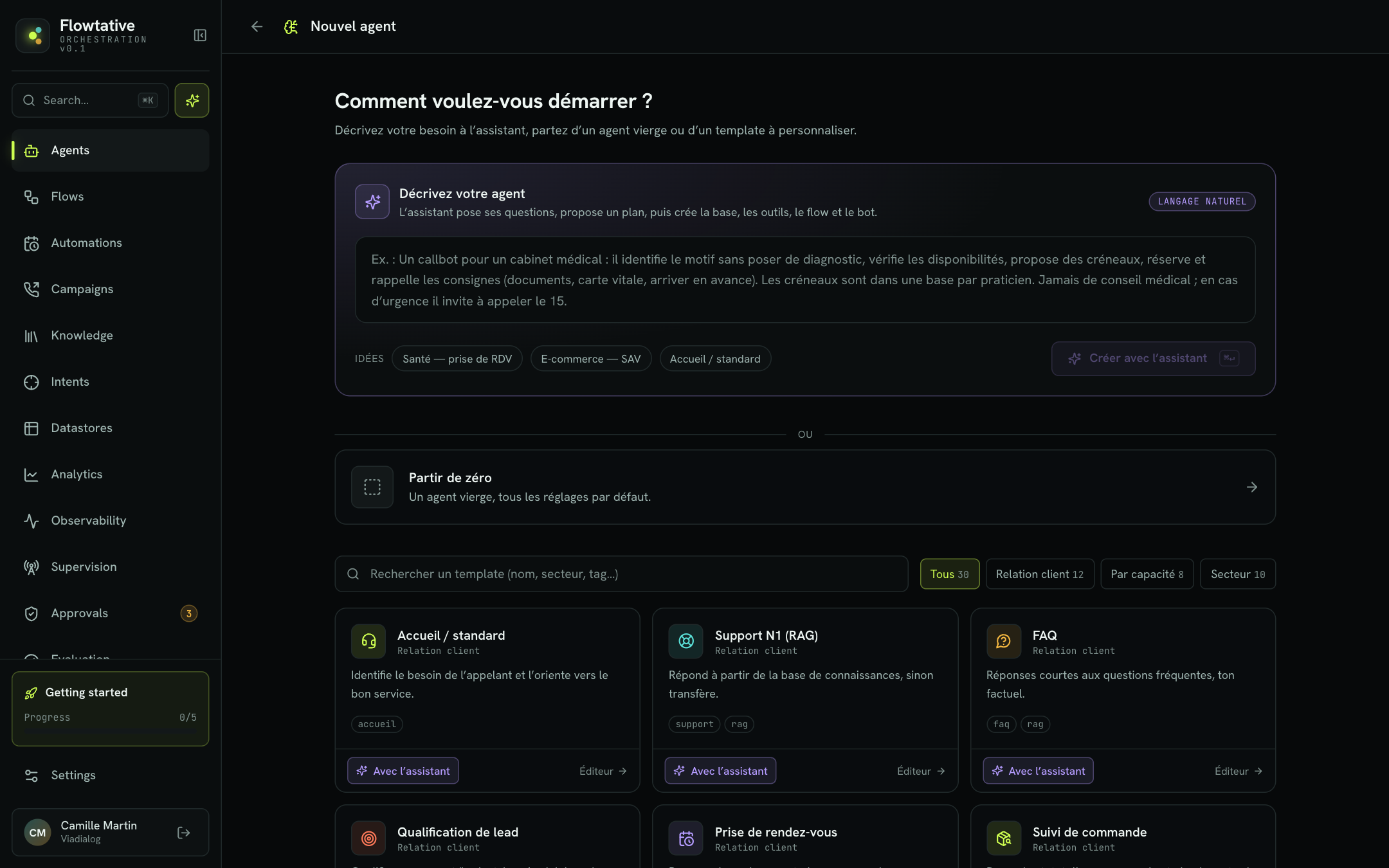
- The How do you want to start? screen offers three options:
- Describe your agent: write your need in plain language and click Create with the assistant (or
⌘↵/Ctrl+Enter). See Agent creation assistant. - Start from scratch: a blank agent with all default settings.
- A template: a pre-filled agent (prompt, capabilities, tags, voice) to customize.
- Describe your agent: write your need in plain language and click Create with the assistant (or
- Pick your starting point. The editor opens, pre-filled.
Templates
Templates are grouped into three categories, filtered with the All, Customer relations, By capability and Sector buttons, and searchable by name, sector or tag.
| Category | Template examples |
|---|---|
| Customer relations | Reception / switchboard, Tier-1 support (RAG), FAQ, Lead qualification, Appointment booking, Order tracking, Complaint, Retention / anti-churn, Satisfaction survey, Routing / transfer, Voice callbot, Internal assistant |
| By capability | Simple RAG, ReAct + tools, Minimal voice, JSON structured output, Multilingual, Summary / synthesis, Classification / routing, Data extraction |
| Sector | Healthcare — appointment booking, Banking / Insurance — support, E-commerce — after-sales, Telecom — tier-1 technical support, Real estate — qualification, Travel — booking, Public sector — information, HR — internal assistant, Education — student support, Energy — meter reading & billing |
Note
The application displays template names and categories in French, for example Callbot vocal for the voice callbot or Voix minimal for minimal voice. The names above are translations.
Each template card offers two starting points: clicking the card (or Editor) opens the pre-filled editor; With the assistant hands the template's brief to the assistant, which asks its questions and creates the bot. The microphone icon marks a voice template.
Blank agent defaults
| Setting | Default value |
|---|---|
| Provider / Model | OPENAI / gpt-4o-mini |
| Temperature | 0.40 |
| Max tokens | 1024 |
| Reasoning steps | 5 |
| Memory | On |
| Search (RAG) | HYBRID (RAG off) |
| ReAct, Tool calls, Structured output | Off |
Finding your way in the editor
The editor has a header and a section menu on the left:
- General: Identity & prompt, Generation.
- Intelligence: Capabilities, Skills, Knowledge (RAG), Linked flow, Webhooks.
- Voice · callbot: only visible for a voice agent. On a chat agent, the Enable voice (callbot) button adds this group.
The header shows the agent's ID (click it to copy), and the Test, Debug, Cancel and Save buttons (Create agent when creating).
Identity & prompt
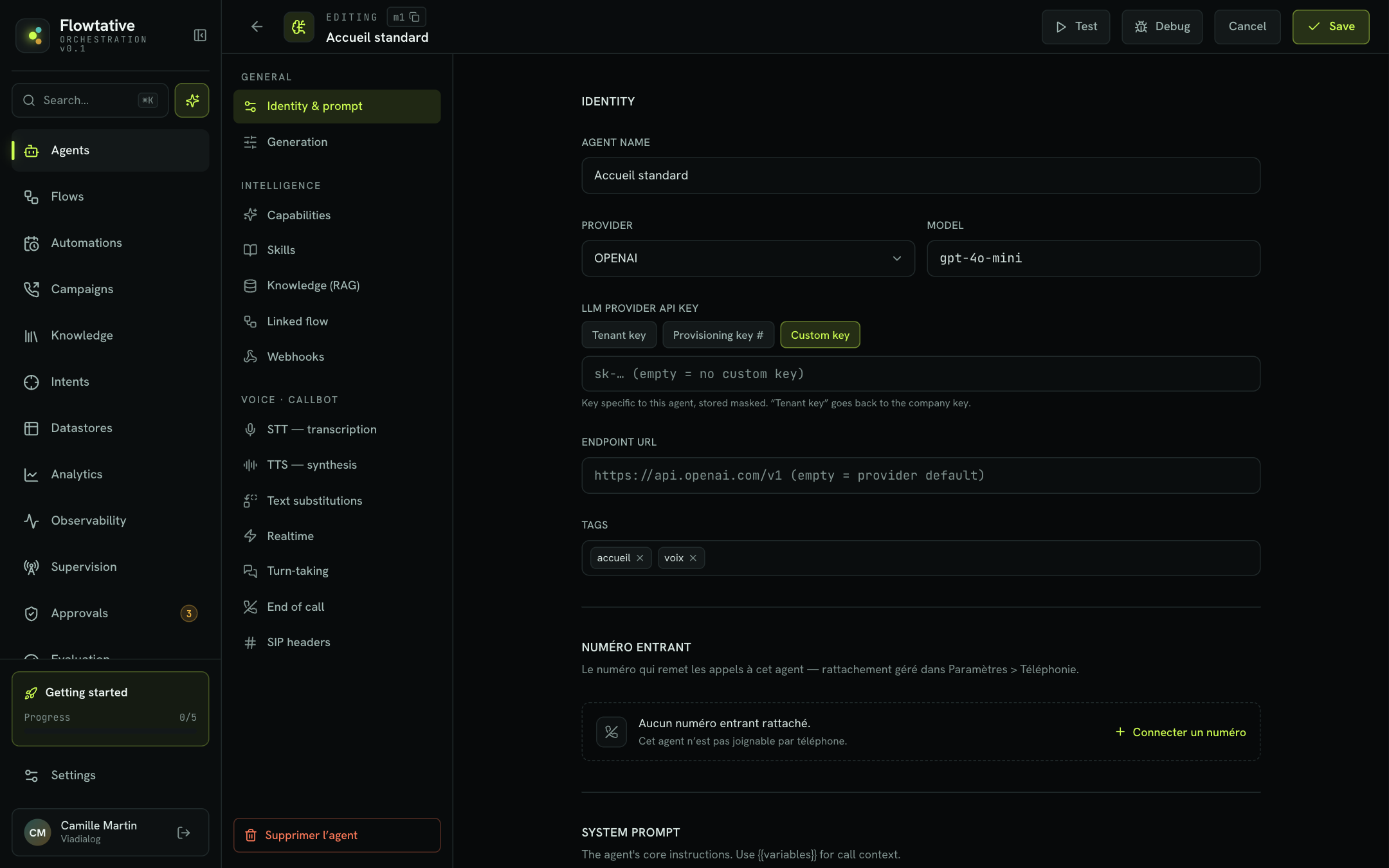
Identity
| Field | Description | Default value |
|---|---|---|
| Agent name | Name shown throughout Flowtative (list, campaign and flow selectors). Required. | Empty |
| Provider | The model provider: OPENAI, AZUREOPENAI, MISTRAL, HUGGING_FACE or ECHO. | OPENAI |
| Model | The model ID at the provider, typed freely (for example gpt-4o-mini, mistral-large). | gpt-4o-mini |
| LLM provider API key | The key used to call the model. Three modes, see below. | — |
| Endpoint URL | The provider's API address. Leave empty to use the provider's default address. Useful for example for an Azure OpenAI deployment specific to your company. | Empty |
| Tags | Free labels to classify and find the agent. Type a tag then Enter or a comma. | None |
The three API key modes
| Mode | How it works |
|---|---|
| Tenant key | The agent uses your company's default key for this provider (Company default key). If that key is rotated, the agent picks it up without any change. Saving is refused if your company has no key for this provider. |
| Provisioning key # | The agent uses a specific key of your company, identified by its number. The number is required (Key id required.). |
| Custom key | A key specific to this agent, typed in the field and stored masked. Once saved, the editor shows Key configured with a Replace button. |
Note
Leaving the custom key field empty keeps the key already saved. There is no way to delete a key: to stop using a custom key, switch back to Tenant key.
Inbound number
For an agent that has already been saved, the Inbound number section shows the number or numbers that route calls to this agent, with a copy button. A number can be marked disabled or closed. Without a number, the section reads No inbound number attached. and offers Connect a number, which leads to the telephony settings. The attachment itself is managed in Settings > Telephony & Trunk, see Telephony.
System prompt
The system prompt holds the agent's core instructions. A clear structure gives better results:
Role: reception assistant for {{company}}.
Goal: understand the caller's need and route them to the right department.
Behavior: ask at most two questions, then confirm briefly before transferring.
Tone: warm, professional, concise.
Guardrails: never promise a lead time; if you don't know, offer a transfer rather than making something up.
For a complete template and the rules specific to the phone, see Write an agent's prompt.
Variables in double curly braces are replaced during the conversation. Type {{ or click Insert a variable to open a searchable menu:
| Group | Variable | Content |
|---|---|---|
| Caller | {{caller.phone_number}} | Phone |
| Caller | {{caller.name}} | Name |
| Caller | {{caller.email}} | |
| Call | {{call.timestamp}} | Timestamp |
| Call | {{call.id}} | ID |
| Call | {{calledNumber}} | Called number |
| Context | {{company}} | Company |
| Context | {{currentDate}} | Today's date (auto) |
| Context | {{lang}} | Language |
Below the field, the Variables: line lists the variables detected. Standard variables appear in one color, custom variables (any other key, supplied at run time, for example {{contract_number}}) in another. See Variables and dynamic data.
Generation
| Field | Description | Default value |
|---|---|---|
| Temperature | Slider from 0 (precise) to 1 (creative). A low value gives more consistent answers, suited to support and FAQ. | 0.40 |
| Max tokens | Maximum length of an answer, in tokens. | 1024 |
| Reasoning steps | Maximum number of steps the agent chains (thinking, tool call…) for one answer. | 5 |
| Conversation window | How much of the conversation the model sees, in tokens; with strict memory, it is also the budget of the whole conversation. Empty: follows Max tokens. Must be a whole number, at least equal to Max tokens. | Empty (= Max tokens) |
| Reasoning effort | For reasoning models. Suggested values: NONE, LOW, MEDIUM, HIGH; input is free because the vocabulary depends on the provider. Empty: provider default. | Empty |
Important
With a gpt-5 model that uses tools (tool calls or a flow), set Reasoning effort to NONE: without an explicit effort, the call fails and the bot stays silent.
Capabilities
| Capability | Description |
|---|---|
| ReAct agent | Reasoning and action in a loop: the agent thinks, acts (for example calls a tool), observes the result, then continues. |
| Tool calls | Lets the agent call tools. Opens the Linked tools and From your MCP servers lists. |
| Memory | Keeps the conversation context. Opens the Memory mode choice. |
| Structured output (JSON) | The agent answers according to a schema you define. |
| Audit log | Captures the conversation transcript (tokens, latency, tools) and feeds observability. Retention (days) setting; empty = server default. |
| Debug mode | Detailed log for conversations that do not specify the debug mode themselves. Kept according to the audit log retention. |
| Call recording | Callbots only. Records the call audio on two tracks (caller and bot). Retention (days) setting; empty = platform default. Recordings are available in Transcripts. Also requires enabling on the platform side. |
Warning
Debug mode records the conversation variables, which may contain personal data. Turn it on for the time of a diagnosis, not permanently.
Link tools
When Tool calls is on:
- Click Link a tool or a capability.
- Search for a tool by name. Results are split into Your tools · Settings (tools created in Settings > Tools) and Capabilities (generic needs such as "Customer record (CRM)" or "Book an appointment").
- Click a result to link it. You can also link an ID typed by hand with Link the ID "…" (custom).
Each linked tool shows a status:
| Status | Meaning |
|---|---|
| Linked | The tool exists and will be offered to the agent. |
| Native | Capability provided by the platform, with no tool to create. |
| To create | No tool matches yet: the Create the tool link opens the tool settings. For a capability, possible providers are suggested (for example Salesforce, HubSpot). |
| Error | The tool could not be loaded. Click Retry; do not recreate it, it may exist. |
| Loading | Check in progress. |
Below the list, From your MCP servers shows the tools coming from your MCP servers: click a tool to link or unlink it. If the list is empty, add a server in Settings > MCP servers. A tool marked with a triangle is missing on the server side.
To learn how to create tools, see Tools.
Memory mode
| Mode | Behavior |
|---|---|
| Rolling — forgets the oldest messages | When the conversation outgrows the window, the oldest messages are forgotten. Suited to long conversations. |
| Strict — keeps everything, refuses when the window is full | The whole history is kept; once the window is full, the conversation cannot continue. In the tester, the error then offers New conversation. |
Define a structured output
With Structured output (JSON), you describe the Schema properties the agent must return:
- Click Add a property.
- Type the field name (for example
budget). - Choose its type: Text, Number, Integer, Boolean, List, Object or Enum.
- Click REQ to make it required.
- Add a description that helps the model fill in the field.
- For an Enum, type the Allowed values; for a List, choose the type of its items (Items of type).
The JSON preview button shows the generated schema. Example for a satisfaction survey: score (Integer, required, "Score from 1 to 5"), reason (Text), callback (Boolean).
To gather information in a flow rather than in the agent's reply, see Collect information.
Skills
The Skills section lists the skills visible to your company. Check the ones the agent may load. The agent only sees the catalog (name and description) in its prompt and loads a skill's content on demand. Checking a skill also attaches its sub-skills, shown checked and greyed out with the mention follows its parent skill. See Skills.
Knowledge (RAG)
Turn on Enable RAG so the agent queries a knowledge base before answering.
| Field | Description | Default value |
|---|---|---|
| Search | The search type: BM25_ONLY (keywords), BM25_NORMALIZE_ONLY, VECTOR_ONLY (meaning), HYBRID (keywords and meaning combined) or HYBRID_CUSTOM. | HYBRID |
| Knowledge base | The base queried. Selector with search by name or ID. | None |
| Max results | Maximum number of excerpts returned for each question. | — |
| Min score | Minimum relevance score of an excerpt, between 0 and 1. A higher score filters out less relevant excerpts. | — |
Important
RAG does not apply to voice calls. On save, Flowtative automatically creates and links a search tool "KB search — base name" (or links the existing tool) so the base also serves in voice. If you switch bases, the old base's tool is detached from the agent but remains available in the tool settings. See Connect a base to an agent.
Linked flow
A flow describes a conversation journey (steps, conditions, tool calls). Linking a flow to the agent makes it run that journey.
- Open Linked flow and click the Linked flow selector.
- Search for and pick a flow. Only saved flows are offered.
- Choose the Version:
- Latest — follows the flow's changes: the agent loads the latest saved version for each conversation.
- v1, v2…: the agent runs exactly this version. After the flow changes, come back here to pin the new version.
- Click Save.
The Open in the flow editor link opens the linked flow. The cross in the selector detaches it.
Note
Linking a flow automatically attaches to the agent the tools this flow calls, and turns on Tool calls. A banner lists the attached tools; save to apply. If a tool called by the flow cannot be found, a warning says so: the flow will fail at that block until the tool exists. Detaching the flow does not remove the tools.
If the editor shows Orphan reference, the linked flow no longer exists: click Detach then choose an existing flow. See Save and publish.
Webhooks
The End-of-session webhooks section sends the full transcript of each session to your systems, through a POST request signed with HMAC-SHA256. Today, only callbot call sessions are sent.
- Check the webhooks of your account that should receive this agent's transcripts.
- To create one without leaving the agent, click Create a webhook for this agent, type a Label (for example "CRM") and an
https://URL, then click Create and attach. The signing secret is shown only once: copy it right away. - A checked webhook that does not listen to the
BOT_SESSION_ENDEDevent will receive nothing: a warning says so. - Clean up removes attachments to deleted webhooks.
The attachment is applied when you save the agent. The URL, the secret and the delivery log are managed in Settings > Webhooks, see Webhooks.
Save, cancel, delete
- Click Create agent (creation) or Save (edit). The button shows Saving… then Saved. You stay in the editor.
- If a field is invalid, an orange banner explains the problem and the editor opens the relevant section.
| Message | Cause |
|---|---|
| The agent name is required. | Agent name is empty. |
| Key id required. | Provisioning key # mode with no number. |
| The conversation window must be at least "Max tokens" (or empty). | Window smaller than max tokens. |
| The conversation window must be a positive whole number of tokens (or empty). | Decimal or negative value. |
| Too many substitutions, Invalid regex pattern… | Error in a callbot's text substitutions. |
Cancel returns to the list without saving. To delete an agent, click Delete agent at the bottom of the menu, then Confirm deletion?.
Best practices
- Start from a template close to your use case, then adjust the prompt: you start with guardrails already written.
- Low temperature for factual work. Between 0.1 and 0.3 for support or FAQ; higher only for creative tasks.
- Link only the tools you need. Every linked tool is offered to the model on each turn: a short catalog makes its choices more reliable.
- Test after every change with the Test button, in chat then in voice.
Learn more
Configure a callbot's voice
Set the transcription, voice synthesis, pronunciation, turn-taking and end of call of a voice agent.
Test an agent
Talk to an agent in writing or by voice, inject test variables and turn on the diagnostic log before going live.
Write an agent's prompt
Write a clear system prompt for a voice or chat agent, with a template to copy, phone-specific rules, common mistakes and a method to improve it in the tester.
Tools
Create tools, test them, use them in a flow and link them to an agent.
Agents
Understand what an agent is in Flowtative, and find, filter, test or duplicate your agents from the Agents page.
Write an agent's prompt
Write a clear system prompt for a voice or chat agent, with a template to copy, phone-specific rules, common mistakes and a method to improve it in the tester.