Track and manage a campaign
Track a campaign's progress, view each contact's details, reset a contact, change settings, close or delete.
Once launched, a campaign is run from its page: real-time indicators, the list of contacts with their status, a results report and live calls. This page describes each element and the actions available depending on the campaign's phase.
The campaign list
The Campaigns page lists all your campaigns, eight per page. For each one, you see its name, type, phase, agent, contact base, caller ID and calling window (or the start date if it is Scheduled), plus a progress bar: contacts processed out of the audience, number reached and answer rate.
| Action | Effect |
|---|---|
| Search bar | Filters by name, agent, base or type. |
| List / Cards | Changes the layout; your choice is remembered. |
| Toggle | Pauses or resumes the campaign. Not shown for a Done campaign. |
| Open (chart icon) or click on the row | Opens the campaign page. |
| Settings | Opens the editable settings. Greyed out for a closed campaign. |
| Duplicate | Opens the wizard prefilled with the campaign's settings. |
| Delete (bin, on hover) | Deletes the campaign, if it can be deleted (see below). |
The campaign page
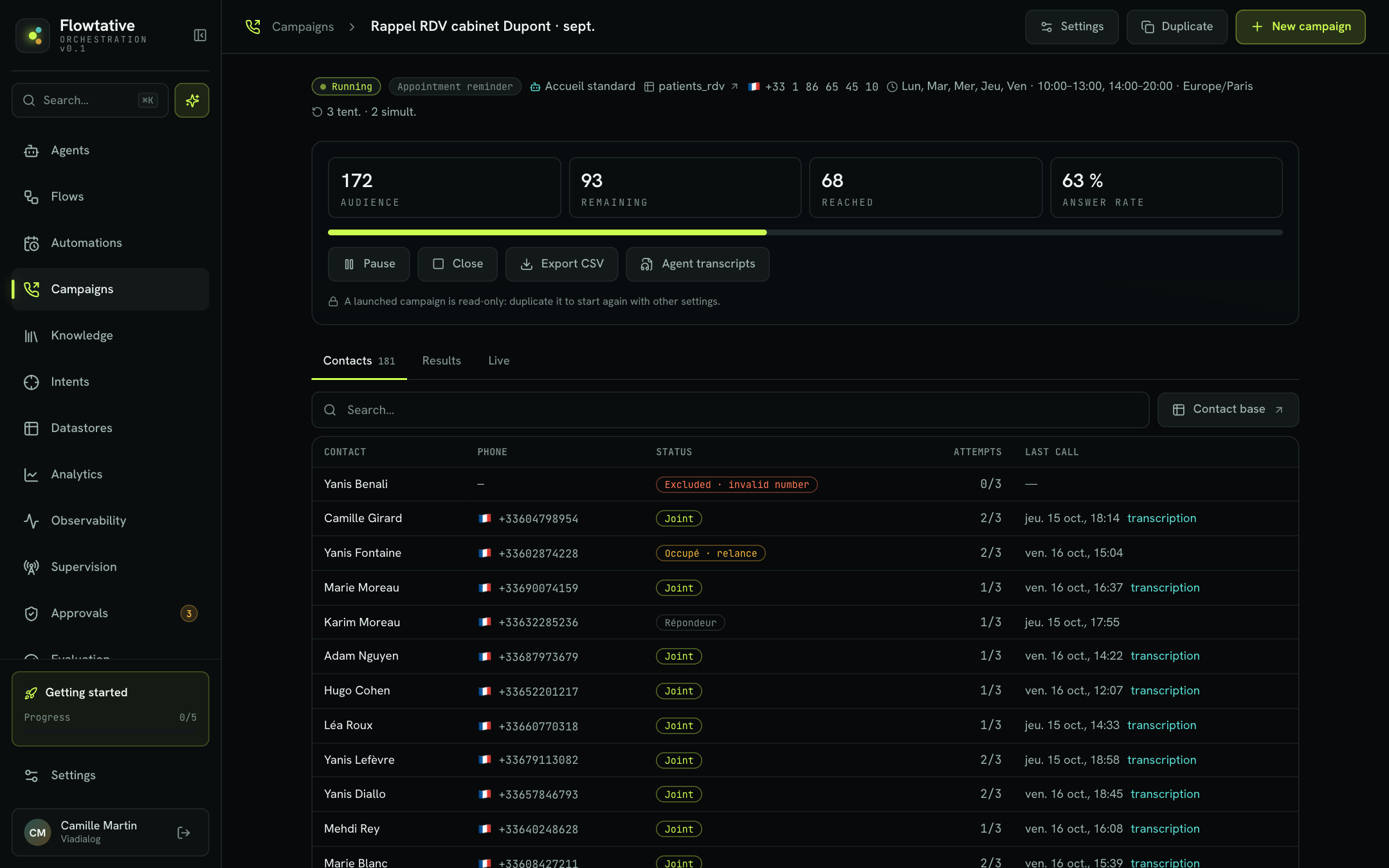
Click a campaign to open its page. The header shows its name and offers Settings, Duplicate and New campaign.
The summary line
Below the header, a line sums up the campaign: phase, type, agent, contact base (clickable, it opens the base), caller ID with its country flag, window and time zone, then the number of attempts and simultaneous calls.
Indicators
| Indicator | What it counts |
|---|---|
| audience | The campaign's callable contacts (records without a valid number are not counted). |
| remaining | Contacts still to call or currently in a call, scheduled retries included. |
| reached | Contacts whose outcome is Reached. |
| answer rate | Contacts reached out of contacts tried at least once. |
The bar below the indicators shows the share of the audience already processed. While a campaign is Running, indicators refresh every 15 seconds.
Note
A campaign with no contact left to call is not necessarily Done: as long as it is not closed and its end date has not passed, scheduled retries may still go out.
Actions
| Button | Available when | Effect |
|---|---|---|
| Pause | Running or Scheduled | No new call starts. |
| Resume | Paused | The campaign calls again within its window. |
| Close | Any phase except Done | Ends the campaign for good, after confirmation. |
| Export CSV | Once contacts are loaded | Downloads the contact list with their results. |
| Agent transcripts | Always | Opens transcripts. |
| Delete | Campaign can be deleted | Deletes the campaign, after confirmation. |
When you resume a campaign, Flowtative checks that a caller ID is in place. If it is missing, it restores the one picked at creation; failing that, a message asks you to pick one from the campaign page.
The CSV export includes every column of the base, followed by statut, resultat, tentatives and dernier_appel. The separator is a semicolon, and the file is named after the campaign.
Missing caller ID
If creation stopped before the caller ID was set, the page shows a Missing caller ID box. The campaign cannot call in this state.
- Pick a number from the list.
- Click Add this number.
- Resume the campaign with Resume.
The Contacts tab
The Contacts tab lists each record of the campaign, 25 per page, with a search on the number and all columns. The Contact base button opens the source base.
| Column | Content |
|---|---|
| Contact | First and last name from the record (prenom and nom columns), otherwise the record ID. |
| Phone | The number called, with its country flag. |
| Status | The status or outcome of the last call (see below). |
| Attempts | Attempts made out of the maximum allowed, for example 1/3. |
| Last call | Date and time of the last call, with a transcript link when one exists. |
Contact statuses
| Status shown | Meaning |
|---|---|
| To call | The contact has not been called yet, or is waiting for its next attempt. |
| In progress | A call is in progress. |
| Done | The contact will not be called again. |
| Excluded · invalid number | The record has no valid number: it is not called. |
| Reached, No answer, Busy, Voicemail, Invalid number, Technical failure, Outside window, Declined, No attempts left | The outcome of the last call. The "· retry" mention means a new attempt is planned. |
Contact details
Click a row (or press Enter when it is selected) to open the Contact details panel on the right.
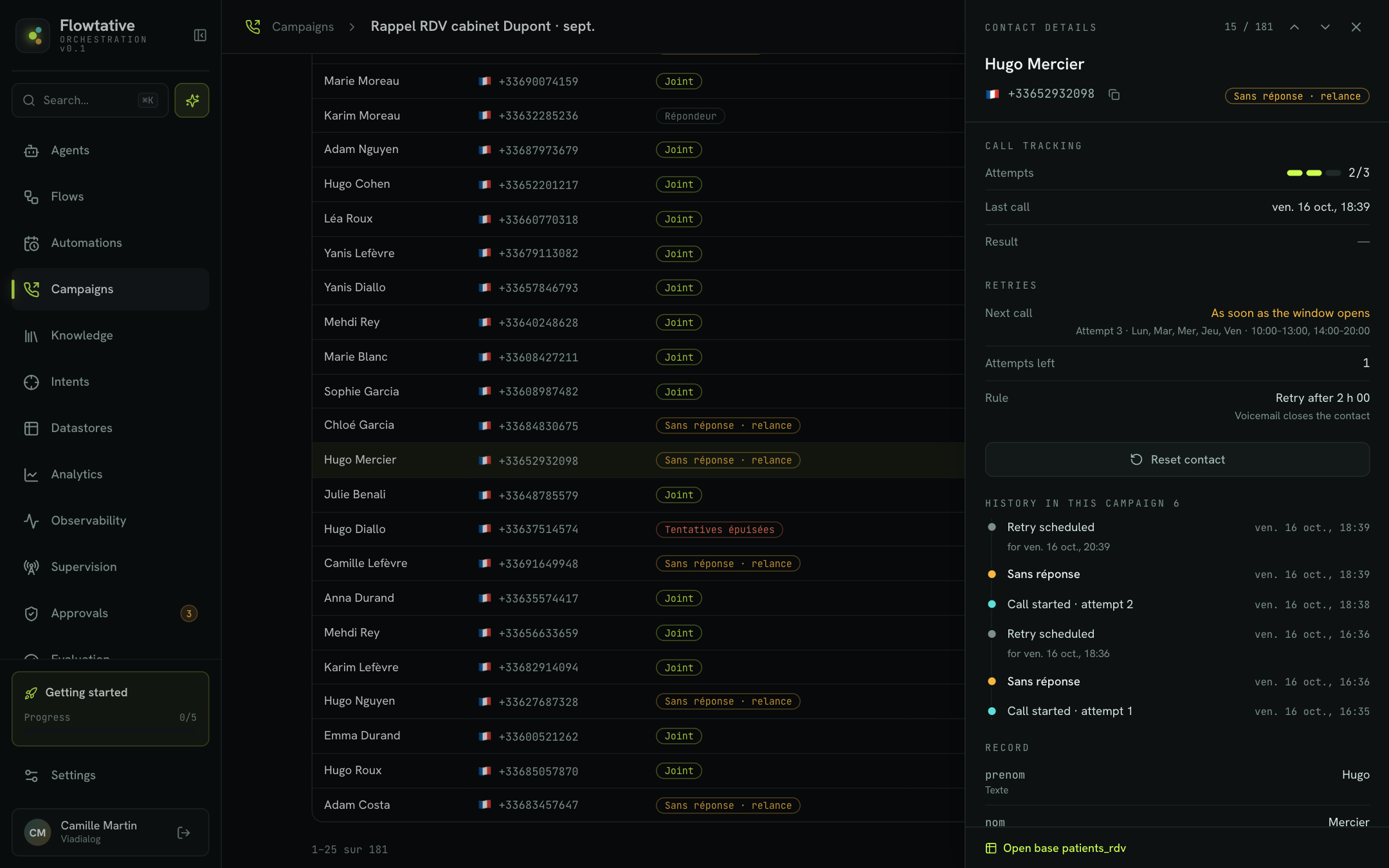
The header shows the name, the number (with a Copy number button) and the status. The contact's position in the list (for example 12 / 181) and the arrows let you move to the neighbouring contact.
| Shortcut | Action |
|---|---|
↑ or k | Previous contact |
↓ or j | Next contact |
Esc | Close the panel |
Call tracking
- Attempts: a gauge and the count, for example
2/3. - Last call: date and time.
- Call duration: when known.
- Result: the business result written by the agent on the record, for example "Appointment confirmed".
- View transcript: opens the conversation, when one exists.
If the record has no valid number, a warning asks you to fix it in the base so the contact gets called.
Retries
| Line | Content |
|---|---|
| Next call | The planned date and the time left ("in 25 min"), or As soon as the window opens, or Call in progress, or None with the reason: Contact reached, Contact declined, Voicemail: contact closed, No attempts left, Invalid number, Campaign closed. If the campaign is paused, "Campaign paused: resumes when restarted" is shown. |
| Attempts left | The number of calls still possible. |
| Rule | The campaign's retry delay ("Retry after 2 h 00") and the voicemail behaviour. |
| Deadline | When set, the date after which the contact is no longer called. |
The "Callback requested: this contact gets priority." box appears when a callback was requested for this contact.
Reset a contact
Resetting puts a contact back to the start, for example after fixing their number or at an advisor's request. The Reset contact button appears for a contact already called (or done) whose number is valid.
- Click Reset contact.
- Read the confirmation: the contact goes back to "To call", attempts are reset, result and callback are cleared. Its record data is unchanged.
- Click Reset.
If the campaign is Running, the contact will be called within the current window; otherwise, when the campaign resumes. The button is greyed out when the campaign is closed or a call is in progress.
Important
Resetting is reserved for account or service administrators. For other roles, it is refused with an explicit message.
History in this campaign
The timeline lists the contact's events for this campaign, newest first: Call started · attempt n, call outcome (Reached, No answer, Voicemail, Manual closing, Blacklist…), Retry scheduled with its date, Released (timeout), Post-coded and Error. The last eight events are shown; Show all expands the rest.
Record
The Record section lists every column of the base, in order, with its type. The Open base link at the bottom of the panel opens the base to fix a value.
The Results tab
The Results tab fills in with the first calls.
| Block | Content |
|---|---|
| Funnel | Audience, Tried, Reached and Goal reached, then the average call duration, talk minutes and average attempts per contact. |
| Call outcomes | The breakdown of outcomes (Reached, No answer, Voicemail…) as counts and percentages, and Contacts by number of attempts. |
| Answer rate by hour | The answer rate for each hour of the day, and the Best slot once an hour has at least 5 attempts. |
| Business result written by the agent | The values the agent wrote in the base's result column, sorted by frequency. |
Goal reached counts reached contacts whose business result is positive: a result such as "RDV annulé", "Refus", "Pas intéressé", "Contestation", "À rappeler" or "À reprogrammer" (cancelled, declined, not interested, disputed, to call back, to reschedule) is not counted.
The Live tab
The Live tab lists the ongoing calls of the campaign's agent, refreshed every 10 seconds. Open supervision opens live call tracking. See Supervision.
Change settings
A launched campaign keeps most of its configuration. The Settings button still lets you adjust what can change along the way.
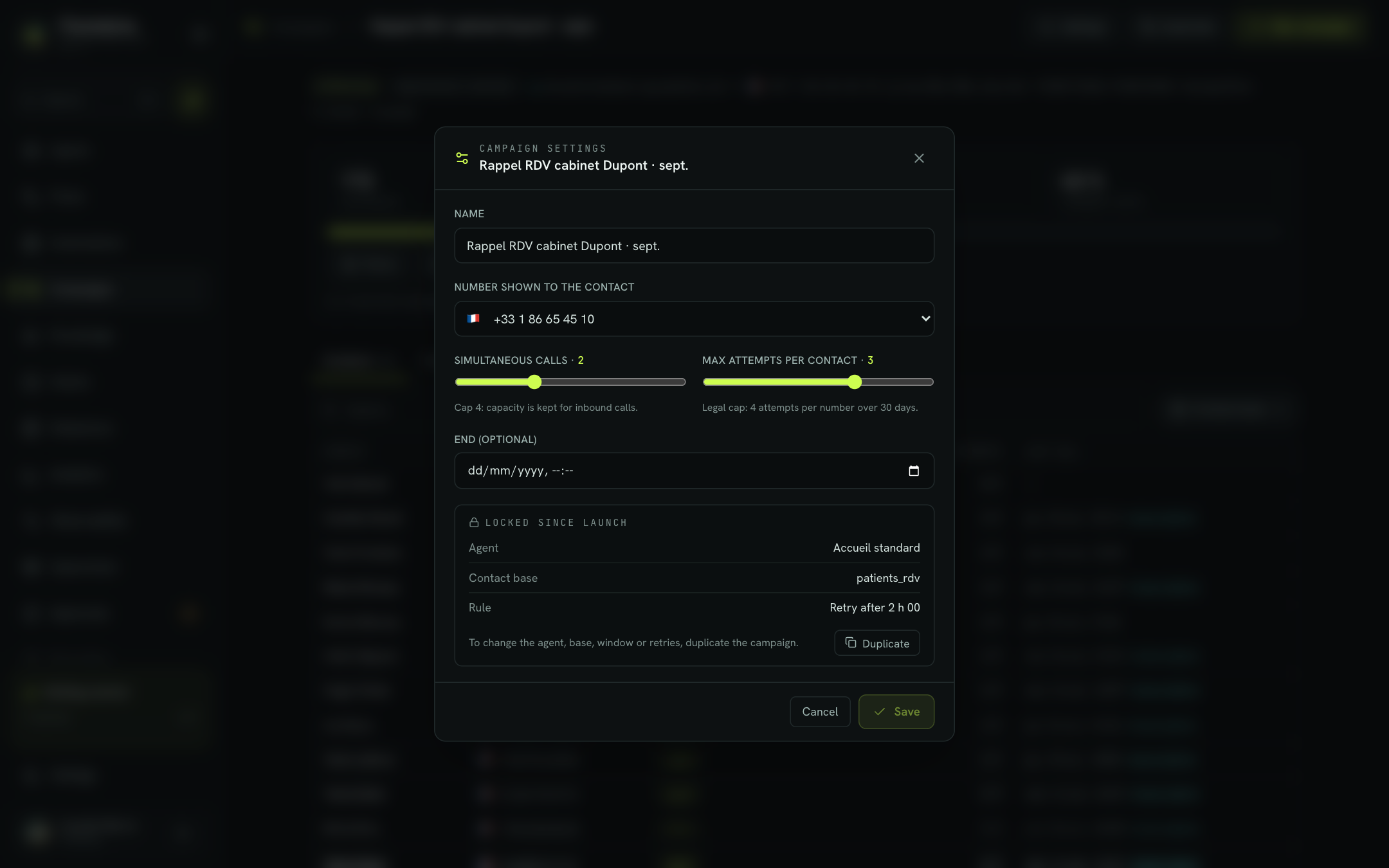
| Field | Description | Rules |
|---|---|---|
| Name | Campaign name. | Required. |
| Number shown to the contact | The number displayed to the contact. | Same checks as at creation. The new number applies to upcoming calls. |
| Simultaneous calls | From 1 to 4. | Cap of 4 to keep capacity for inbound calls. |
| Max attempts per contact | From 1 to 4 (or up to the value chosen at creation, if it was higher). | Legal cap: 4 attempts per number over 30 days. |
| End (optional) | End date and time. No end removes the date. | Must be in the future. |
The Locked since launch box reminds you of the Agent, the Contact base and the retry Rule. To change the agent, base, window or retries, click Duplicate: a new campaign is prepared with these settings as a starting point.
Save is only enabled if you changed at least one field and no rule is broken. A closed campaign can no longer be edited.
Close a campaign
Closing stops a campaign for good: remaining contacts are not called.
- On the campaign page, click Close.
- Confirm with Confirm ("Close for good? Remaining contacts will not be called.").
The campaign moves to Done. Its results remain available and exportable. To restart it, duplicate it.
Delete a campaign
A campaign can be deleted when it is Done, or Paused with no call placed yet (for example an incomplete creation). Otherwise, the button is greyed out with the hint "Close the campaign before deleting it".
- Click Delete (on the campaign page) or the bin (in the list).
- Read what will be removed: the campaign and its retry rules, plus the calling service created for it. The base records and their results are kept.
- Type the exact name of the campaign.
- Click Delete permanently.
Warning
Deletion cannot be undone. Export contacts to CSV first if you want to keep a record of results outside the base.
Learn more
Outbound call campaigns
Understand how an AI agent calls a contact base, with retries, within a legal calling window, and writes the outcome back to each record.
Create a campaign
Launch an outbound call campaign in three steps with the creation wizard, from picking the agent to the test call.
Transcripts
Find, read, replay and export your AI agents' conversations, on voice and chat alike.
Troubleshooting by symptom
a campaign that does not call, contacts never called.