Variables and dynamic data
Personalize prompts and flow blocks with data from the call, the conversation and contact bases, and plan for missing values.
A variable is a placeholder, written between double curly braces, that Flowtative replaces with a value during the conversation: Hello {{caller.name}} becomes "Hello Claire Martin". Variables let a single agent greet each customer by name, reuse an order number given earlier, or pass on a piece of information at the end of the call. This page describes where values come from, where to use them, and how to avoid gaps when a value is missing.
The four data sources
| Source | Example | Where to write it | Form |
|---|---|---|---|
| Conversation context | Caller's number, called number, today's date | Agent system prompt, {{…}} fields of a flow | {{caller.phone_number}} |
| Information collected during the conversation | E-mail spelled out by the customer, record found in a base | {{…}} fields of a flow, paths | {{state.parameters.email}} |
| Columns of a contact base | First name, appointment date of a campaign contact | System prompt of the calling agent | ${contact.prenom} |
| Values supplied at start | Default variables of an automation, test variables | Agent system prompt | {{reason}} |
Writing a variable
The syntax is the same everywhere variables are accepted:
{{name}}or{{group.name}}: the name can be dotted, for example{{caller.phone_number}};- spaces around the name are tolerated:
{{ company }}is the same as{{company}}; - the value is substituted during the conversation, not when saving: the saved text keeps the braces.
Note
A variable name is case-sensitive and must match the name of the data supplied: {{caller.name}} and {{caller.Name}} are two different variables.
In an agent's prompt
The System prompt field of the agent editor (Identity & prompt section) helps you insert variables without typos.
- Place the cursor where you want the variable.
- Type
{{, or click Insert a variable. A menu opens, with a Search a variable… field. - Type a few letters to filter, by name or by label ("pho" finds Phone).
- Click the variable: it is inserted in full, and the cursor is placed right after it.
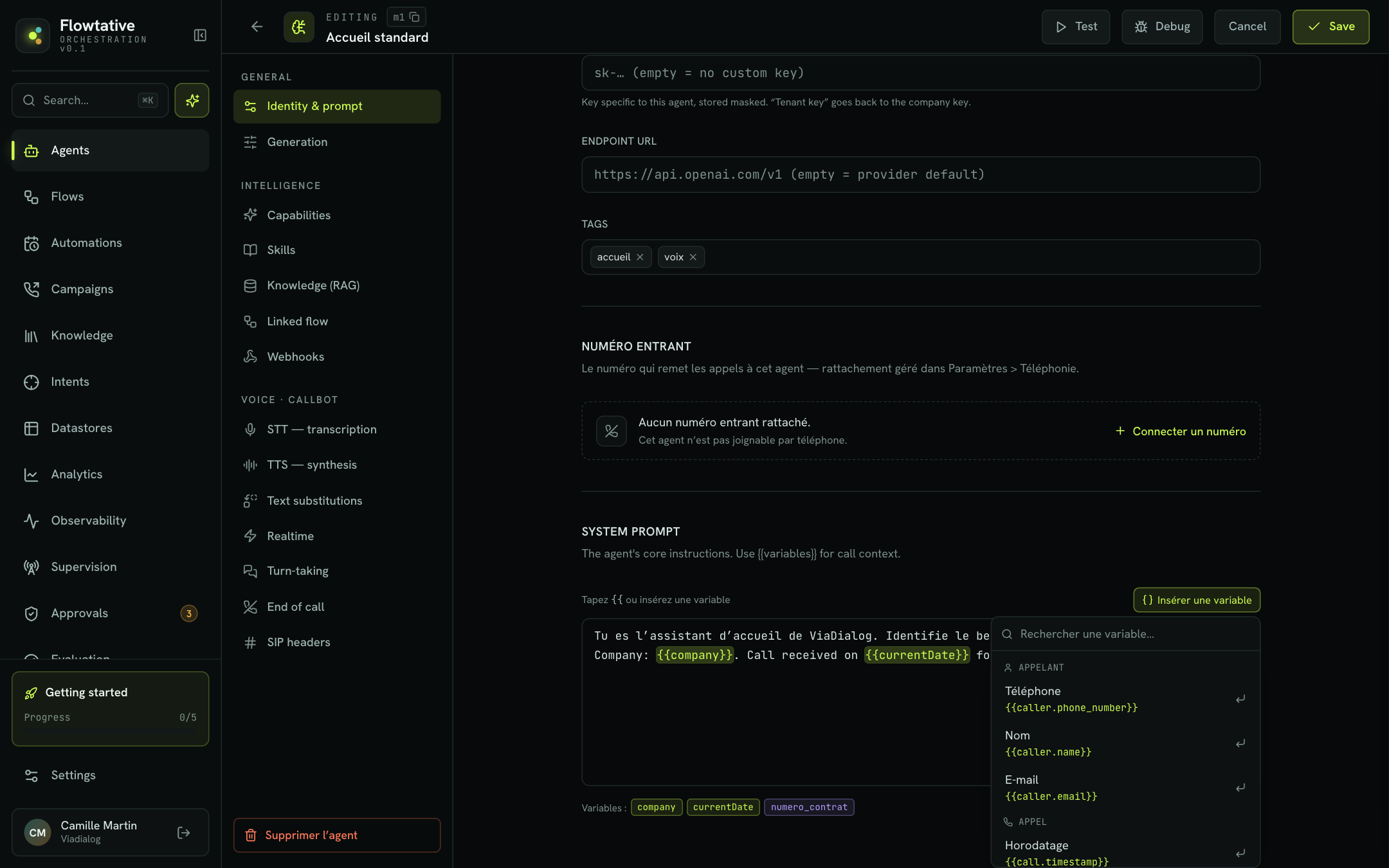
Suggested variables
The menu groups the context variables the editor knows:
| Group | Variable | Label in the menu |
|---|---|---|
| Caller | {{caller.phone_number}} | Phone |
| Caller | {{caller.name}} | Name |
| Caller | {{caller.email}} | |
| Call | {{call.timestamp}} | Timestamp |
| Call | {{call.id}} | Identifier |
| Call | {{calledNumber}} | Called number |
| Context | {{company}} | Company |
| Context | {{currentDate}} | Today's date (auto) |
| Context | {{lang}} | Language |
A suggested variable only has a value if the conversation supplies it. The caller's name or e-mail, for example, are not known from a plain inbound call: they must be passed at start or found during the conversation (see Example: personalize the greeting).
Standard and custom variables
You can write any other name, for example {{contract_number}}: this is a custom variable, supplied at run time. The editor tells them apart:
- in the text, a catalog variable and a custom variable are highlighted in two different colors;
- below the field, the Variables: line lists every variable detected, with the same distinction. On hover, a catalog variable shows its label followed by "standard variable", a custom variable "Custom variable (supplied at run time)".
Tip
Read the Variables: line again after each prompt change. A typo ({{caler.name}}) shows up immediately as a custom variable: a sign that it matches no catalog variable.
Prompt example
Role: reception assistant for {{company}}.
Context: today is {{currentDate}}. The caller is calling from {{caller.phone_number}}.
Goal: identify the reason for the call and route to the right department.
If the contract number {{contract_number}} is empty, ask for it before any other question.
In a flow
In a flow, blocks share a common state: everything a function or a block records during the conversation is stored under state.parameters.<name> and remains readable by all following blocks. To reuse it in a text, write {{state.parameters.<name>}}.
Fields that accept variables
| Block | Fields |
|---|---|
| Trigger | Role prompt, Task prompt |
| LLM agent | Role prompt, Task prompt |
| MCP tool | Arguments (JSON) |
| Message | Message to say, Tone / persona |
| Hang up | Farewell message |
These fields have a "Type {{ or insert" bar with an Insert button, and list the variables they use below the input. Substitution happens each time the block is entered: if a value changes between two visits, the text follows.
Variables suggested by the editor
The Insert menu and the Variables panel of the full-screen editor (Expand button) automatically suggest:
| Origin | Suggested variable | Hint shown |
|---|---|---|
A state write of a function, for example set parameters.email ← args.email | {{state.parameters.email}} | "written by function name" |
The Result variable of a Datastore block, for example client | {{state.parameters.client}} | "result of the "label" block" |
| A variable already written in another field of the flow | The same variable | "used in "label"" |
State writes from every function of the flow are suggested in every block, since the state is shared. If the list is empty, the menu reads "No variable detected — function state writes create them.": start by declaring a state write in a function (see Callable functions).
In the full-screen editor, the Variables panel can be narrowed with Filter…; a click inserts the variable at the cursor, and the used mark flags those already present in the text.
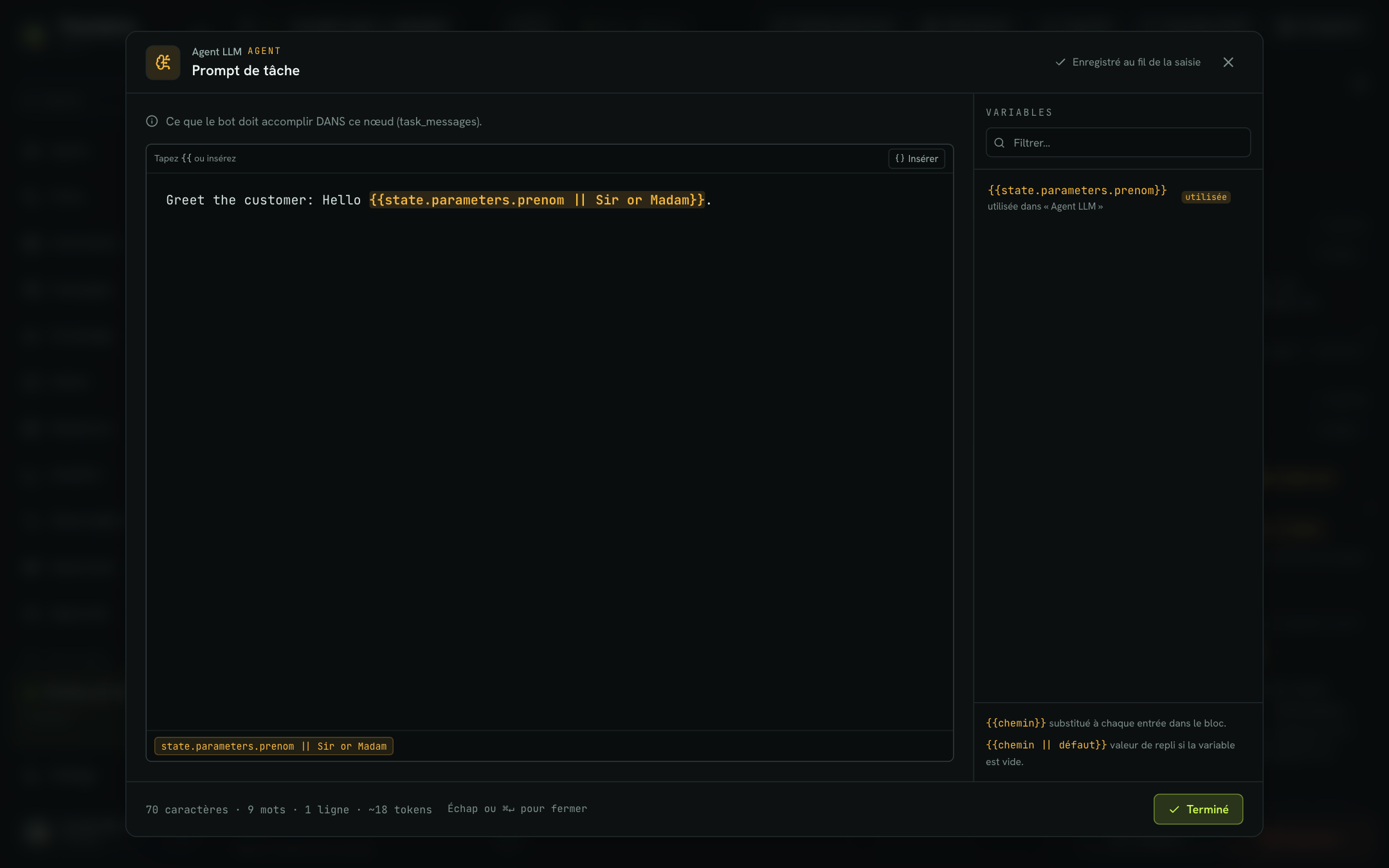
Providing a fallback value
An unresolved variable is replaced with empty text. To avoid a broken sentence, add a fallback value after ||:
Hello {{state.parameters.first_name || Sir or Madam}}, thank you for calling.If first_name has not been recorded yet, the AI receives "Hello Sir or Madam, thank you for calling.".
Fixed values and paths
Some fields do not take a text with {{…}}, but a single value, either fixed or read from the conversation at run time. A value starting with state., args. or result. is a path; any other value is taken as is.
| Prefix | What it refers to | Example |
|---|---|---|
state.parameters.… | A piece of information recorded during the conversation | state.parameters.email |
args.… | An argument supplied by the AI when it calls the function | args.order_number |
result.… | The return of the tool that just ran | result.status |
| Where | Field |
|---|---|
| Callable function | Value of a state write (←), observed value of a branch (if) |
| Datastore | Searched value, Record identifier, record fields |
| Sender, Recipient, Subject, Body (HTML) | |
| SMS | Sender, Number, Message text |
| Hang up | Values of the End parameters |
| Human approval | Default value of a decision field |
In the End parameters and the Human approval fields, a button switches each value between fixed text (abc) and path (path). In path mode, the value is shown preceded by braces, for example state.parameters.orderId.
Important
E-mail and SMS bodies do not mix text and path: Your order state.parameters.number is sent as is. For dynamic content, have a function prepare the full text (state write), then enter its path, for example state.parameters.sms_message.
Data from a contact base
In an outbound call campaign, each call starts from a record of the contact base. The calling agent can reuse the columns of this record in its prompt with the form ${contact.<column>}, where <column> is the exact column name:
Hello ${contact.prenom}, I am calling on behalf of the practice about
your appointment on ${contact.rdv_date} at ${contact.rdv_heure}.
To check the result, the campaign creation wizard shows on its first step:
- the Opening preview: the first sentence of the prompt that starts with "Bonjour", filled in with the first valid record of the base. As long as no base is chosen, or if a column is empty, the variable stays visible as ⟨prenom ?⟩;
- Variables detected in the agent: the columns the agent expects. The wizard recognizes
${contact.column}as well as simple variables without a dot, such as{{rdv_date}}.
If the wizard says "No variable in the agent prompt", the agent will speak without personalization. See Create a campaign.
Warning
The ${contact.…} form is not a {{…}} variable: the agent editor does not highlight it or list it in Variables:, and the agent tester does not replace it. Check your columns in the campaign preview, and keep column names simple (letters, digits, _, no accents or spaces).
Values supplied at start
Two other ways supply variables when the conversation opens:
- Automations: the Default variables (JSON, optional) field, for example
{ "reason": "sales_callback" }, is passed to the agent on every trigger, and an API call can add to it. The agent then reads{{reason}}. See Automations. - Tester: Test variables simulate the data of a real conversation, in chat and in voice. See Test an agent.
Example: personalize the greeting
This path identifies the caller in a "Customers" base, greets them by name and passes their reference on at the end of the call.
Record the information given by the customer
In the "Identification" LLM agent block, add a function bound to a tool that receives the e-mail address as an argument (email), described "When the customer has given their e-mail address". In its detail, add the state write set parameters.email ← args.email.
Look up the record
Add a Datastore block: Database "Customers", Operation Search, Target field email, Searched value state.parameters.email, Result variable client.
Reuse the result
In the Task prompt of the next block, click Insert and pick {{state.parameters.client}} (hint "result of the "…" block"). Example: "Here is the customer record: {{state.parameters.client}}. Greet them by first name and ask what they are calling about."
Pass it on at the end
In the Hang up block, add a Free parameter client_email, switch its value to path and enter state.parameters.email. The value is saved on the transcript.
Checking the values received
| Tool | What it shows |
|---|---|
| Variables: line (agent) and list below the fields (flow) | The variables written in the text. |
| Tester Test variables | The variables detected in the prompt, plus caller.phone_number and call.timestamp, prefilled with sample values. |
| Transcript in debug mode, Start variables box | The variables actually passed when the conversation opened, with their exact names. |
| Diagnostic log, Entered "Node" row | The Variables known when each block is entered. |
| Diagnostic log, orange warning | A variable used in a prompt but missing when the node was entered. |
See Transcripts.
Warning
Debug mode records the conversation variables, which may contain personal data. Turn it on for the time of a diagnosis.
Best practices
- Insert rather than type. The menu avoids typos, which produce an empty variable without any error message.
- Plan for absence. In a flow, add a
{{… || …}}fallback to any variable that may be missing. In an agent prompt, write what to do if the value is empty ("if the name is unknown, ask for it"). - Do not rely on the tester to reveal a gap. It prefills prompt variables with sample values ("Testeur", a test number, today's date). Clear a value in Test variables to check the behavior without it.
- Name things consistently. Pick one name per piece of information (
email,order_number) and keep it throughout the flow: the editor suggests names already in use. - Limit personal data in prompts to what the conversation strictly needs.
Frequently asked questions
Check its spelling in the Variables: line or below the field, then open the transcript in debug mode: the Start variables box and the node entries show the names and values actually received. An unresolved variable in a flow becomes empty text: add a {{… || …}} fallback.
The tester prefills prompt variables with sample values. On a real call, the caller's name is only known if it is passed at start or found during the conversation, for example by searching a datastore with the phone number.
Not in the {{…}} form. These fields take a fixed text or a single path. Have a function prepare the text (state write), then enter its state.parameters.… path.
Yes, when the call starts, provided each key is an identifier (letters, digits, _, optionally dotted) with no conflict with another key, and the whole set does not exceed 16 KB.
On the first step of the campaign creation wizard, Variables detected in the agent lists them, and the Opening preview shows the rendering with a real record.
Learn more
Write an agent's prompt
Write a clear system prompt for a voice or chat agent, with a template to copy, phone-specific rules, common mistakes and a method to improve it in the tester.
Configure a callbot's voice
Set the transcription, voice synthesis, pronunciation, turn-taking and end of call of a voice agent.