Webhooks
Receive the full transcript of each session on your server, signed to prove where it comes from.
A webhook automatically sends the full transcript of a session to the address of your choice as soon as it ends, for example at the end of a call with your callbot. Use it to feed your CRM, archive conversations in your ticketing tool or trigger processing after each call. Each delivery is signed (HMAC-SHA256), so your server can check that it really comes from Flowtative.
How it works
- You create a webhook in Settings > Webhooks: a label and a destination URL.
- You link it to one or more agents from the agent editor, Webhooks section.
- At the end of each session of an agent, Flowtative sends the transcript as a
POSTto every webhook that is linked to that agent, active and subscribed to theBOT_SESSION_ENDEDevent.
Note
Today, only callbot call sessions are sent.
Important
A webhook linked to no agent receives nothing. Creating it is not enough: remember to link it to your agents.
Before you start
- Prepare a public
https://URL that can receive aPOSTrequest.http://URLs are refused ("HTTPS required."). - Plan a safe place on the server side to store the signing secret. It is shown only once.
Create a webhook
- Open Settings, then the Webhooks tab.
- Click New webhook.
- Fill in the fields below.
- Click Create and get the secret.
- In the Signing secret window, click Copy, store the secret on your server, then click I have copied the secret.
| Field | Description | Default value |
|---|---|---|
| Label | Name that identifies the webhook in lists (e.g. CRM, Support archive). | The URL, if you leave the field empty |
| Destination URL | Address that receives the deliveries. Must start with https://. | Empty |
The webhook is created active and subscribed to the BOT_SESSION_ENDED event (end of bot session).
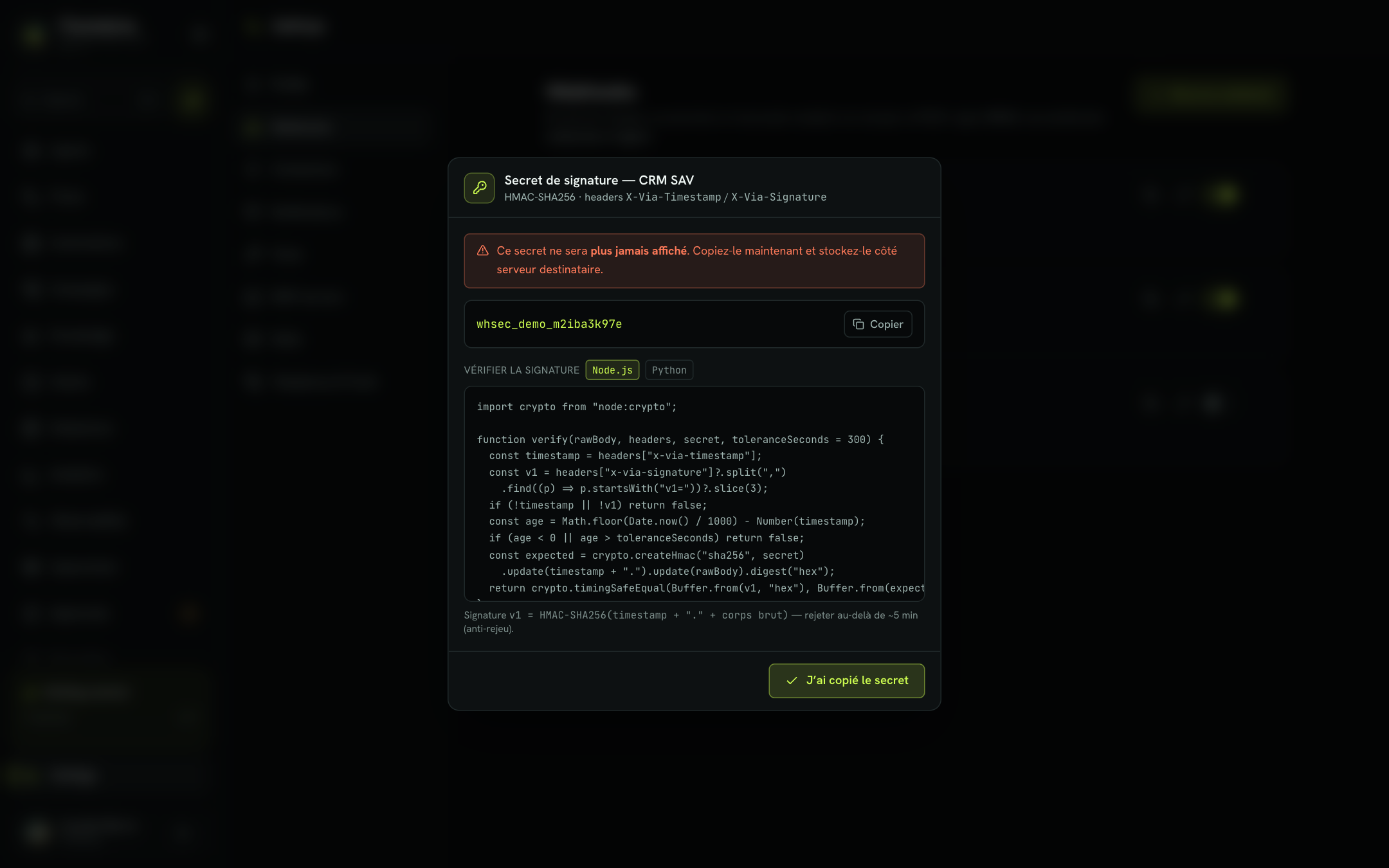
Warning
The secret will never be shown again once this window is closed. If you lose it, generate a new one (see Renew the secret).
If creation succeeds but the secret could not be generated, a message says "Webhook created, but without a signing secret: …". The webhook exists: generate its secret with the key icon.
Link a webhook to an agent
- Open the agent in the editor, then the Webhooks section (Intelligence group).
- Tick the webhooks that should receive this agent's transcripts.
- Save the agent.
You can also click Create a webhook for this agent: the form creates the webhook, subscribes it to BOT_SESSION_ENDED and ticks it right away (Create and link). The secret is shown the same way.
The list flags situations to fix:
| Indication | Meaning | What to do |
|---|---|---|
| disabled | The webhook is switched off in the settings. | Turn it back on in Settings > Webhooks. |
| "Does not listen to BOT_SESSION_ENDED — it will receive nothing" | The ticked webhook is not subscribed to the end-of-session event. | Use a webhook created from Flowtative, which is subscribed by default. |
| "1 link to a deleted webhook" | The agent points to a webhook that no longer exists. | Click Clean up, then save the agent. |
The Manage webhooks (URL, secret, delivery log) link takes you back to the settings.
Manage your webhooks
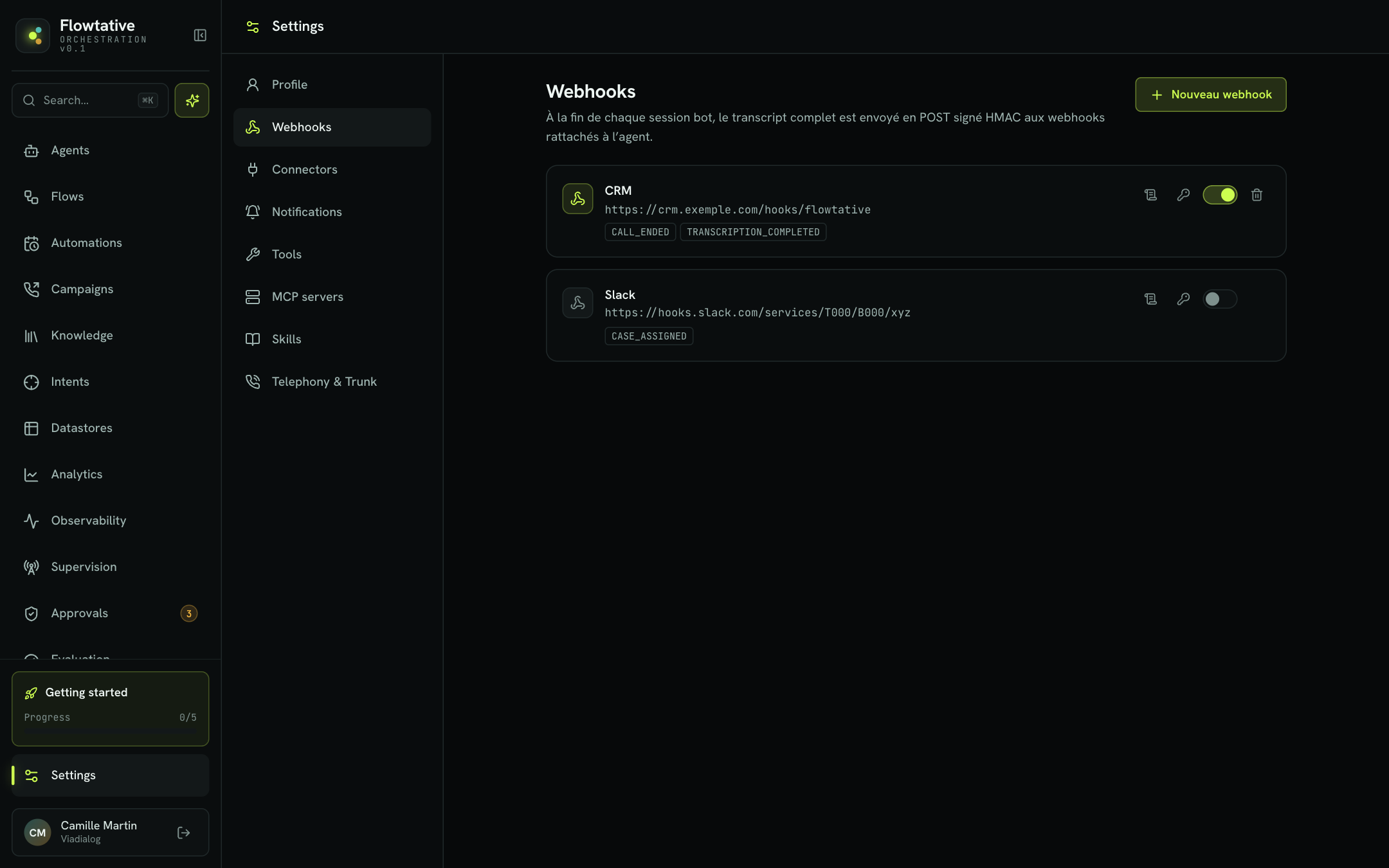
Each webhook appears as a card with its label, URL and events. Beyond 10 webhooks, a Filter by label or URL… bar and pagination appear.
| Action | How | Effect |
|---|---|---|
| Enable or disable | Card switch | A disabled webhook no longer receives deliveries, but stays linked to your agents. |
| View failures | Log icon (Failed deliveries) | Opens the log of deliveries that failed. |
| Renew the secret | Key icon, then confirm | Generates a new secret and shows it once. |
| Delete | Trash can (on hover), then Delete? | Deletes the webhook. Agents that referenced it show a link to clean up. |
Failed deliveries log
Only failures are logged. When everything works, the panel says "No delivery error — only failures are logged.". Each line shows the date and the error description. Click it to see the exact content that was to be sent. The Refresh button reloads the log.
Renew the secret
- Click the key icon (Generate a new HMAC secret).
- The message "Invalidates the old signature — confirm" appears. Click confirm.
- Copy the new secret and update it on your server.
Warning
As soon as you confirm, deliveries are signed with the new secret. Your server will reject deliveries until you update it. Schedule the rotation together with the server-side deployment.
Verify the signature
Each delivery carries two HTTP headers:
| Header | Content |
|---|---|
X-Via-Timestamp | Delivery timestamp, in seconds (Unix time). |
X-Via-Signature | Signature in the v1=<hexadecimal> format. |
The signature is computed as v1 = HMAC-SHA256(secret, timestamp + "." + raw body). To verify it:
- Read both headers. Reject the request if one is missing.
- Reject the request if the timestamp is older than about 5 minutes. This protects you against the replay of an old delivery.
- Recompute the signature on the raw body, before any JSON decoding, and compare it with the
v1value using a constant-time comparison.
The secret window offers these ready-to-paste snippets in Node.js and Python:
import crypto from "node:crypto";

function verify(rawBody, headers, secret, toleranceSeconds = 300) {
  const timestamp = headers["x-via-timestamp"];
  const v1 = headers["x-via-signature"]?.split(",")
    .find((p) => p.startsWith("v1="))?.slice(3);
  if (!timestamp || !v1) return false;
  const age = Math.floor(Date.now() / 1000) - Number(timestamp);
  if (age < 0 || age > toleranceSeconds) return false;
  const expected = crypto.createHmac("sha256", secret)
    .update(timestamp + ".").update(rawBody).digest("hex");
  return crypto.timingSafeEqual(Buffer.from(v1, "hex"), Buffer.from(expected, "hex"));
}
Tip
Verification often fails because the body was decoded and re-encoded before the computation: key order or whitespace change, and the signature no longer matches. Always compute on the bytes you received.
Example: feed the CRM after each call
Your customer service runs an appointment-booking callbot and you want each conversation in the customer's CRM record.
- Your technical team exposes
https://crm.exemple.com/hooks/flowtative, which verifies the signature and then attaches the transcript to the contact by phone number. - You create the
CRMwebhook with this URL and hand the secret to the technical team. - In the callbot editor, Webhooks section, you tick
CRMand save. - You make a test call, then check the Failed deliveries log: if it is empty, the delivery succeeded.
Best practices
- Answer quickly on the server side (a simple acknowledgment), then process the transcript in the background.
- Use one webhook per receiving system rather than one URL that redistributes: you keep a readable failure log for each.
- Disable a webhook rather than deleting it during maintenance of the receiving server: links to agents are kept.
Learn more
Create and configure an agent
Create an agent from scratch or from a template, then set its model, prompt, capabilities, knowledge, flow and webhooks.
Transcripts
Find, read, replay and export your AI agents' conversations, on voice and chat alike.
The life of a call
what happens before, during and after the call.
FAQ and troubleshooting
Find answers to common questions and fixes for the error messages Flowtative can display.