Troubleshooting by symptom
Start from what you observe (silent agent, voice that cuts in, campaign that does not call, tool that does not fire) to find the likely cause and the page that helps.
This page starts from the symptom: what you notice on the phone, in the tester or in a campaign. For each symptom, it gives the most common causes, in the order to check them, and the page that details the setting to fix. If you have a specific error message in front of you, look it up in FAQ and troubleshooting instead, which explains messages one by one.
Find the lead at a glance
| Symptom | Likely cause | Page that helps |
|---|---|---|
| The agent stays silent after a question | gpt-5 model using tools without Reasoning effort set to NONE | Generation |
| A change has no effect | Agent not saved, or pinned flow version | Followed or pinned version |
| The agent says "I don't know" although the information exists | Min score too high, document not Indexed | Connect a base to an agent |
| The base works in chat but not on the phone | Search tool missing or not connected to the agent | The search tool added automatically |
| The bot cuts the caller off | End-of-speech detection too fast | Turn-taking |
| The bot speaks too fast or mispronounces a word | Speed, text substitutions | Configure the voice |
| The bot misunderstands proper names | Keywords (boost) or Hotwords missing, wrong language | STT — transcription |
| Nobody picks up on the number | Number not connected, line disabled, trunk in Drift | Telephony |
| The campaign calls nobody | Campaign Paused, outside the calling window, missing caller ID | Track and manage a campaign |
| The campaign shows Done | Campaign closed, or end date passed | Campaign lifecycle |
| A tool is never called | Tool calls off, tool not linked, vague description | Link tools to an agent |
| An HTTP request or Routing block does nothing | These blocks are not executed during a conversation | HTTP request |
| The webhook receives nothing | Webhook inactive, not checked on the agent, or chat agent | Webhooks |
| A menu, button or section is missing | Callbot-only section, insufficient rights, feature not enabled on your workspace | I cannot see a feature |
The four-step method
Whatever the symptom, the same approach saves time: reproduce, read what happened, measure, then get help.
Reproduce in the tester
Open the agent, click Test, turn on the Debug switch before the first message, then replay the problematic conversation, in Chat then in Voice. The tester uses the saved configuration: save the agent first. See Test an agent.
Read the transcript
Open the conversation in Transcripts. The tool pills show tool calls and their results. In debug mode, the diagnostic log interleaves the flow nodes visited, the variables known at each entry and warnings in orange (for example a variable used in a prompt but missing). See Flow diagnostic log.
Measure with the trace
For a slow or failed answer, click Trace in the transcript header. The waterfall shows the time spent in each step (LLM, Tool, RAG, STT, TTS) and the error message of the failed step. The agent's Audit log must be on. See Analyze a trace.
Ask the assistant for a diagnosis
In the agent editor, click Debug, then pick a suggested request (It does not answer as expected, A tool fails, The flow gets stuck, Review the latest calls). The assistant analyzes the agent's configuration, flow, tools and last five conversations, and changes nothing without your consent. See Debug an existing agent.
Tip
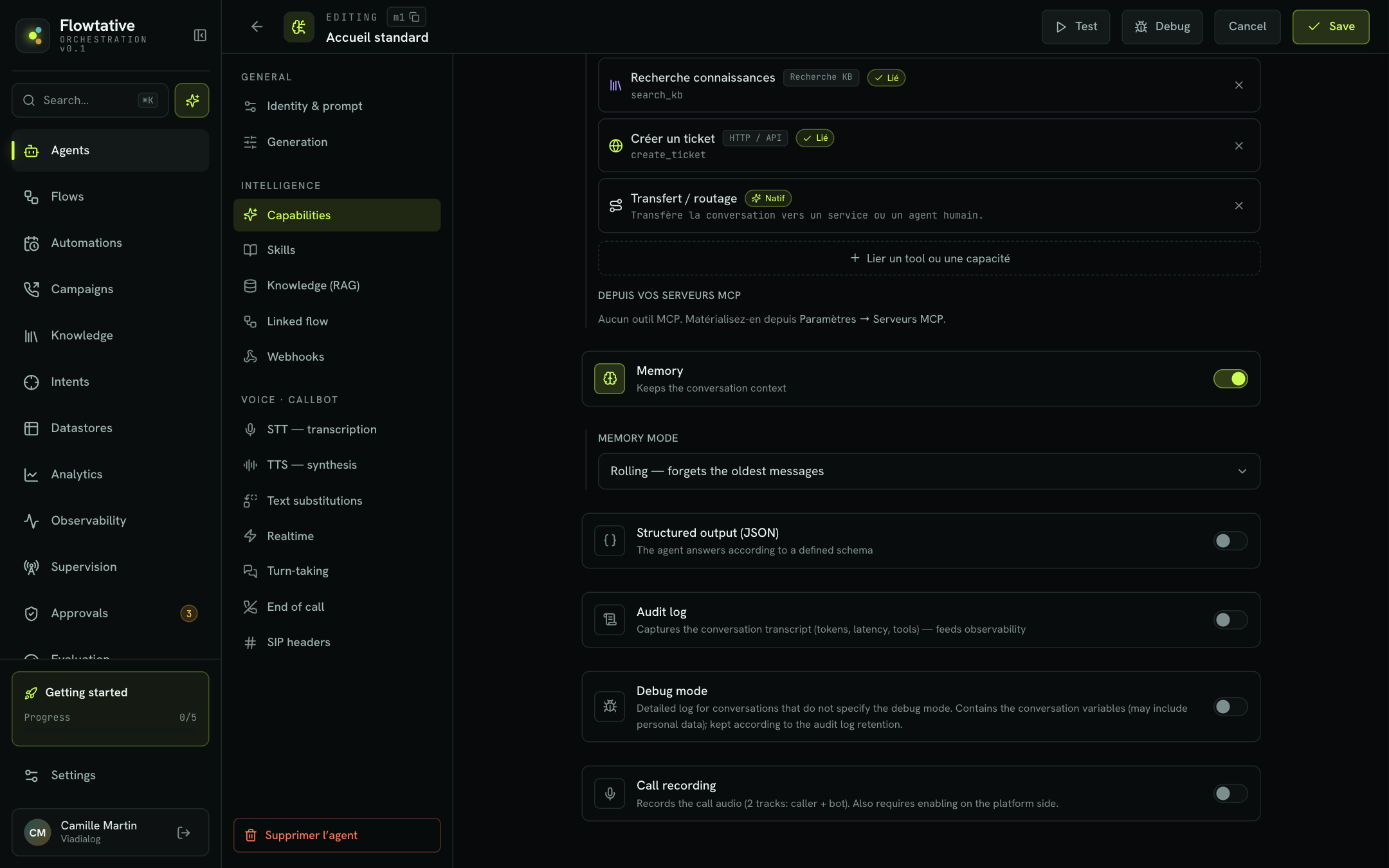
Turn on the Audit log for all your production agents (Capabilities section): without it, the agent shows as not audited in observability and you get no trace, no latency and no error details. Turn on Debug mode only for the time of a diagnosis, because it records the conversation variables, which may contain personal data.
The agent does not answer, answers badly or does not find the information
Check in this order:
- gpt-5 model with tools. If the agent uses tools (tool calls or a flow) with a gpt-5 model, set Reasoning effort to
NONEin the Generation section. Without an explicit effort, the call fails and the bot stays silent. See Generation. - Pending human validation. If the flow contains a Human validation block, the conversation waits for an operator's decision. In the tester, the message Waiting for supervisor approval… is shown. See Human approvals.
- Full conversation. In Strict memory, the conversation stops when the window is full. The tester then shows the token fill and New conversation. Switch to Rolling memory or enlarge the Conversation window. See Memory mode.
- Linked flow not found. If the Linked flow section shows Orphan reference, the agent cannot run its flow. Click Detach, then choose an existing flow. See Orphan reference.
- Error in the trace. Open the trace of the exchange: the failed step shows its error message.
- The agent is not saved. The tester and calls use the saved configuration. Click Save and wait for Saved.
- The flow is not saved. The auto-saved mention means your changes are only kept in your browser. Click Save in the flow editor to create a new version. See Save and publish.
- The flow version is pinned. If the agent runs a specific version (v8, for example), a new flow version does not apply. In the agent's Linked flow section, pin the new version or choose Latest — follows the flow's changes, then save the agent.
- The test conversation is old. Click Reset in the tester to start a fresh conversation.
- Vague prompt. Structure the system prompt into role, goal, behavior, tone and guardrails, and say what to do when the agent does not know ("offer a transfer rather than making something up"). See Write an agent's prompt.
- Temperature too high. For support or an FAQ, a value between 0.1 and 0.3 gives more consistent answers.
- Variable not provided. A
{{…}}variable in the prompt received no value. In debug mode, the transcript flags a variable used in a prompt but missing when entering the node. Simulate values with the tester's Test variables. - Too many linked tools. Each linked tool is offered to the model at every turn: a short catalog makes its choices more reliable.
- In Knowledge, check that the document has the Indexed badge, not Processing or Failed. See Track your documents.
- Ask the question in Test semantic search…, with a customer's words. If "No segment found." is shown, rephrase the document or add to the base. See Test the search.
- In the agent, Knowledge (RAG) section, check that Enable RAG is on and that the right Knowledge base is selected.
- Lower the Min score if too few passages come up; set Search to
HYBRIDif the question uses different words from the document. - Say in the prompt when to consult the base.
After changing the Embeddings configuration, run Re-index in the base Properties: without re-indexing, older documents are no longer found correctly.
In a voice call, RAG does not apply: the agent consults the base only through the KB search — base name tool. Open the agent's Knowledge (RAG) section: the message "Base also available on voice calls, through the tool … connected to the agent." confirms that the tool is connected. Otherwise, save the agent so that Flowtative creates and connects it. See Connect a base to an agent.
The search tool keeps the settings it had when it was created. Edit it in Settings > Tools. See The search tool added automatically.
Raise the Min score, reduce Max results, or split the base by scope (a "Customer service FAQ" base, a "Product catalog" base): one targeted base per agent gives more precise answers.
The voice cuts in, speaks too fast or does not understand
This is typical of dictation (contract number, address). In Turn-taking, try the Detection mode Smart Turn (AI judges each pause) or increase the Resume delay (VAD). With Deepgram, Endpointing also sets the silence after which a sentence is considered finished. For digit entry, offer the keypad instead: set the Expected length in the block's Phone keypad (DTMF). See Turn-taking and Phone keypad.
Note
Turn-taking settings are ignored in Realtime mode and with Deepgram Flux.
Increase Min. words to interrupt in Turn-taking: the caller will need to say more words to interrupt the bot. In Realtime mode, interruption is set with Interruption (barge-in). For keypad presses, turn off The 1st key interrupts the bot in the relevant block.
In TTS — voice synthesis, set the Speed (from × 0.70 to × 1.20), keep an understated Style and check the rendering with Listen with these settings on a real sentence from your journey. See Configure a callbot's voice.
Add an entry in Text substitutions: SAV → S A V, RDV → rendez-vous. For a more general pattern, use a regex rule. See Text substitutions.
- With Deepgram, add these words to Keywords (boost), with a weight if needed (
ViaDialog:2). - With VIASPEECH, add them to Hotwords (vocabulary).
- Check that the Language matches your callers' language (
fr).
Then compare what the caller said (replay of the Caller track) with what was transcribed, in Transcripts.
Open the trace of a slow exchange or the agent's Latency breakdown (average) in Observability to see which step takes the time:
| Slow step | Lead |
|---|---|
| LLM | Faster model, shorter prompt, fewer linked tools. |
| Tool | Slow tool or API: test the tool in Settings > Tools. |
| TTS | Voice model designed for recording: the editor warns you; prefer Flash v2.5 or v3 Conversational. |
| STT | High Endpointing and End of utterance delays. |
See Agent panel.
In End of call, keep Wait for the end of the message before hanging up on. See End of call.
Add this tool's ID to End-of-conversation tools (End of call section): calling it will mark the end of the conversation.
The call does not go through
| Cause | What to do |
|---|---|
| Agent never saved | Save the agent: the voice test requires it. |
| Microphone blocked by the browser | Allow the microphone for Flowtative, then click Start the call. |
| Browser too old | Use a recent version of Chrome, Edge, Firefox or Safari. |
| Test variables too large | All variables together must not exceed 16 KB. |
| Invalid variable key (triangle) | Rename it: letters, digits, _ and dots only. Otherwise it is not sent. |
See Test an agent.
In Settings > Telephony & Trunk, Inbound numbers part:
- The number is in the list and an agent is connected to it (the link line is lit).
- The line switch is on: a disabled line appears dimmed.
- The connected agent is the right one. Otherwise, click its name and choose another.
From the agent editor, the Inbound number section also lists the numbers that route calls to it, with the disabled mention where relevant. See Telephony.
Check the SIP trunk status. Drift: open the trunk with Edit, then save to realign the platform. Missing from the platform: the trunk no longer exists, delete it and create it again. Not verified: try again later with Refresh. Also check that the called number is in the trunk's Routed numbers. See Synchronization statuses.
The number is connected to another agent. In Inbound numbers, click the agent's name and choose the right one. The next calls reach the new agent.
The transfer is set on the Hang up block, in End parameters: the Call transfer shortcut adds the Transfer number and the Transfer mode. Check that the flow actually reaches this block (diagnostic log), that the number is complete and that the mode fits: BRIDGE keeps the bot on the line, REFER takes it out of the call. Transfer only applies to voice calls. See Transfer to an advisor.
The campaign does not call or shows as done
| What you see | Cause | What to do |
|---|---|---|
| Scheduled phase | The start date has not been reached yet. | Wait for the date, or duplicate the campaign with an immediate start. |
| Paused phase | The campaign was paused, or created paused because its configuration was incomplete. | Complete what is indicated, then click Resume. |
| Missing caller ID box | No caller ID is set: the campaign cannot call. | Choose a number, Add this number, then Resume. |
| Running phase, but no calls | You are outside the calling window: the campaign waits for the next range. | Check the days, ranges and time zone of the window. Public holidays are excluded by default. |
| audience at 0 | No callable contact. | See the next question. |
- Excluded · invalid number: the record has no valid number. Fix it in the contact base, then reset the contact.
- Prospecting: records without positive consent in the consent column (empty, "non", "no", "false", "0") are excluded.
- Legal cap: contacts already solicited 4 times in 30 days are excluded from the audience.
- Done after a Voicemail: with Voicemail closes the contact checked (default), a voicemail ends the contact.
- No attempts left: all attempts have been used.
The Contact details panel shows, under Next call, why a contact will no longer be called. See Contact details.
A campaign moves to Done when you close it or when its end date has passed. It no longer calls. To start again with the same settings, click Duplicate. See Campaign lifecycle.
This is expected: as long as it is not closed and its end date has not passed, scheduled retries can still go out. Click Close if you want to stop it for good.
A retry never falls outside the calling window: if the delay takes it out of the current range, it is moved to the next range. The contact's Next call shows the planned date. See Retries.
The agent writes the business result only if it has a tool that updates the base and if its prompt asks it to. Add a column with an explicit name (resultat, statut, issue…) and ask the agent to write the conversation outcome in it. See The outcome on each record.
A tool, webhook or automation does not fire
- In the agent's Capabilities section, Tool calls is on.
- The tool appears in Linked tools with the Linked status. To create means no tool has this ID; Error means it could not be loaded (click Retry, do not recreate it).
- The tool's Description says, from the AI's point of view, when to use it, and each parameter is described with a format example.
- In a flow, the function's When to call it? description is explicit.
A function runs a tool only if its name exactly matches the tool's ID, case included. Otherwise, it only serves as a transition, with no visible error. If you changed the tool's ID after using it in a flow, fix the function name. See Use a tool in a flow.
Test it in Settings > Tools with Test: the result shows Success or Failure and the response received. Check the URL, the headers and the ${name} parameters. In Observability, the agent's Tool reliability gives the success rate of each tool, and the trace shows the beginning of the response returned. An MCP tool marked missing no longer exists on its server.
These blocks run a tool as soon as they are entered, without going through the AI. If the required tool does not exist in your workspace, the block panel shows a warning and the flow fails on load. For a Datastore block, click Create the tool now. In the agent, a banner also flags a tool called by the linked flow but not found. See Flow tools added automatically.
This is expected: their settings are kept with the flow, but are not executed during a conversation. To call an API, create an HTTP / API tool and call it from a function or an MCP tool block. To route a journey, use a function with a Conditional Output. See HTTP request.
The Update operation replaces the whole record: a field left empty is lost. Fill in every field, for example from the result of an earlier search. See Datastore.
- The webhook is active in Settings > Webhooks.
- It is checked in the agent's Webhooks section, and the agent has been saved.
- It does not show "Does not listen to BOT_SESSION_ENDED — it will receive nothing".
- The agent is a callbot: today, only callbot call sessions are sent.
- The Failed deliveries log contains no error.
See Webhooks.
- Automation active is on, or the list switch is on.
- The Upcoming runs shown match the expected time zone and time.
- The agent's flow is Autonomous: only blocks with no customer exchange can be reached from its entry. See Make a flow autonomous.
- The automation's History shows Failed (with the error message) or Rejected, for example for an API call on an automation that does not have the API call trigger.
See Automations.
I cannot see a feature or I do not have the rights
The agent is set up for chat. Click Enable voice (callbot) to add the group. The Call recording option and end-of-session webhooks also only concern callbots. See Configure a callbot's voice.
Your role does not allow this action. For example, resetting a campaign contact is reserved for the Administrator and Service admin roles, and changing another member's role can be refused ("Could not update the user (403)."). Ask an administrator to check your role in Team. See Roles.
This is by design: your role is shown read-only on your row. Ask another administrator.
A platform skill (platform badge) is read-only for your company, as is a skill published from a wiki. To adapt a platform skill, create a company skill with the same name: that is the one your agents will load. See Skills.
The version button (v12, for example) appears after the flow is saved for the first time. A flow that was never saved has neither history nor a version to link to an agent.
Real-time supervision is not yet enabled on your workspace. Contact your ViaDialog representative. Finished conversations remain available in Transcripts.
The Call recording option must be on in the agent's Capabilities, the agent must be a callbot, and recording must also be enabled on the platform side. Without a recording, the page shows "No recording available for this conversation."
Its Audit log is not on: only its volume is known. Turn it on in the agent's Capabilities section. See Observability.
Before contacting support
Gather these items: support can then find the conversation directly.
- the session ID, copied from
id:in the transcript header; - the agent ID, copied from its editor header;
- the exact error message and its code in parentheses (see Read an error message);
- the approximate time of the call and the number called.
Warning
CSV and JSON exports of a transcript and the diagnostic log contain the data exchanged during the conversation. Share them only with the people who need them.